 MyRecover



Copy and Paste Not Working Windows 11? Try These 9 Fixes
When copy and paste not working Windows 11, daily tasks grind to a halt. This article covers why windows 11 copy and paste not working, including corrupted system files, conflicting apps, and outdated drivers, plus practical repairs.

By Delores / Updated on April 8, 2026


Clipboard/Copy/Paste Not Working in Windows 11
In the past few days, my clipboard has not been working consistently. It sometimes cannot copy images, or ends up pasting a previously copied image instead.
For the record, my Surface Pro 6 has 80% ram usage even with several Chrome tabs, WhatsApp, Telegram, and Adobe Acrobat open, so it's not a RAM issue. And yes, I've tried disabling these apps to see if they’re interfering with my clipboard function. Besides, I need a clipboard for the sole purpose of doing my work in these apps, so disabling any apps isn’t really an option.
Has anyone had the same issue and managed to solve it permanently? Do share.
- Question from reddit.com
If you’re stuck in the same situation, copy and paste not working in Windows 11 CMD, VMware, or other applications, like Excel. Don’t worry, you will find effective solutions to fix it quickly. Now, let’s get started.
Why is Copy and Paste Not Working in Windows 11?
When you hit Ctrl+C and Ctrl+V and suddenly—nothing. No copied text, no pasted image. Why is copy and paste not working in Windows 11? It might be due to the following reasons:
- Corrupted Clipboard. A corrupted clipboard can prevent the system from copying and pasting files.
- A temporary glitch in Windows Explorer.
- Conflicting Background Applications. Third-party clipboard managers, Windows Game Bar, remote desktop tools, and even certain antivirus software can interfere with the native clipboard.
- Corrupted System Files and Drivers. A faulty update, an abrupt shutdown, or even a sneaky malware infection can damage system files that handle keyboard input and clipboard functions. Similarly, outdated or corrupted keyboard drivers can make your Ctrl keys unresponsive.
How to Fix Windows 11 Ctrl+C, Ctrl+V Not Working? 9 Fixes
Different proven solutions can fix it quickly. Let’s check it out.
Way 1. Restart File Explorer
Windows Explorer does more than show your files; it also manages the clipboard and taskbar. Restarting it can flush out minor glitches.
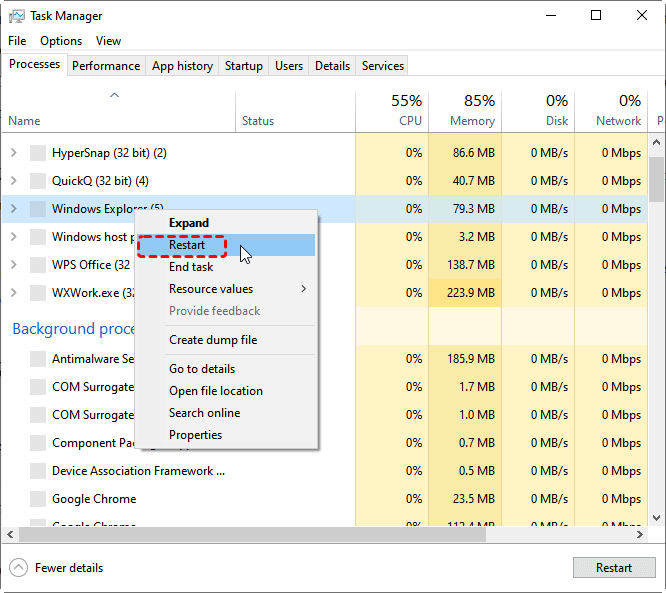
1. Open Task Manager using Ctrl+Shift+Esc.
2. Find Windows Explorer in the list, right-click it, and select Restart.
Way 2. Restart Your Computer to Reset the Keyboard
First, restart your PC to reset your keyboard, as it reloads drivers and clears temporary input glitches. If issues persist, uninstall the keyboard in Device Manager and restart to force a driver reinstall. Then check if the keys work again.

You can also go to Settings > Time & Language > Language & Region and ensure your default keyboard input method is correct.
Way 3. Update or Reinstall Keyboard Drivers
1. Right-click the Start icon and choose Device Manager to open it.
2. Expand Keyboards, right-click your keyboard driver, and select "Update driver" or "Uninstall device".
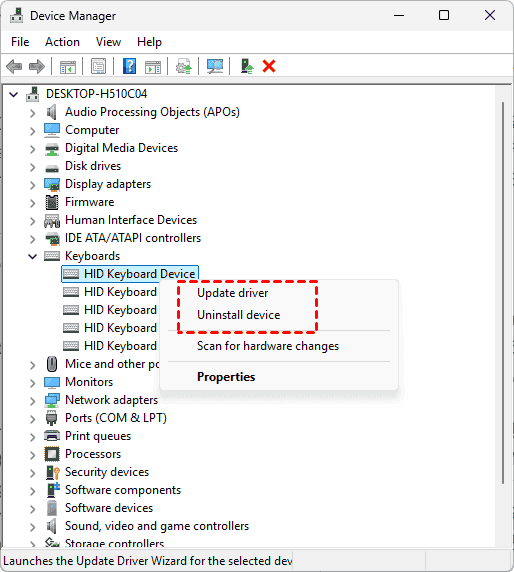
If you choose to uninstall the device, then restart your computer to allow Windows to reinstall it automatically.
Way 4. Change Command Prompt Edit Options
If copy and paste is not working, only happening in CMD, you can try the steps below to change the Command Prompt edit options:
1. Please open the Command Prompt as administrator.
2. Right-click the title bar, select Properties.
3. Tick "Enable Ctrl key shortcuts", "QuickEdit Mode", and "Use Ctrl+Shift+C/V as Copy/Paste" in the Edit Options section.
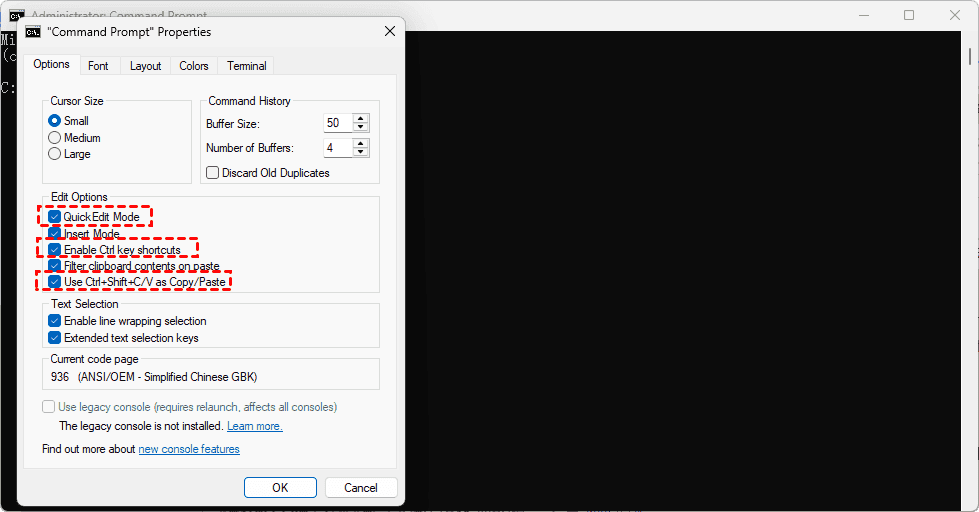
Then you can try to copy and paste again. Or try Ctrl+Shift+C (copy) and Ctrl+Shift+V (paste) within the CMD window.
Way 5. Clear Clipboard
You can fix the corrupted clipboard using the steps below:
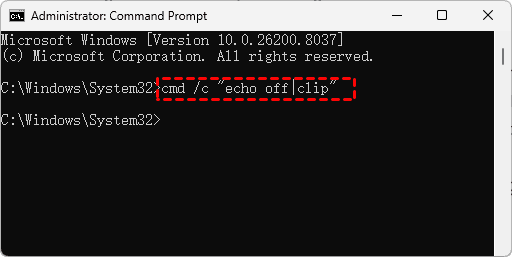
1. Open the command prompt as an administrator.
2. Type the following command and hit Enter:
cmd /c "echo off|clip"
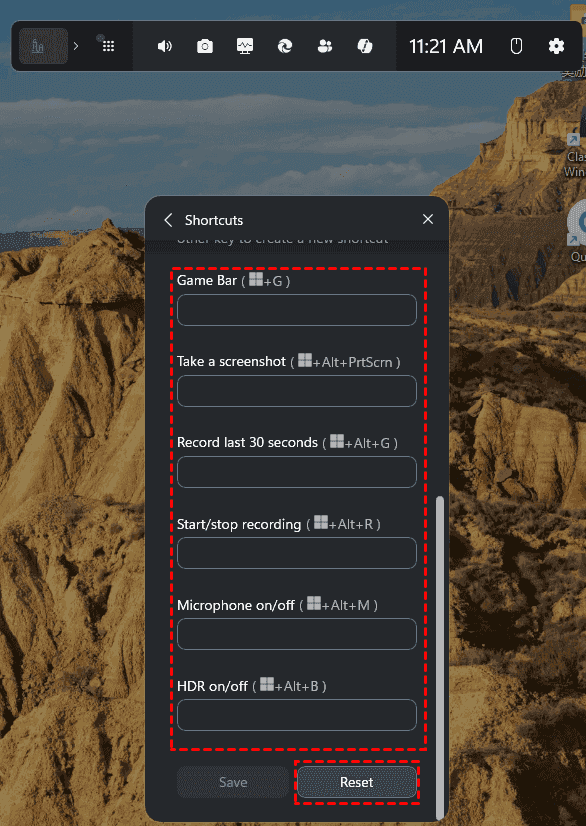
Way 6. Disable/Reassign Windows Game Bar
Windows Game Bar frequently hijacks Ctrl+C. Here is how to disable Windows Game Bar:
1. Press Win+G.
2. Go to Settings > More Settings.
3. Then Shortcuts.
4. Hit Reset to clear the assignments.
Way 7. Fix Corrupted System Files
If your system files are corrupted, you can try SFC and DISM commands to fix them. Here it is:
1. Open Command Prompt as administrator, to fix system image issues, run DISM /Online /Cleanup-Image /RestoreHealth.
2. Then type sfc /scannow, and press Enter to repair corrupted system files.

Way 8. Disable Third-party Tools
Disable these tools as Clipboard managers, macro software, or specialized software (like VIM in IDEs) might conflict with shortcuts.
Way 9. Clear Clipboard History
Windows 11 has a hidden gem called clipboard history. It lets you store multiple items and even sync across devices. But if it’s turned off or glitchy, it can break basic cut/paste.
Here is how to clear Clipboard history:
1. Press Win + V to open Clipboard history.
2. If it shows you the clipboard history, hit clear all.
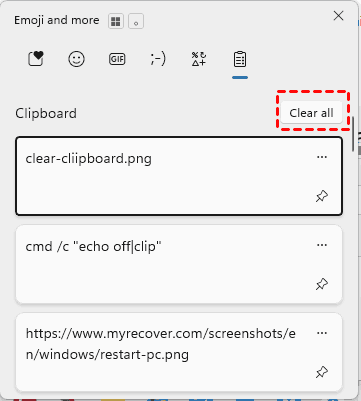
How to enable copy and paste in Windows 11/10/8/7 if it shows “Can’t show history”? Click “Turn on”. Then toggle “Clipboard history” to On in the settings that appear.
After that, cut and paste should be working in Windows 11.
How to Recover Lost Files When Copy and Paste Fails
You tried to cut and paste a folder full of important documents, the paste failed, and now the original files are gone. The cut and paste not working in Windows 11 can lead to data loss because the cut command removes the original before the paste command confirms. If that happens, don’t panic—and definitely don’t write new data to your drive.
Fortunately, here comes the powerful Windows data recovery software MyRecover to help. It's designed to retrieve lost, deleted, or misplaced files from HDDs, SSDs, USB drives, and more. Even if Windows 11 copy and paste not working caused your files to vanish, MyRecover can often bring them back intact.
Key Features:
- Fast Recovery. MyRecover uses AI search to find all your lost files and recovers files fast with the highest file recovery rate, 99%.
- 1000+ File Formats. You can recover any type of files, like documents, Excel, archives, emails,
- 500+ Devices. Such as HDD, SSD, SD Card, USB Drive, music player, video player, PS4/5, Xbox One, etc.
- Unlimited Files Recovery. Recovering unlimited files at a time, saving time and effort.
- Preview Before Recovery. You can ensure all the recovered files are intact and the right files.
How to recover lost files due to cut and paste not working with MyRecover, try this:
1. Please download and install MyRecover. Install it on a different drive than the one you're recovering from.
 100% Secure
2. Tap Deleted Files Recovery, hover over the drive where the deleted files were located before, and hit Scan. Wait for the process to complete.

3. Choose the files you need, and hit Recover.

4. Select a target location to keep them safe.


- Notes:✎...
- By default, MyRecover shows files by file type and file path. You can also search files by file name, size, extension, modified date, etc.
- You can upgrade to MyRecover Technician to enjoy more powerful features, like recovering files from unlimited computers, etc.

 MyRecover
- Recover Deleted Files Easily with Simple Clicks
- 1000+ File Formats Supported
- Support HDD, SSD, External Hard Drive, USB Drive, SD Card, etc.
- Quickly Find Files Using File Types, Name, Size, etc.
- Preview Files Before Recovering
- Recover Unlimited Data
 100% Secure
FAQs About Copy and Paste Not Working in Windows 11
How do I reset the clipboard in Windows 11?
A: Easy and safe. Press Win + V, click the three dots, and select “Clear all” to wipe history. For a deeper reset, open Command Prompt as admin and type echo off|clip. If Windows 11 copy and paste not working persists, run sfc /scannow and reboot.
Can a virus cause copy and paste not working in Windows 11?
A: Yes, but less common. Some malware hijacks clipboard functions to steal crypto addresses or logins. If copy and paste are not working, Windows 11 comes with pop-ups, slowness, or browser changes, run a full scan with Windows Defender or Malwarebytes.
Why does cut and paste not work in Windows 11, but copy and paste works?
A: Cut requires write permissions to remove the original, while copy only reads. Protected folders (like System32) or drives with limited permissions can block cut silently. Some apps also lock files, preventing cuts but allowing copies.
Does restarting Windows Explorer fix copy paste not working in Windows 11?
A: Absolutely, and try it first. Windows Explorer manages the clipboard and taskbar. When Windows 11 copy and paste is not working, a stuck Explorer process is a top suspect. Press Ctrl + Shift + Esc, find “Windows Explorer,” right-click, and select “Restart”.
How do I recover files lost when cut and paste failed in Windows 11?
A: Stop using the drive immediately to avoid overwriting data. Use a recovery tool like MyRecover. Install on a different drive, scan the original, preview files, and recover to a separate location. Built-in “Previous Versions” only works if File History is on.

Stay Updated With Our
Latest Tips
Add us as a preferred source on Google to never miss helpful guides.
 Add as preferred source >>