 MyRecover



Compare All: Shadow Copy vs. File History for Windows 10 & 11
This guide clarifies Shadow Copy vs File History by comparing their core purposes, how they work, and ideal use cases. Learn which Windows tool to use for file recovery or system restore, including specifics for Shadow Copy vs File History Windows 11.

By Delores / Updated on March 12, 2026


Preface: Shadow Copy and File History
Data loss is a nightmare waiting to happen. That's why the Windows built-in backup service matters. Understanding the key differences between shadow copy and File History helps you to choose the right tool once you are facing a data loss situation.
Shadow copy vs. File History, which one to choose? It’s not about which tool is universally "better", but about knowing which one is your best ally in a specific crisis.
This guide will cut through the confusion, comparing these two guardians of your data so you can build a backup strategy that doesn’t let you down.
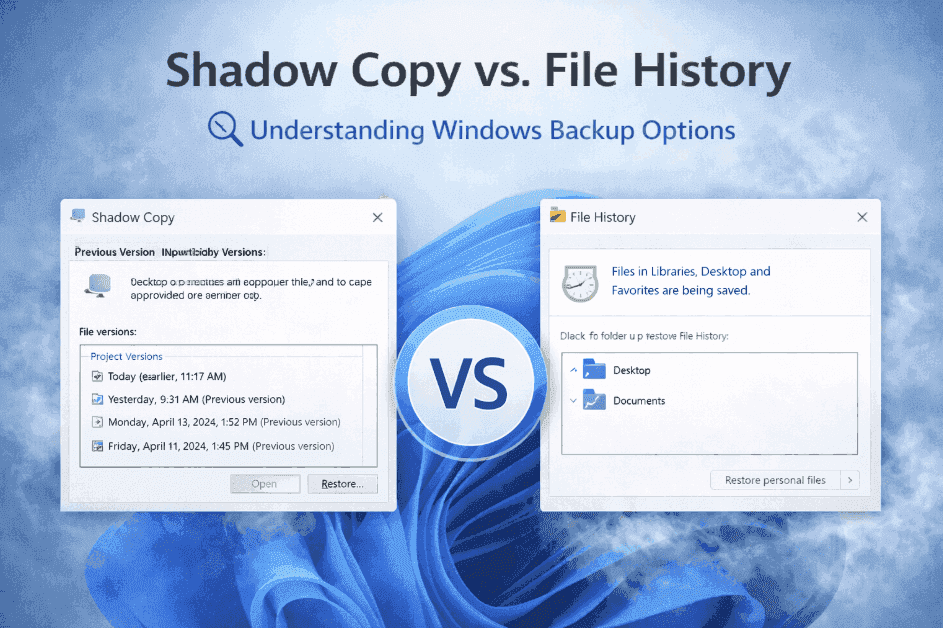
What is Volume Shadow Copy Service (VSS)?
The Volume Shadow Copy Service, or VSS, is a background system service that creates point-in-time snapshots, known as "shadow copies" of your entire drive or specific volumes. These snapshots are taken at scheduled intervals or triggered automatically before significant system events, such as a Windows update installation.
Instead of duplicating every file, VSS efficiently records the changes made since the last snapshot. This functionality is accessed by right-clicking a file or folder, selecting "Properties", and navigating to the "Previous Versions" tab, where you can restore that item to a previous state.
The primary purpose of VSS is to enable system and data restoration to a known stable point, providing a crucial recovery method for accidental file changes or software errors without performing a complete system restore.
What is the Windows File History Feature?
File History serves a different, more focused role. It functions as an automated versioning system dedicated exclusively to your personal files. It operates by continuously backing up files located in your user folders—such as Documents, Pictures, and Desktop—to a separate external drive or network location.
After initial configuration, where you set the backup frequency, it runs independently. To recover a file, you use the dedicated File History application to browse a chronological timeline of all saved versions, preview them, and restore the specific one you need.
This tool is designed for the ongoing, version-specific protection of your critical user data.
Key Differences: Shadow Copy vs. File History
Now, we listed the main differences between Shadow Copy and File History, check them:
Scope of Protection and Data Coverage
Here’s the fundamental split. It protects everything on a volume: your operating system, installed programs, and your personal data. It’s great for recovery from system-wide issues.
File History focuses exclusively on user files within known libraries and folders. You wouldn’t use it to recover a corrupted system DLL, but it’s perfect for retrieving your previous personal files.
Frequency and Automation of Backups
Shadow copies are typically taken once a day by default or triggered by system events. You have some control, but it’s not primarily designed for constant, granular versioning.
File History is all about automation and frequency. You can set it to back up changes every 10 minutes, creating a near-continuous version history that’s invaluable for active projects.
Storage Location and Management
Shadow copies are stored locally on the same drive (in a hidden system folder), which is both a pro and a con. It’s fast and integrated, but if the drive fails, you lose both the original data and the shadow copies.
File History demands a second storage location—an external USB drive or a network folder. This separation is its core strength, providing real backup protection against drive failure.
| Feature | Shadow Copy (VSS) | File History |
| How It Works | Tracks changes at the block level | File-level copies |
| Primary Purpose | System restoration & point-in-time file/folder recovery. | Continuous, versioned backup of user files. |
| Scope of Backup | Entire volume (drives). Includes OS, programs, and all data. | Only user libraries/folders (Documents, Pictures, etc.). Excludes system files. |
| Backup Frequency | Scheduled (often daily) or triggered by system events. | Highly configurable, from every 10 minutes to daily. |
| Storage Location | Local on the same drive (in hidden system volume). | External(separate drive or network location). |
| Recovery Method | Right-click file/folder > Properties >Previous Versions tab. | Use the dedicated File History application. |
| Best For | Reverting a system or specific folders to a previous state after mistakes or corruption. | Retrieving older versions of individual documents or files lost to deletion. |
| Protection Against Drive Failure | No. If the drive fails, snapshots are lost with it. | Yes. Files are stored on a separate physical device. |
| Long-Term Archival | Not designed for this; old snapshots are purged for space. | Designed for it, with configurable retention policies. |
In a nutshell, Shadow Copy is a local snapshot tool for quick reversion, while File History is an external, versioned archive for your personal files. For robust data safety, using both is recommended.
Practical Use Cases and Recovery Scenarios
When the rubber meets the road, which tool do you reach for? The decision in the shadow copy vs file history dilemma depends entirely on the nature of your disaster.
When to Rely on Shadow Copy for Restoration
You’ll want Shadow Copy when you need to undo a systemic change. Classic scenarios include:
- Restoring a folder full of files after a mistaken "Save" instead of "Save As".
- Recovering a document to a state before a collaborative edit went awry, or grabbing a file version from before a software installation that changed file associations.
- ...
Choose File History to Retrieve Your Documents
File History is your specialist for personal file recovery. Use it when:
- You’ve deleted a file and emptied the Recycle Bin.
- You’ve overwritten a file and need a version from last week.
- ...
How to Configure Shadow Copy in Windows 10, 11
To manage Shadow Copy, you’ll use the "System Protection" tab. The quickest way:
1. Search for "Create a restore point" in the Start menu, and click it.
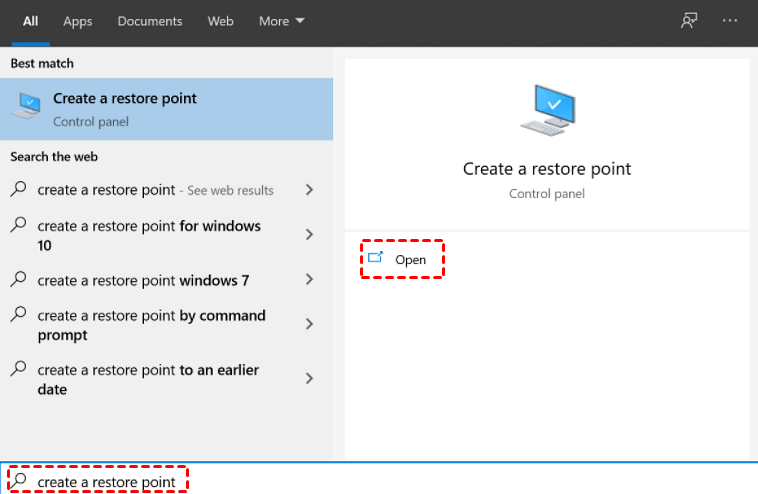
2. This opens the System Properties window as in Windows 10/11.
3. Then click "System protection". Here, click the drive you need to turn on the system protection, and hit Configure.
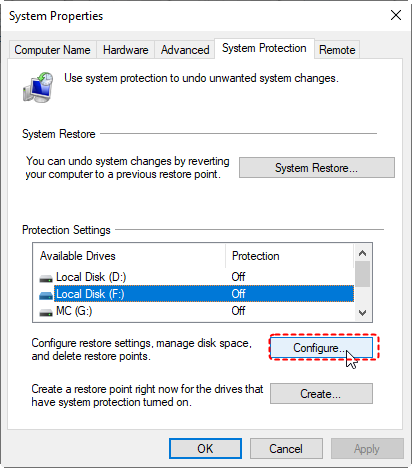
4. Tick Turn on system protection, and hit Apply > OK to take effect.
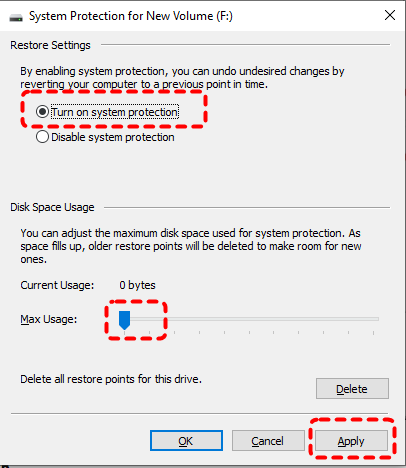
Tip: You can also adjust the maximum disk space used for shadow copies (which dictates how far back in time you can go). Remember, more space means more historical snapshots. It's recommended to use about 10% of the disk space.
5. Do the same process for all the drives you need.
How to Set Up File History in Windows 11, 10
To set up File History in Windows 11, 10, try the following steps:
1. Connect your external hard drive to your computer to save these file history versions.
2. Then search Control Panel in the Windows search box, and click it.
3. Choose System and Security.
4. Hit File History, or Save backup copies of your files with File History.
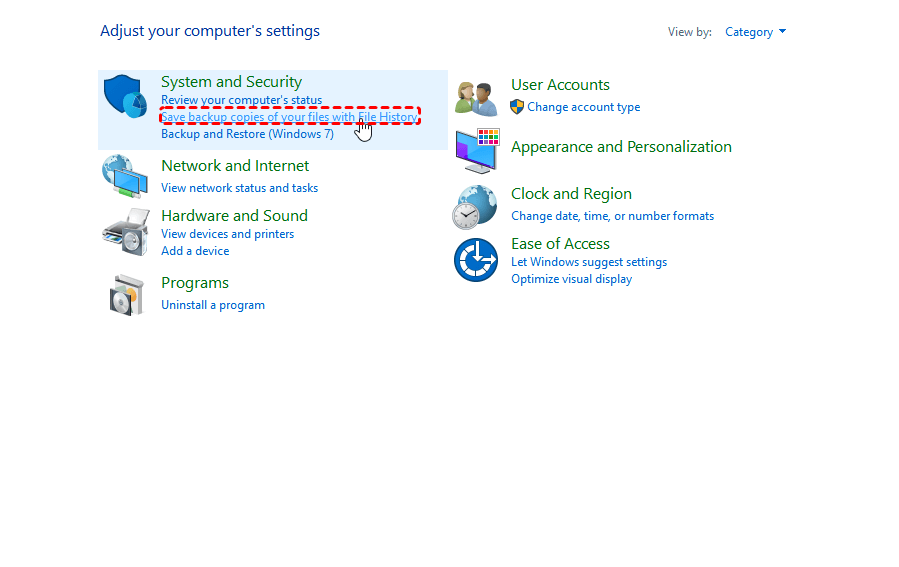
5. Tap Turn on to open the file history features.
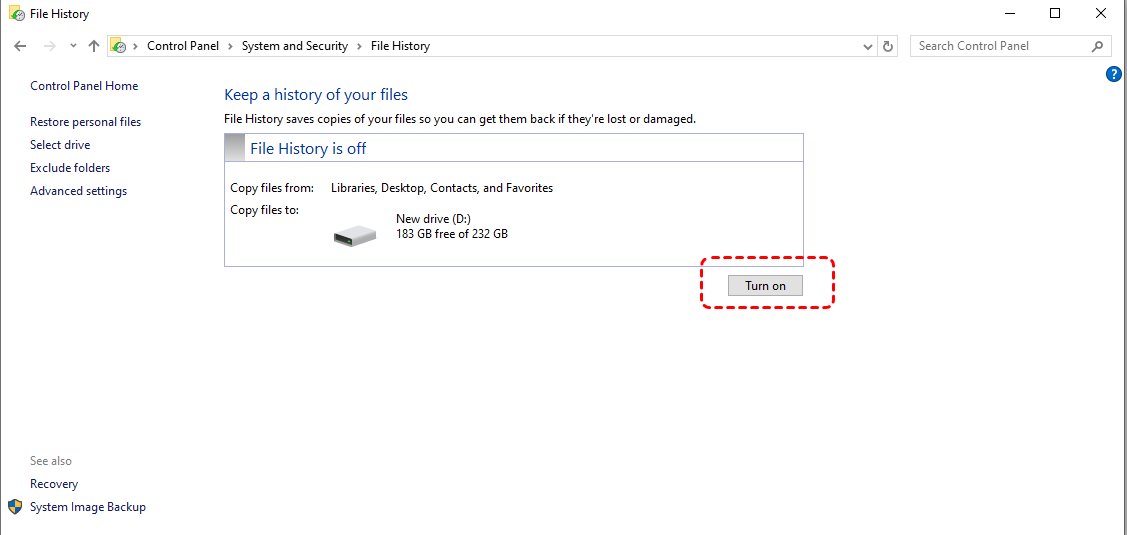
6. Then you can hit Select drive, Exclude folders, and Advanced settings to configure the details.
Tips:
- You can change the backup frequency (from every 10 minutes to daily), decide how long to keep saved versions (forever, until space is needed, or for a set time), and choose which specific folders to include or exclude from the backup.
- And you can also stop File History anytime.
Create a Comprehensive Backup Strategy
For true resilience, use them in tandem. Enable System Protection (Shadow Copy) on your main C: drive with a decent chunk of space allocated. This is your first line of defense against everyday oopsies and system glitches.
Then, crucially, set up File History to an external drive or NAS device. This is your insurance policy against catastrophic drive failure.
Finally, for ultimate security, consider adding a periodic full system image backup to an external drive using Windows’ own Backup and Restore (Windows 7) tool, which is still present.
This three-layer approach—Shadow Copy for quick reverts, File History for file versioning, and System Imaging for disaster recovery—covers virtually every data loss scenario.
Recover Deleted Files with MyRecover
But what happens when both Shadow Copy and File History fall short? Perhaps a shadow copy wasn’t taken before a corruption, or File History hadn’t yet backed up the latest version. Maybe a file was deleted from a folder not included in your backup set.
This is where a dedicated third-party recovery tool like MyRecover becomes essential. It scans the raw data on your storage device, looking for file signatures and structures that the operating system can no longer see, offering a chance to recover what your built-in tools cannot.
How to recover deleted files with MyRecover on a Windows 11/10 computer? Try these steps:
1. Download and install MyRecover on your computer. It’s vital not to install it on the drive you’re trying to recover from, as you could overwrite the very data you’re trying to save.
 100% Secure
2. Launch MyRecover, tap Deleted Files Recovery, choose the drive where the deleted files were before, and hit Scan. Wait for it to complete and hit OK.

3. Preview and choose the files you need, and hit Recover.

4. Opt for a safe location to save them directly.

- Tips:✎...
- Files are often organized by original path, file type, and date modified.
- A powerful preview function lets you view images, documents, and other common formats to verify integrity before recovery.
- Try MyRecover Technician if you need to recover files for unlimited computers within your company, etc.

 MyRecover
- Recover Deleted Files Easily with Simple Clicks
- 1000+ File Formats Supported
- Support HDD, SSD, External Hard Drive, USB Drive, SD Card, etc.
- Quickly Find Files Using File Types, Name, Size, etc.
- Preview Files Before Recovering
- Recover Unlimited Data
 100% Secure
FAQs About Shadow Copy vs. File History
Q: What is the main difference between a shadow copy and a file history backup?
A: The core difference is purpose. A shadow copy is a single snapshot of an entire drive (system files and data) for system restoration. File History is a continuous backup of personal files only, saving versions over time to an external drive for easy recovery of individual documents.
Q: Can I use Shadow Copy and File History at the same time?
A: Yes, it's recommended. They complement each other. Use Shadow Copy for quick system/state reversion and File History for versioned, external backups of personal files. This covers both system issues and granular file recovery.
Q: I deleted a file a month ago. Can File History or Shadow Copy recover it?
A: It depends on your settings. File History can recover it if the file was in a backed-up folder and your retention period (e.g., "Until space is needed") hasn’t deleted it. Shadow Copy could recover it only if a restore point was created while the file existed, and that snapshot hasn't been purged due to space limits.
Q: Does Windows 11 still have both File History and Shadow Copy?
A: Yes. Both are fully functional in Windows 11. Shadow Copy (VSS) drives system restore points. File History is found in Settings > System > Storage > Advanced backup options. The core comparison remains the same as in earlier Windows versions.
Q: Which is better for backing up my entire computer system?
A: Neither is designed for a full system image backup. For complete protection against drive failure, you need a system imaging tool like the legacy "Backup and Restore (Windows 7)" feature or third-party software like Macrium Reflect. Shadow Copy and File History are components of a broader strategy.
Q: Why can't I see any previous versions when I right-click a file?
A: For Shadow Copy versions: ensure System Protection is on for the drive, a relevant restore point exists, and shadow copy storage isn't full. For File History versions, you must use the File History app, not right-click. Check that File History is set up and your backup drive is connected.

Stay Updated With Our
Latest Tips
Add us as a preferred source on Google to never miss helpful guides.
 Add as preferred source >>