 MyRecover



8 Fixes: A Drive Shows Up in Device Manager But Not Explorer
The issue where a drive shows up in device manager but not explorer, especially an internal hard drive, is frustrating but fixable. We cover all solutions, from assigning a drive letter in Disk Management to updating drivers, to recover your missing storage.

By Delores / Updated on March 11, 2026


Drive Shows Up in Device Manager But Not Explorer!
You connect your external hard drive and receive the standard Windows connection sound. The drive is also listed in Device Manager, confirming its detection. However, upon opening File Explorer to access your data, the drive is absent. This specific problem, where a drive shows up in Device Manager but not in Explorer, is a common technical failure.
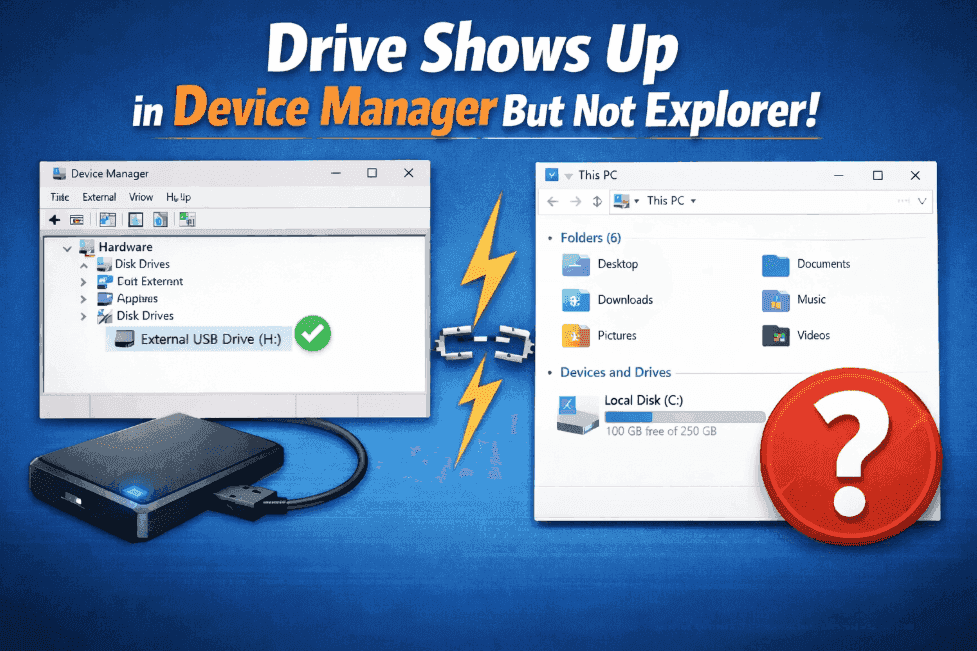
It means that the system confirms the hardware is present while denying access to its contents. Fortunately, this is a problem that can typically be resolved. This guide will explain the technical reasons behind this behavior and provide the necessary steps to restore access to your drive and data.
About Device Manager and Windows File Explorer
We must first understand the functions of Device Manager and File Explorer.
Device Manager operates at a fundamental hardware level. Its sole task is to verify that a physical storage device is connected to your system and that a basic communication link is established. When a drive appears in Device Manager, it simply confirms the device is powered on and responding to low-level system commands.
File Explorer, however, operates at the application level where data is managed. It requires more than just a hardware connection. To display a drive, File Explorer needs a properly assigned mount point, known as a drive letter (e.g., D:). It also requires a valid and recognizable file system structure (such as NTFS or exFAT) that organizes the data. If either the drive letter is missing or the file system is absent, corrupted, or incompatible, File Explorer will not list the drive, even though Device Manager confirms the hardware is present.
Device detection confirms the physical or electrical connection is live. File system access depends on logical structures that allow the operating system to read and write data. The common scenario where an external drive shows up in Device Manager but not Explorer represents a failure at this second stage: the drive is physically detected, but its data remains logically inaccessible.
Common Reasons Your Drive Is Not Visible in File Explorer
Several technical issues can disrupt this process. The primary causes include:
⭕ Unallocated or Unformatted Space: A new drive or one with severe corruption may lack a partition table and file system. Without these structures, the space is "raw", and File Explorer has no data framework to display.
⭕ File System Corruption or Incompatibility: The existing file system may be damaged. Alternatively, the drive could be formatted for another operating system (e.g., APFS for macOS or ext4 for Linux), which Windows cannot natively interpret.
⭕ Outdated or Faulty Drivers: While a generic driver may allow for basic detection, an incorrect or corrupted storage driver can fail to properly initialize the drive for full data access.
⭕ Physical Connection Issues: A flaky USB cable, a dirty port, or a slightly dislodged SATA cable can provide just enough connection for detection but not enough stable bandwidth for full data access, leading to a hard drive that shows up in Device Manager but not in Explorer.
After getting known for the reasons, it’s time to fix it now.
8 Quick Ways to Drive Showing Up in Device Manager But Not Explorer
There are some proven solutions for you to troubleshoot the problem. Let’s find out and try them one by one.
Way 1. Restart Your Computer
A restart clears the system's memory, reloads all drivers, and shows all connected hardware.
It can clear up temporary glitches that might be causing the drive to show up in Device Manager but not in Explorer.
Way 2. Reconnect Your Hard Drive
If it's an external drive, unplug it. Try a different USB cable—preferably a short, high-quality one. Plug it into a different USB port directly on your computer, avoiding hubs.
For internal drives, power down, open your case (safely!), and reseat both the SATA data cable and the power cable. A loose connection is a prime suspect for an internal hard drive showing in Device Manager but not in Explorer.
Way 3. Check Power Supply
Beyond physical connections, consider power. Larger portable hard drives often need more power than a single USB port can provide. If you're using a Y-cable, ensure both USB heads are plugged in. Try connecting it to a powered USB hub or a port directly on your desktop, as those often provide more stable power than laptop ports.
Way 4. Assign A Drive Letter for Your Drive
If the above solutions are not working, you can check your drive in Disk Management. If it shows healthy in Disk Management without a drive letter. The data is likely fine; Windows just forgot to assign it a letter. Now, you have to assign a drive letter to that drive. Here is how:
1. Right-click the Start button and select "Disk Management", or you can also press Win + R, type diskmgmt.msc, and hit Enter.
2. Right-click the drive not showing up in File Explorer, and choose Change Drive Letter and Paths....
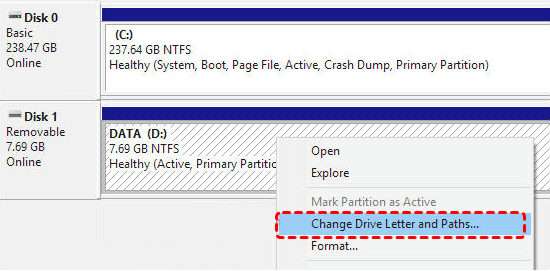
3. Click Add, then choose a drive letter, and finish the process.
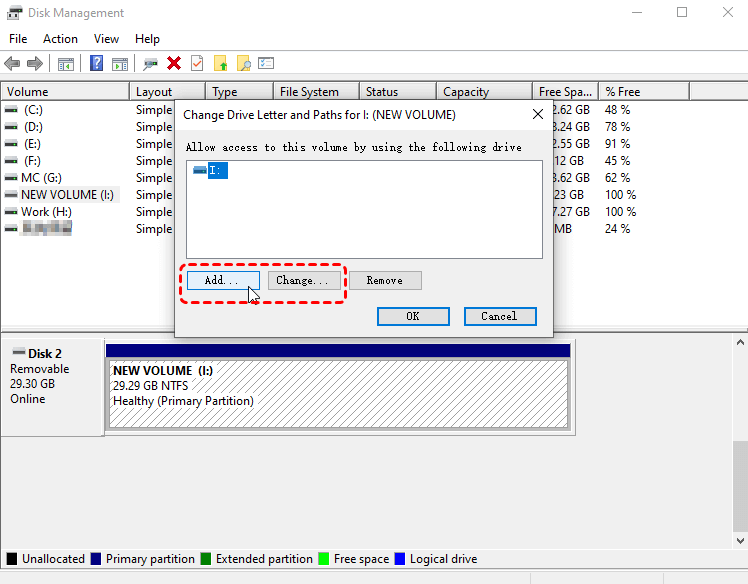
Then you will find your drive is showing up in Device Manager and File Explorer.
Way 5. Initial Hard Drive
If your hard drive shows unallocated (a black bar) in Disk Management, it means there is no partition. And the drive is empty. If it’s a new hard drive, you have to initialize the hard drive for usage.
1. Right-click Start and choose Disk Management.
2. Right-click the new hard drive and select "New Simple Volume".
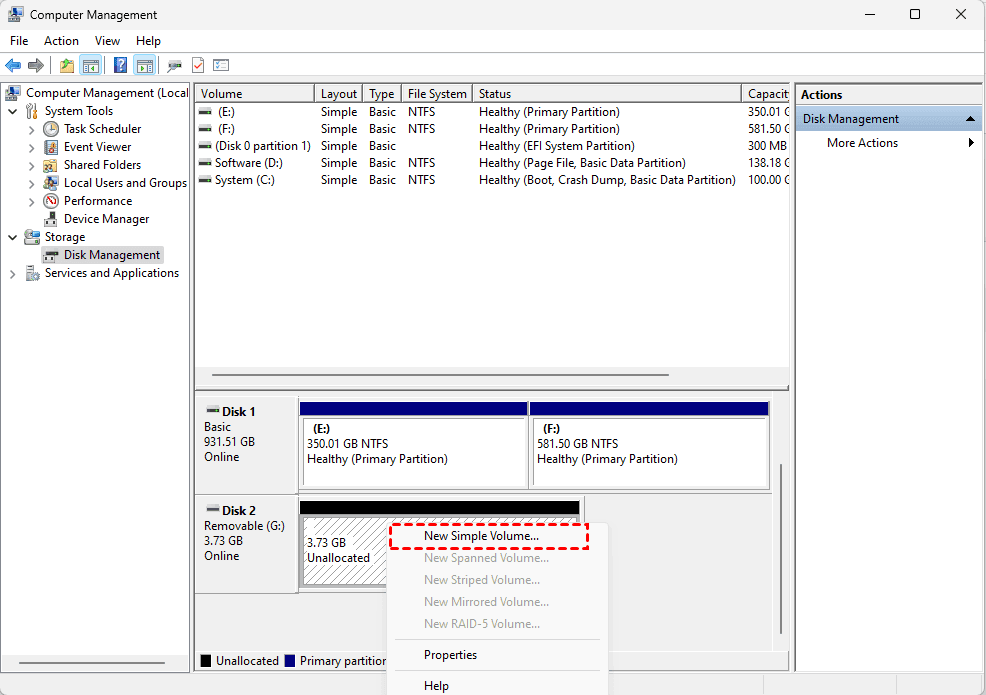
3. This wizard will create a partition and format it.
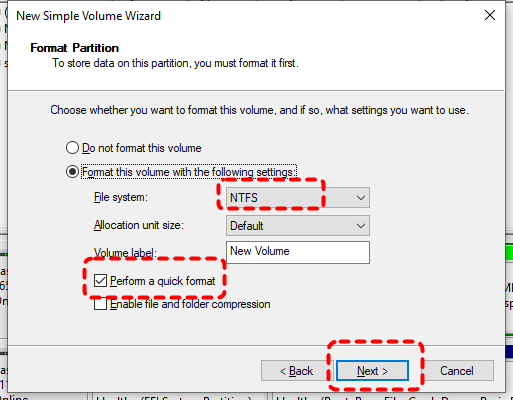
WARNING: This erases all data. Only do this on a brand-new drive or one where you've recovered data already.
Way 6. Run CHKDSK Command
If your hard drive shows RAW in Disk Management, it might be that the file system errors have corrupted the hard drive. You need to run CHKDSK to fix disk errors.
1. Open Command Prompt as Administrator (Win + X > "Terminal (Admin)").
2. Type chkdsk X: /f/r (replace X with your drive letter).

This attempts to repair corruption.
Way 7. Make Your Hard Drive Online
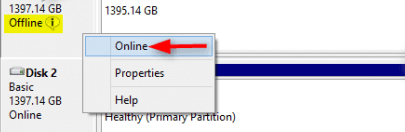
First, ensure the drive isn't set to "Offline" in Disk Management. If your hard drive shows Offline in Disk Management, you have to make it online. Right-click the disk number (left side of the graphical view) in Disk Management and select "Online".
Way 8. Reinstall Your Hard Drive
Sometimes the issue is a stubborn software conflict or a hardware-level problem. You can reinstall your hard drive to fix it.
1. In Device Manager, find your drive under "Disk drives".
2. Right-click it and choose "Uninstall device". Check the box to delete the driver if prompted.

3. Then, under the "Action" menu in Device Manager, select "Scan for hardware changes".
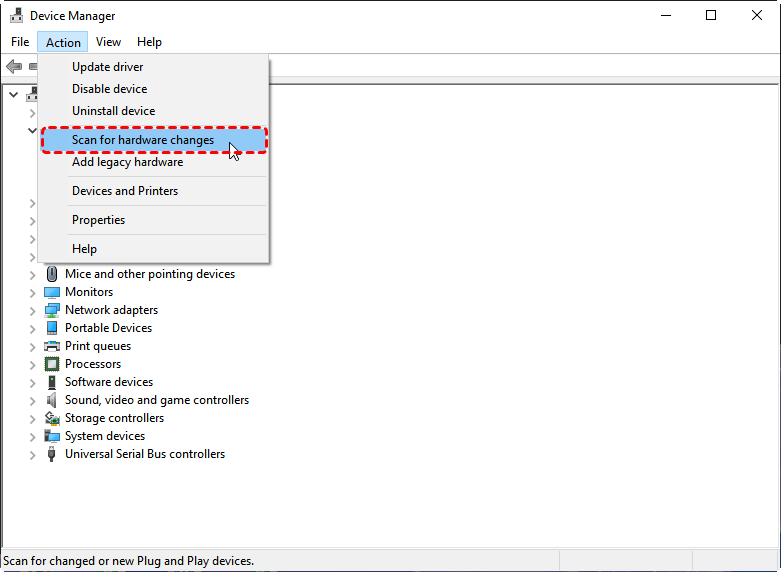
Windows will re-detect the drive and install a fresh, generic driver.
Recover Files from Hard Drive Before Any Fix Might Cause Data Loss
If your hard drive has important files that are not showing up in File Explorer, it’s highly recommended to recover files from the hard drive with a powerful data recovery software. Because you need to rescue your files before attempting any repairs that might overwrite data.
This is where MyRecover is a great option, as it's designed to work with drives that Windows can see at a hardware level but can't read normally.
Recover Files from the hard drive with MyRecover while it’s not showing up in File Explorer.
1. Download and install MyRecover on your computer, then launch it. Connect your hard drive to your computer if it’s an external hard drive.
 100% Secure
2. Tap Disk Data Recovery, choose the hard drive not showing up in File Explorer, and hit Scan. Wait for the process to complete and hit OK.

3. Preview and select the files you need, and hit Recover.

4. Pick a safe location to keep them intact.

- Notes:✎...
- MyRecover provides a quick scan and a deep scan. A quick scan is for recently deleted files. A deep scan will scan sector-by-sector to find all lost files.
- Once the scan finishes, MyRecover will present the results by original path and file type (Documents, Photos, Videos, etc.). You can use the filters and search bar to find specific files.
- After successful recovery, you can then return to Disk Management to attempt to repair or reformat the original drive for future use, secure in the knowledge that your data is safe elsewhere.

 MyRecover
- Recover Deleted Files Easily with Simple Clicks
- 1000+ File Formats Supported
- Support HDD, SSD, External Hard Drive, USB Drive, SD Card, etc.
- Quickly Find Files Using File Types, Name, Size, etc.
- Preview Files Before Recovering
- Recover Unlimited Data
 100% Secure
FAQs About Drive Shows Up in Device Manager But Not Explorer
Why does my drive have a drive letter but not show in Explorer?
A: This is a known Windows shell glitch. First, restart the "Windows Explorer" process in Task Manager to refresh the interface. If that fails, the issue may be a corrupted icon cache or a conflict with cloud storage software trying to reserve the drive letter.
Is my data lost if my drive is "Unallocated"?
A: Not necessarily. "Unallocated" means the partition table is missing, but your data likely still exists. Do not create a new volume or format the drive, as this will overwrite the existing data. Immediately use recovery software, such as MyRecover, from another drive to perform a Deep Scan and salvage files before taking any other action.
Can a virus cause this issue with a flash drive?
A: Yes. Malware can hide files, corrupt the file system, or damage the partition boot sector, causing the drive to appear in Device Manager but not Explorer. If data is critical, use recovery software first to extract files to a safe location, then format the drive to cleanse the infection.
What if my drive is "Unknown" or "Not Initialized"?
A: This indicates a severe communication error. Do not initialize the drive, as this destroys the existing partition structure. Check connections and test the drive on another PC. If it remains "Unknown", professional recovery services are recommended. Software may attempt a physical disk scan, but success is less certain.
Why does my drive work on an old PC but not a new one?
A: This points to a driver or configuration incompatibility. Update the chipset and USB drivers on your new PC from the manufacturer's website. Also, check for a firmware update for the external drive's enclosure and ensure power management is disabled for USB hubs in Device Manager.
How can I tell if my internal drive is physically failing?
A: Listen for unusual sounds (clicking, grinding). Use software like CrystalDiskInfo to check the drive's S.M.A.R.T. data for warning attributes like "Reallocated Sectors".Watch for extreme performance drops or freezing. If these symptoms appear alongside the visibility issue, the drive is likely failing, and data recovery should be your immediate priority.

Stay Updated With Our
Latest Tips
Add us as a preferred source on Google to never miss helpful guides.
 Add as preferred source >>