 MyRecover



Files Disappeared After Drag and Drop? Here's How to Find and Recover Them
Files disappeared during a drag-and-drop operation? This guide covers the reasons behind the issue and step-by-step recovery methods-from Windows built-in solutions to File History and MyRecover.

By Delores / Updated on July 6, 2026


Files Disappear During Drag and Drop!
You select a group of files and folders, drag them toward another location, release the mouse button, and they vanish. The files are no longer in the source folder, and the target folder shows no sign of them either. This is a frustrating experience for Windows users at all skill levels.
Files that disappear after a drag-and-drop are rarely permanently lost. The operating system has either moved them to an unexpected location or left recoverable data in place. This article explains exactly why this happens and provides specific, verifiable methods to recover your files. Each method is presented in order of speed and simplicity, so you can start with the fastest options first.

How Windows Handles Drag and Drop Moves Between Folders
Windows treats drag-and-drop operations differently depending on where the source and destination are located.
When you drag files between two folders on the same drive (for example, from C:\Documents to C:\Desktop), Windows performs a move operation by default. The file reference in the Master File Table (MFT) is updated to point to the new location, and the original path is cleared. The actual data on the disk stays in the same physical location.
When you drag files between two different drives (for example, from C:\Documents to D:\Backup), Windows performs a copy operation by default. The original file remains at the source, and a duplicate is written to the destination. If you held the Shift key while dragging between drives, a move is performed instead, which deletes the source after copying to the target.
Knowing these defaults is important because it helps you predict where files end up. A drag between folders on the same drive removes the file from the source folder immediately. If you then closed the source window before verifying the move, the file seems to have disappeared.
Why Files Disappear During Drag and Drop
Several specific scenarios produce the "files disappeared" experience.
- The most common is accidentally dropping files into a subfolder, especially when the destination folder contains nested directories. The files land inside a subfolder rather than at the root level where you expected them.
- Another frequent cause is releasing the mouse button before the cursor has fully entered the destination window. Windows may interpret this as a "no operation," but in certain UI states, it processes the drop at a different location. File Explorer lag or a brief system freeze during the drag can also cause this.
- Dragging files onto a program shortcut or executable icon can trigger the program to open with those files as arguments, and some programs move files to their own working directories. Dropping files onto a compressed (ZIP) folder can move them inside the archive if the ZIP handler supports write operations.
6 Quick Methods to Find Files That Disappeared After Drag and Drop
These techniques work immediately after a drag-and-drop operation fails. Start with the first method and work down the list.
Way 1. Use Ctrl+Z to Undo an Accidental Drag and Drop Move
The Ctrl+Z shortcut (Undo) reverses the last file operation in Windows File Explorer.
Open File Explorer, click anywhere in the file list area, and press Ctrl+Z.

This is the fastest possible recovery path and has the highest success rate if used right after the incident.
If Ctrl+Z works, the files reappear in their source location immediately. Files either all move back or none do, so you will not get a partial restoration. This undo function is available for one file operation at a time in each File Explorer window.
Way 2. Check the Source and Target Folders for Missing Files
Open both the source folder and the intended destination folder side by side.
In the source or destination folder, open all subfolders to check the missing files.
Or you can sort the destination or source folder contents by Date Modified in descending order. This brings recently moved files to the top of the list.
Check the first several items. If you see files with modification timestamps matching the time of your drag and drop operation, you have found them.
Way 3. Check Recycle Bin
You can also check the Recycle Bin, though drag-and-drop moves do not typically send files there.
Files only go to the Recycle Bin when deleted by pressing Delete, selecting Delete from the context menu, or confirming a delete dialog.
If the drag was misinterpreted as a delete, the files will be visible in the Recycle Bin. Sort by Date Deleted to check the most recent entries, then right-click them and choose Restore.
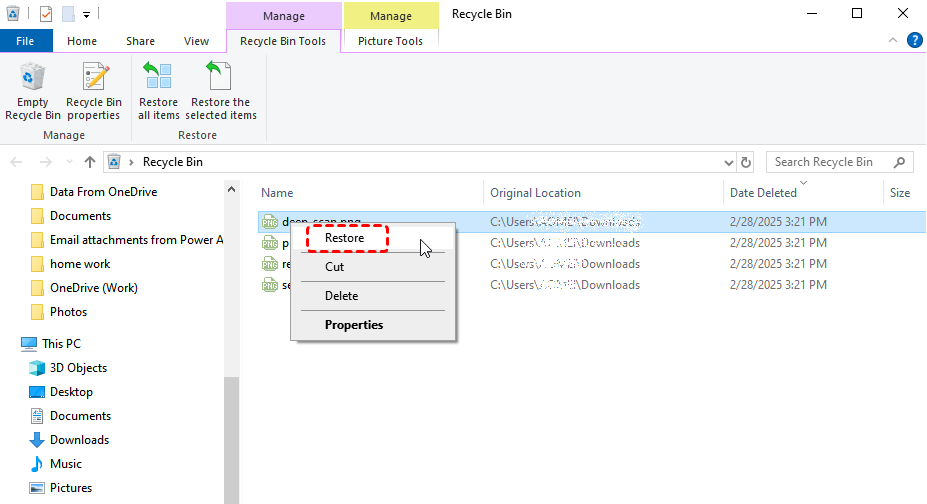
Way 4. Search Your Entire Computer to Locate Moved Files
Open File Explorer, click This PC in the left navigation pane, and type a known filename or keyword into the search box in the upper-right corner. Use wildcards to widen the search: typing *.docx finds all Word documents, and typing a partial filename finds all related files.

If you remember part of the file contents rather than the filename, use the search syntax content:"keyword" in the File Explorer search box. But it's slower than the file name search.
Besides, you can also try a filename search engine for Windows, like Everything, which can find your files quickly by file name.
Way 5. Show Hidden Files and Folders in Windows File Explorer
Some drag-and-drop operations can set the hidden attribute on files, making them invisible in the default File Explorer view. To reveal them, open File Explorer, click the View tab in the ribbon, then check the Hidden items checkbox in the Show/hide section.
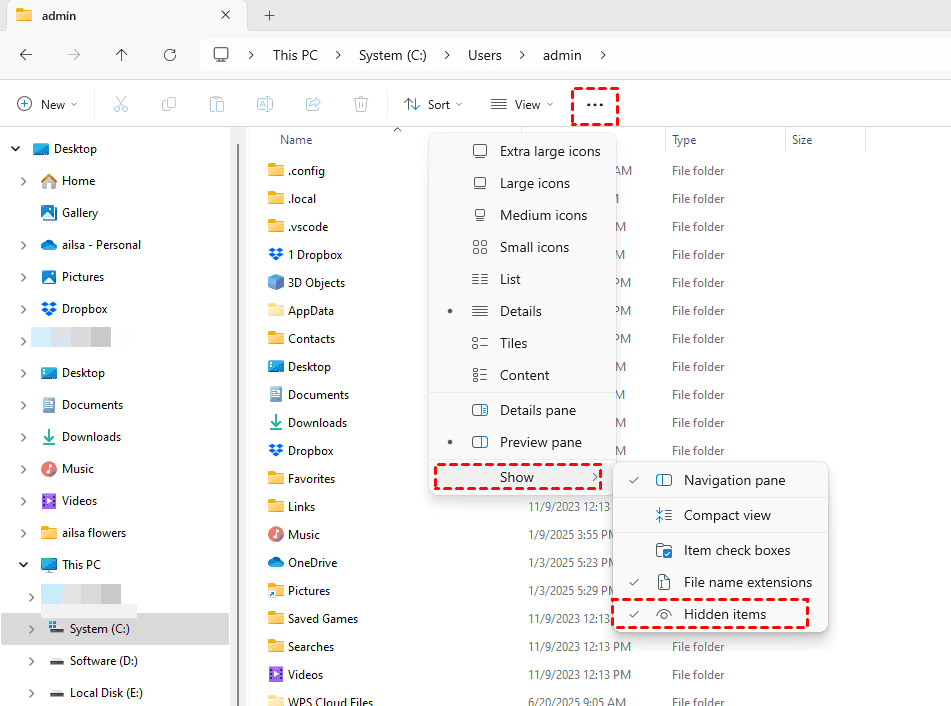
After enabling Hidden items, navigate to both the source and destination folders. Hidden files appear.
Right-click any file that appears and select Properties.
In the General tab, uncheck the Hidden attribute under Attributes.
Click Apply to make the file permanently visible.
Way 6. Restore Missing Files via Previous Version
Windows stores shadow copies (snapshots) of folders when File History or System Protection is enabled. If you have enabled File History or System protection before missing, you can try to restore lost files during the transfer like this:
1. Right-click the source folder where the files originally existed and select Properties.
2. Switch to the Previous Versions tab. If previous versions are available, you will see a list of timestamped snapshots.
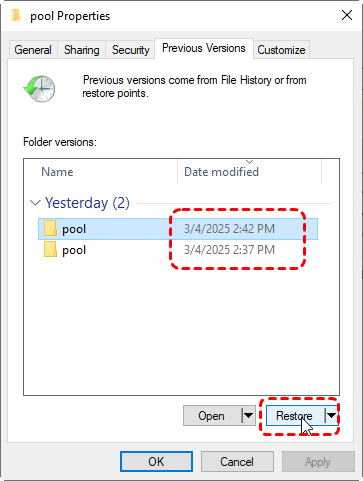
3. Select a version dated before the drag-and-drop incident and click Open to browse the folder contents as they existed at that time.
4. If your files are present, select them, right-click, and choose Copy. Navigate to your desired location and paste the files.
Recover Files Lost During Drag and Drop with MyRecover
When built-in Windows tools cannot find your disappeared files, a dedicated data recovery application can scan the drive at the sector level. MyRecover is a free Windows data recovery tool that handles exactly this scenario: files that were moved or deleted but whose disk sectors have not yet been overwritten.

 MyRecover
- Recover deleted & lost files from HDD, SSD, USB, SD card, camera as you need.
- Support 1000+ formats of photos, videos, docs, archives, emails, compressed files, etc.
- Reliable rescue for deletion, formatted disk, emptied Recycle Bin, system crashes and more.
 100% Secure
Here is how to easily recover lost files during drag and drop with MyRecover:
1. Install MyRecover after downloading it on a drive that does not contain the lost files to avoid overwriting recoverable data.
 100% Secure
2. Run it and tap Disk Data Recovery, hover over the drive where the missing files were located during drag and drop, and hit Scan.
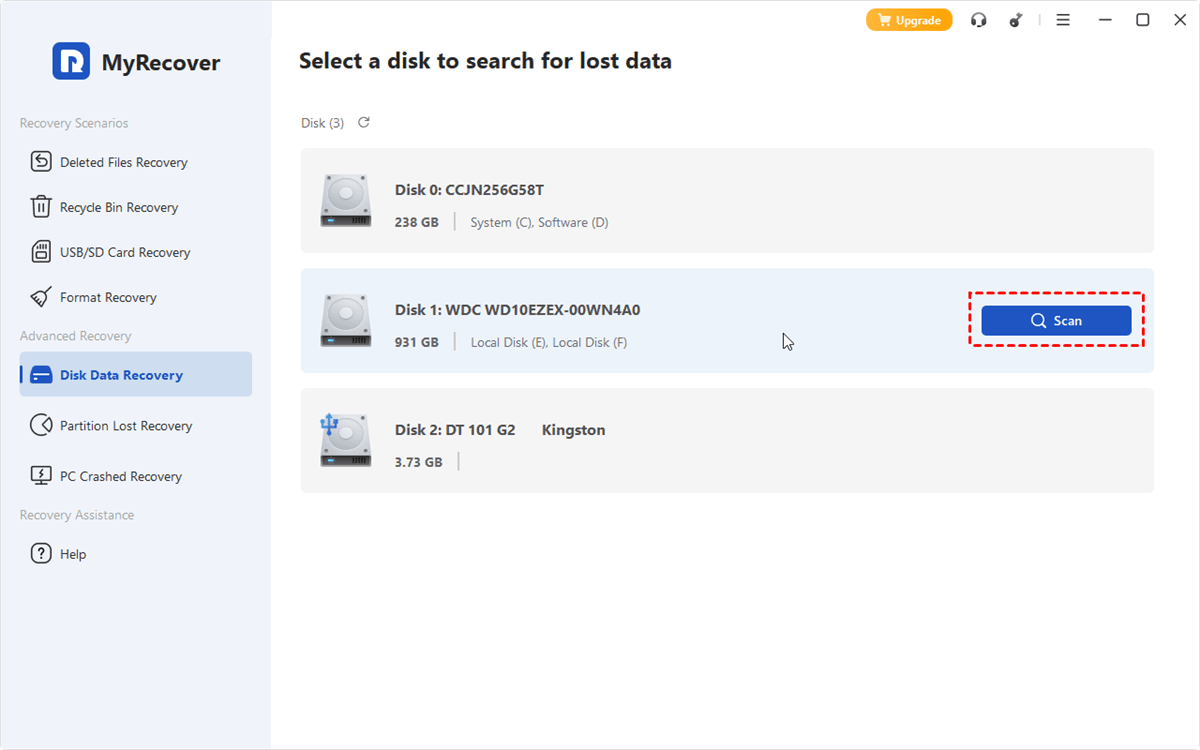
3. MyRecover will run a quick scan to find the recently deleted files. Once scanned, all the found files will be sorted by file type.
4. Preview and select the files you need, and hit Recover.
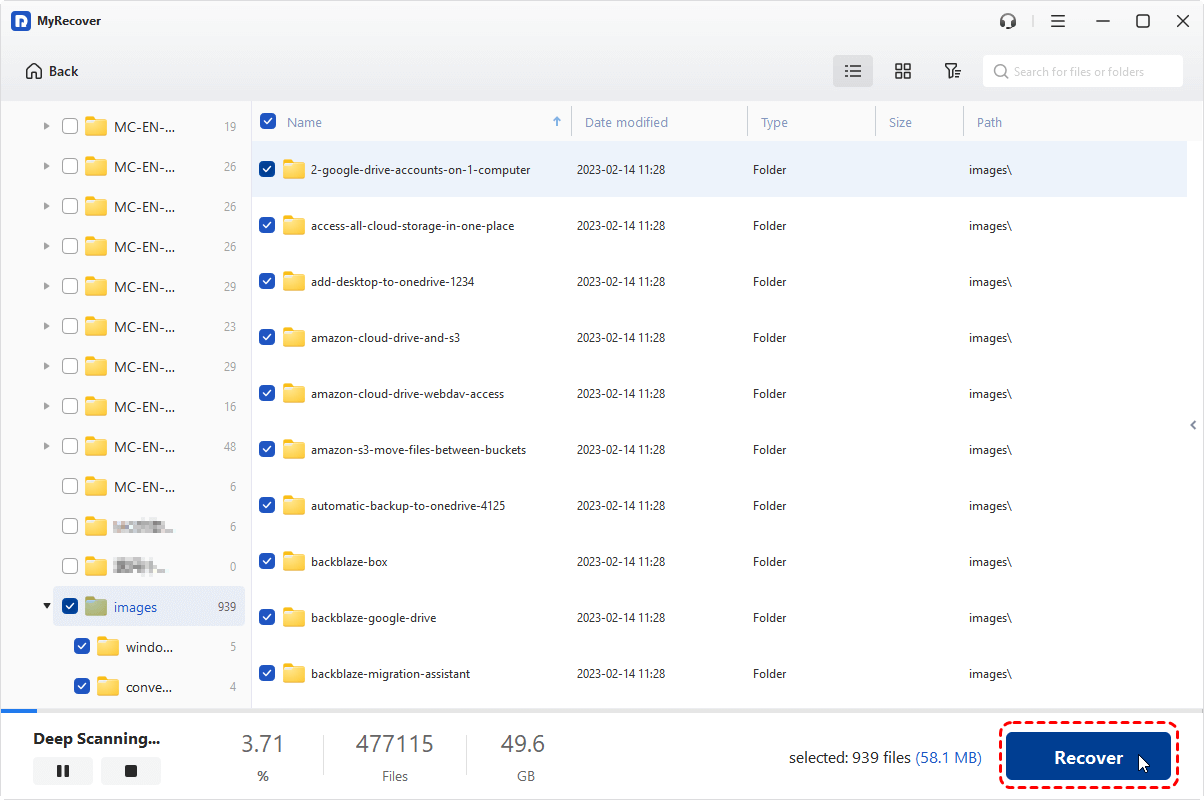
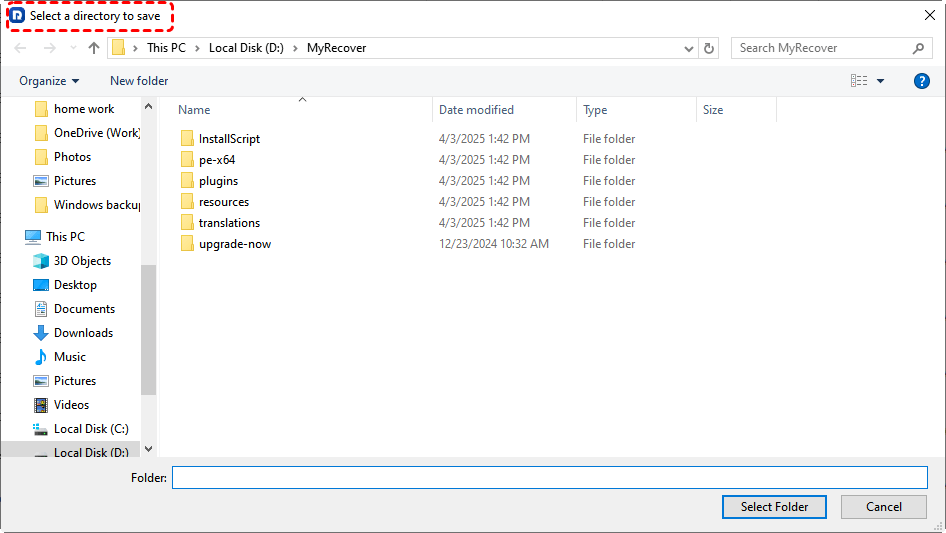
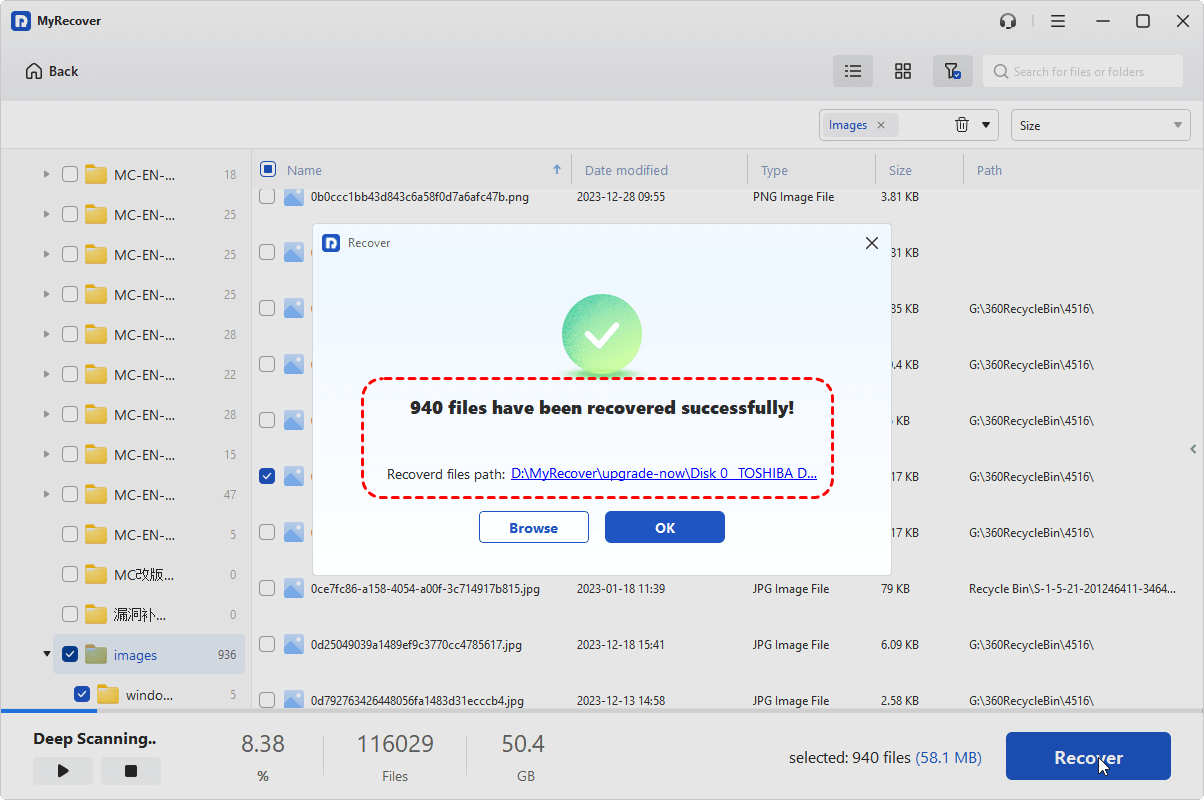
5. Choose a safe location to keep them safe.
- Notes:✎...
- Once scanned, you can sort files by file type, like Documents, Photos, Videos, Audio, Archives, etc. Besides, you can also search for missing files by file name, size, modified date, and more.
- Deep Scan takes longer than Quick Scan - expect 15 to 45 minutes for a 500GB drive.
- Upgrading to MyRecover Technician is a wise decision if you need to recover unlimited files or from unlimited computers, etc.
For a detailed walkthrough of recovering shift deleted files, the MyRecover recovery guide covers specific file types and scenarios.
MyRecover- Recover Deleted Files Easily with Simple Clicks
- 1000+ File Formats Supported
- Support HDD, SSD, External Hard Drive, USB Drive, SD Card, etc./li>
- Quickly Find Files Using File Types, Name, Size, etc.
- Preview Files Before Recovering
- Recover Unlimited Data
100% SecureFAQs About Files Disappearing After Drag and Drop
Why did my files disappear after dragging them to a different folder?
The files likely landed inside a subfolder within the destination. Expand all nested directories and sort by Date Modified to find them. Releasing the mouse button before the cursor fully enters the target window can also cause this.
Can I undo a drag-and-drop move that happened hours ago?
No. Ctrl+Z only reverses the most recent file operation in that File Explorer window. For older moves, use Previous Versions from the folder's Properties dialog, which stores snapshots going back days or weeks.
Are files lost during drag and drop permanently deleted?
No. On NTFS drives, only the directory entry changes. The file data stays on disk until overwritten. Recovery software can find it by reading raw sectors.
Does Windows File Recovery from Microsoft work for drag-and-drop losses?
Yes. Regular mode reads MFT entries; Extensive mode performs a signature-based scan across the entire drive. Note that Windows File Recovery is command-line only and has no preview function.
What should I do immediately after noticing files disappeared?
Stop using the drive immediately to prevent overwriting. Then try Ctrl+Z, check subfolders in the destination, and search by filename. If those fail, use recovery software before resuming normal use.
Can System Restore bring back files that disappeared after drag and drop?
No. System Restore does not restore personal files like documents or photos. It can recover Previous Versions snapshots, which you can then use to restore individual files.
The End
Files that disappear during drag and drop are recoverable in the vast majority of cases. Start with Ctrl+Z for recent moves, search the destination folder for misplaced files, and use Previous Versions for older losses. When built-in tools cannot locate your files, MyRecover scans at the sector level with Quick and Deep Scan modes to recover data that Windows no longer sees. To prevent recurrence, use right-click dragging and enable confirmation dialogs.

Stay Updated With Our
Latest Tips
Add us as a preferred source on Google to never miss helpful guides.
 Add as preferred source >>