 MyRecover



Fix Broken Registry Items in Windows 10: The Complete Guide
Learn how to fix broken registry items Windows 10 with proven methods that help eliminate errors and optimize your PC. Follow our clear instructions to restore system health and boost performance while keeping your files safe.

By Vera / Updated on February 5, 2026


What Are Registry Items in Windows 10?
Before we start fixing things, it’s important to understand what registry items actually are. Think of the Windows registry as the brain of your computer. It stores settings, preferences, and configurations that Windows and your programs rely on. Every time you install a new application, change a setting, or update your system, entries are created or modified in the registry.
When registry items become broken or corrupted, your system may slow down, crash, or misbehave. That’s why keeping the registry clean and functional is critical for Windows performance.
Understanding the Windows Registry
The Windows registry is a large database structured in a hierarchy of keys and values, similar to folders and files on your hard drive. Each program, driver, and Windows component relies on this structure to function properly. Messing with it carelessly can lead to serious problems, including system instability or failure.
This is why it’s crucial to use safe methods to repair broken registry items rather than randomly deleting entries.
Why Registry Items Become Broken
Registry items can become broken or corrupted for several reasons:
- Incomplete software uninstalls: When programs are removed incorrectly, leftover entries can clutter the registry.
- Malware or viruses: Malicious programs can corrupt or delete registry entries.
- Unexpected shutdowns or crashes: Sudden power losses can leave registry entries in an inconsistent state.
- Incorrect updates or installations: A failed Windows update or driver installation can damage registry keys.
Over time, these small issues accumulate, leading to sluggish performance, system errors, or missing features.
Signs You Have Broken Registry Items
How can you tell if your registry is causing problems? Here are some common signs:
Slow System Performance
Programs take longer to open, startup takes ages, and your PC feels generally sluggish. Broken registry entries can interfere with Windows processes, slowing things down.
Frequent Crashes or Errors
Random crashes, Blue Screens of Death (BSODs), or unexplained error messages often indicate corrupted registry entries.
>> You may want to know how to solve:
Missing Programs or Features
Applications may disappear from your start menu, or Windows features may stop functioning. This is a classic symptom of registry corruption.
Precautions Before Fixing Registry Issues
Fixing the registry requires caution. Editing the registry without proper backups can make problems worse. Follow these safety steps first:
1. Backup Your Registry
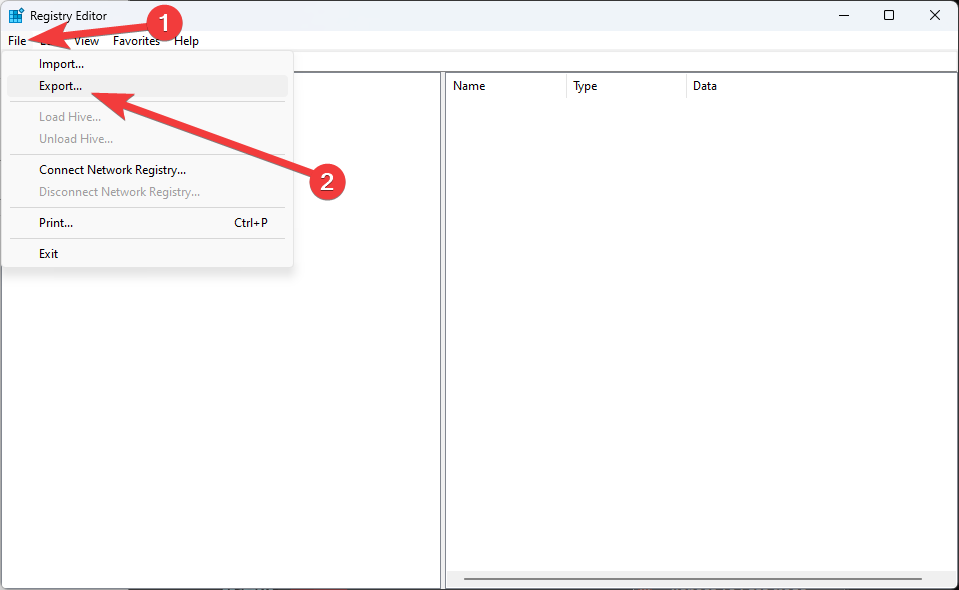
Always create a full registry backup before making changes. Open regedit, go to File → Export, and save your backup in a secure location. This is your safety net in case something goes wrong.
2. Use System Restore Points
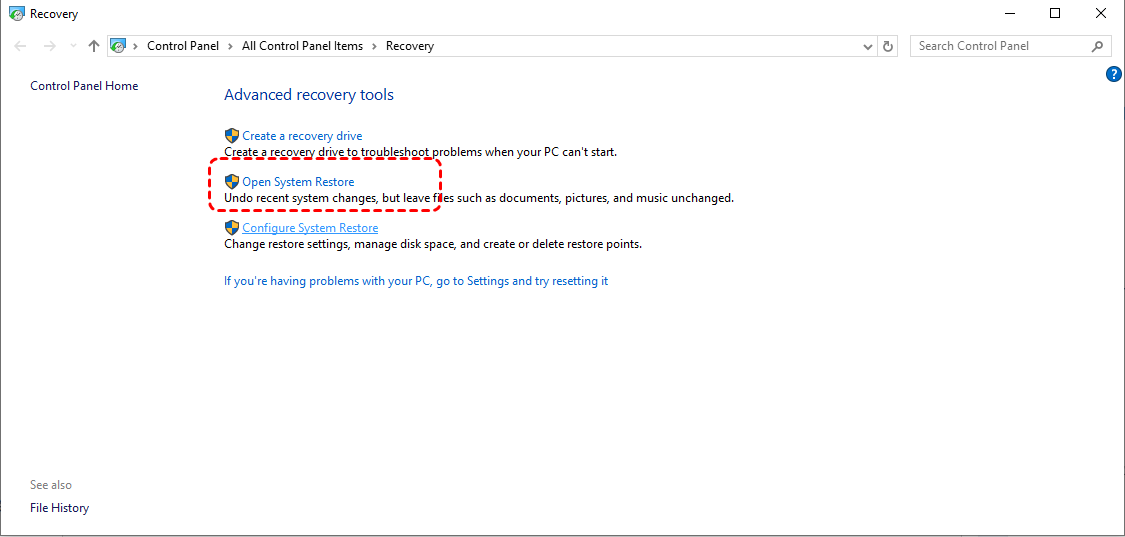
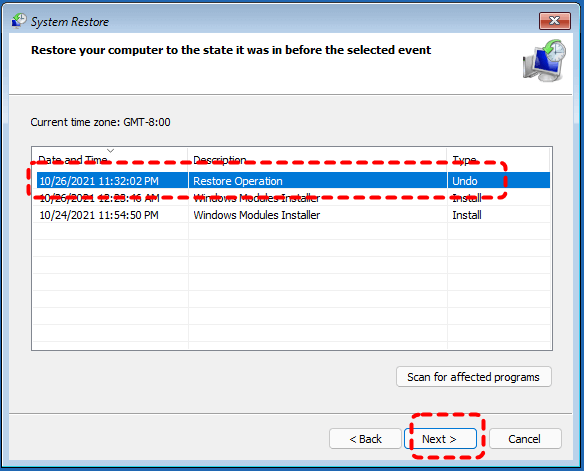
System Restore allows you to revert Windows to a previous state. Go to Control Panel → Recovery → Open System Restore → Choose a restore point. This ensures that even if repairs fail, you can safely undo changes.
3. Consider Data Recovery Tools like MyRecover
Sometimes, registry problems can lead to accidental data loss. Using tools like MyRecover can help restore deleted or corrupted files safely, giving you peace of mind before making any major changes.
 100% Secure
Methods to Fix Broken Registry Items in Windows 10
Here’s a complete, step-by-step workflow to repair broken registry items safely.
Step 1: Backup Registry and Important Data
- Export your registry using regedit.
- Back up important files using Windows backup tools (such as File History, Backup and Restore) in case something goes wrong during the repair process.
Step 2: Scan and Repair Corrupted System Files
Option 1. Use System File Checker (SFC)
The System File Checker scans your system for corrupted files and repairs them automatically.
1. Press Windows + X and select Command Prompt (Admin) or Windows Terminal (Admin).
2. Type sfc /scannow and press Enter.

3. Wait for the scan to complete (10–20 minutes).
4. Restart your PC.
Option 2. Use DISM Tool
If SFC doesn’t fix all issues, the Deployment Imaging Service and Management Tool (DISM) can repair the Windows image.
1. Open Command Prompt as admin.
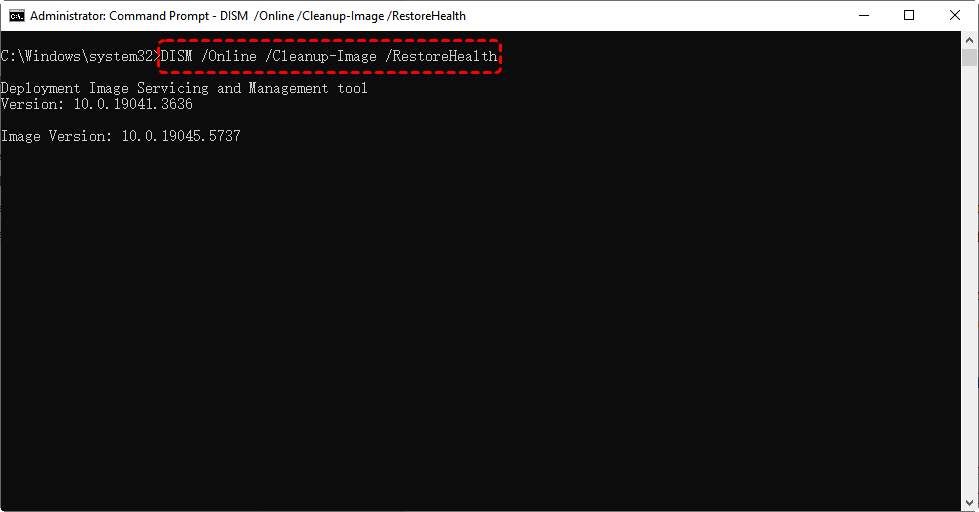
2. Type DISM /Online /Cleanup-Image /RestoreHealth and press Enter.
3. Wait 20–30 minutes for the process to complete.
4. Restart your PC.
Step 3: Clean or Repair the Registry
Use a trusted registry cleaner like CCleaner, or manually fix broken entries (advanced users only).
Option 1. Use a Trusted Registry Cleaner
Free programs like CCleaner or other reputable tools can scan for invalid registry entries and remove them safely.
1. Download a reputable tool like CCleaner.
2. Run a scan for invalid or broken entries.
3. Backup the registry if prompted.
4. Remove invalid entries and restart your PC.
Option 2. Manual Registry Fix (Advanced Users Only)
Advanced users can manually edit the registry to remove or fix broken entries.
1. Open regedit.
2. Navigate to the problematic key.
3. Export it before making changes.
4. Delete or modify the key carefully.
5. Restart the computer.
- 🔥Pro Tip: If files disappear during registry cleaning or manual edits, you can restore them safely using MyRecover.
Step 4: Restart and Test System Stability
Reboot your PC. Open commonly used programs, run updates, and check if errors or crashes are gone.
Step 5: Reset Windows (Optional for Severe Issues)
If registry corruption is severe or repairs don’t resolve issues:
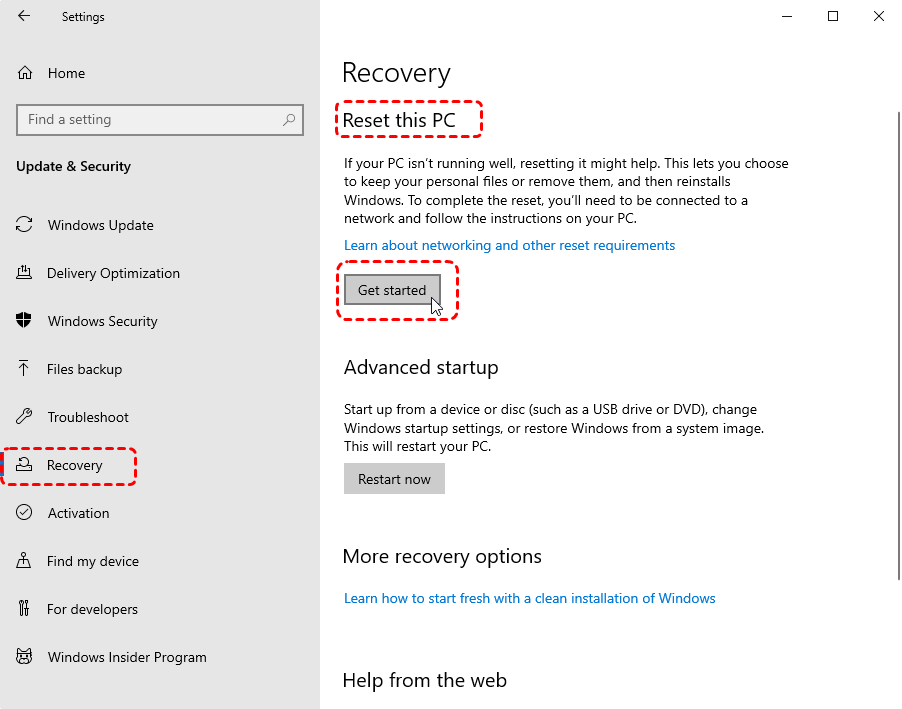
1. Go to Settings → Update & Security → Recovery → Reset this PC.
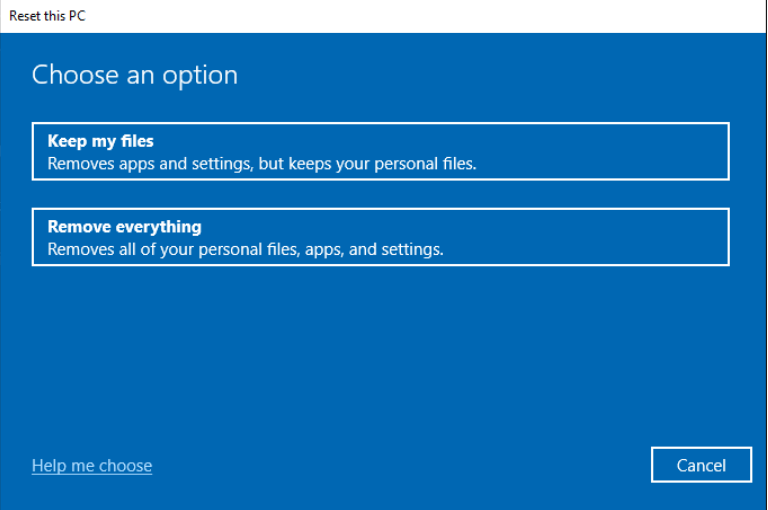
2. Choose Keep my files to retain your personal data, or Remove everything for a fresh start.
3. Follow the prompts to complete the reset.
This effectively rebuilds the registry and restores system files.
Best Practices to Prevent Future Registry Issues
- Avoid Untrusted Software – Only install programs from trusted sources. Malware can corrupt the registry.
- Regularly Backup Your Registry – Schedule monthly backups to protect against future issues.
- Keep Windows Updated – Updates fix bugs that could lead to registry problems.
- Use Reliable Data Recovery Tools – Tools like MyRecover provide extra protection in case files are accidentally deleted during repairs.
Conclusion
Broken registry items in Windows 10 can be frustrating, but they are repairable. By understanding the registry, taking proper backups, and following safe repair methods, you can restore your PC’s stability and speed. Use Windows tools like SFC and DISM, trusted registry cleaners, or manual edits carefully, and always keep data safe with MyRecover. Following these steps ensures your system remains healthy, efficient, and secure.

Stay Updated With Our
Latest Tips
Add us as a preferred source on Google to never miss helpful guides.
 Add as preferred source >>