 MyRecover



FAT32 Corruption? Fix Corrupted FAT32 File System Fast & Easy
FAT32 corruption is a common issue that can render your USB drives and SD cards unreadable. This guide covers everything from error 32 to repair commands, showing you exactly how to fix corrupted FAT32 file system using CHKDSK, format tools, and professional recovery software.

By Delores / Updated on July 8, 2026


What is FAT32 Corruption?
You plug in your USB drive, eager to access important files, only to see an error message or a drive that appears empty. That is, FAT32 corruption strikes.
FAT32 (File Allocation Table 32) is one of the oldest and most widely compatible file systems out there, used on everything from USB flash drives and SD cards to external hard drives and even EFI system partitions on Windows PCs. Its simplicity and cross-platform support make it incredibly convenient.
Unlike NTFS or exFAT, FAT32 does not keep a journal, meaning it doesn't log changes before applying them to the disk. This makes it vulnerable to corruption when things go wrong, like a sudden power outage or yanking out a drive without properly ejecting it. When FAT32 corruption occurs, your drive might become unreadable, show up as "RAW" in File Explorer, or present you with the dreaded "FAT32 full repair needed" message. But in most cases, FAT32 corruption is fixable, and your data is often still recoverable.
This guide will walk you through everything you need to know about how to repair the FAT32 file system, recover lost data, and prevent future headaches.
What Causes FAT32 Corruption?
There are multiple reasons for the FAT32 corruption:
- Improper Ejection and Sudden Power Loss
The top cause of FAT32 corruption is removing a drive without safely ejecting it or losing power during a file transfer. Interrupting a write operation can leave the file allocation table incomplete. Always use "Safely Remove Hardware" on Windows or the eject button on Mac.
- Physical Damage or Bad Sectors
Physical damage, bad sectors, or wear and tear can trigger FAT32 corruption. If the drive has suffered physical impact or extensive use, parts may become unreadable. In severe cases, professional recovery services may be required.
- Virus and Malware Attacks
Malware can corrupt the file system by altering or deleting critical files. Using your USB drive on multiple computers—especially public ones—raises infection risks. Viruses can hide your data or damage the FAT, making files appear lost.
After getting the reasons, you can try the following solutions to fix it quickly.
Fast Recover Data After FAT32 Corruption with MyRecover
Before any troubleshooting, it's highly recommended to recover files from the FAT32 hard drive easily with the powerful Windows data recovery software, MyRecover. It can scan the drive at a sector level to find files that Windows no longer sees.
- It is a powerful and user-friendly data recovery tool that supports FAT32, exFAT, and NTFS file systems.
- It is designed to handle various data loss scenarios, including accidental deletion, formatting, and file system corruption.
- Lorem ipsum dolor sit amet, consectetur adipisicing elit. Esse expedita nesciunt quidem.
- MyRecover's support for FAT32 makes it an excellent choice when you need to fix a corrupted FAT32 file system and recover your files.
- Preivew files before recovery to ensure they are intact and the right files to recover.
- It supports 1000+ file formats and 500+ devices to recover files easily and fast.
Here is how to use MyRecover to recover data from a corrupted FAT32 drive:
- Important:
- If you suspect FAT32 corruption, stop using the drive immediately. Any new data written to it could overwrite your lost files. Connect the corrupted drive to your computer using a card reader or USB cable.
1. Install MyRecover after downloading it, not on the corrupted drive.
 100% Secure
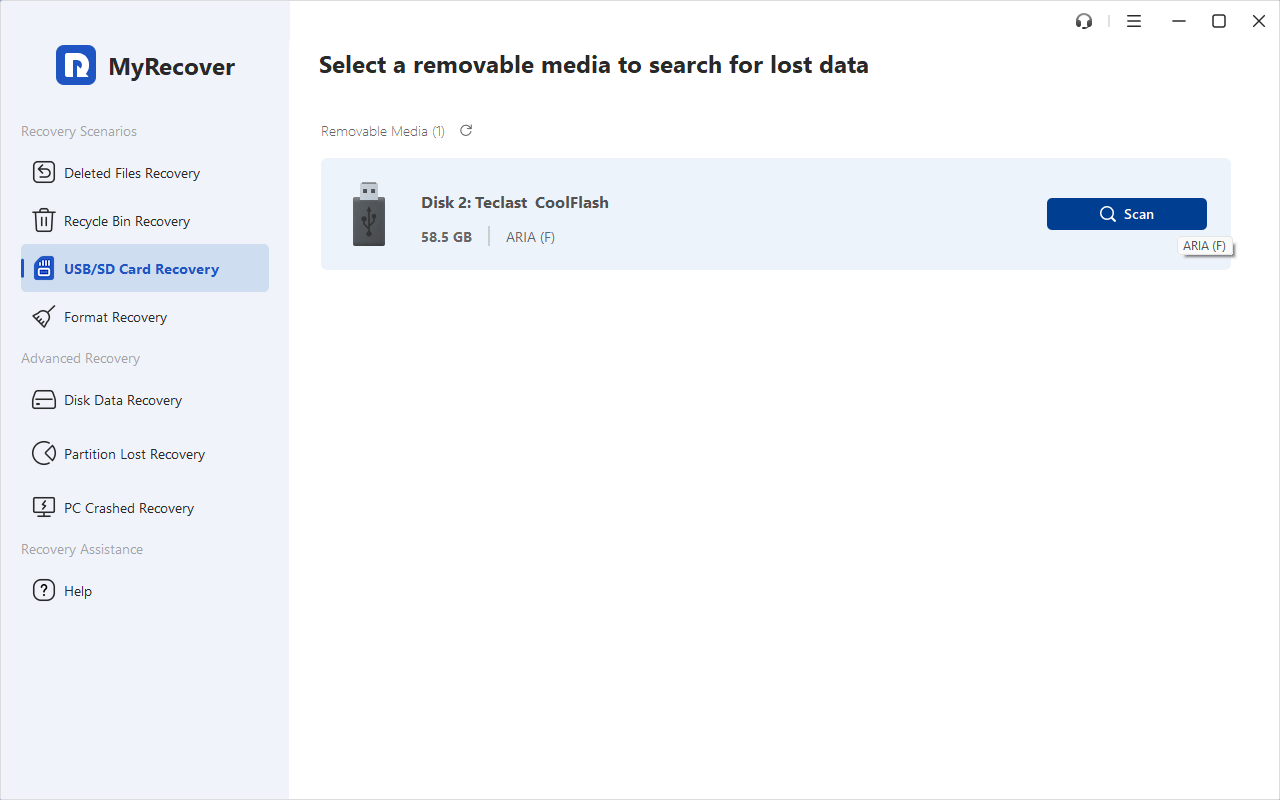
2. Open MyRecover. Click USB/SD Card Recovery, select your corrupted FAT32 drive, and click the "Scan" button to start the process.
3. MyRecover will first run a quick scan for recently deleted files. If that does not find your data, you can perform a Deep Scan. This thorough scan searches for files that have been lost due to FAT32 corruption.
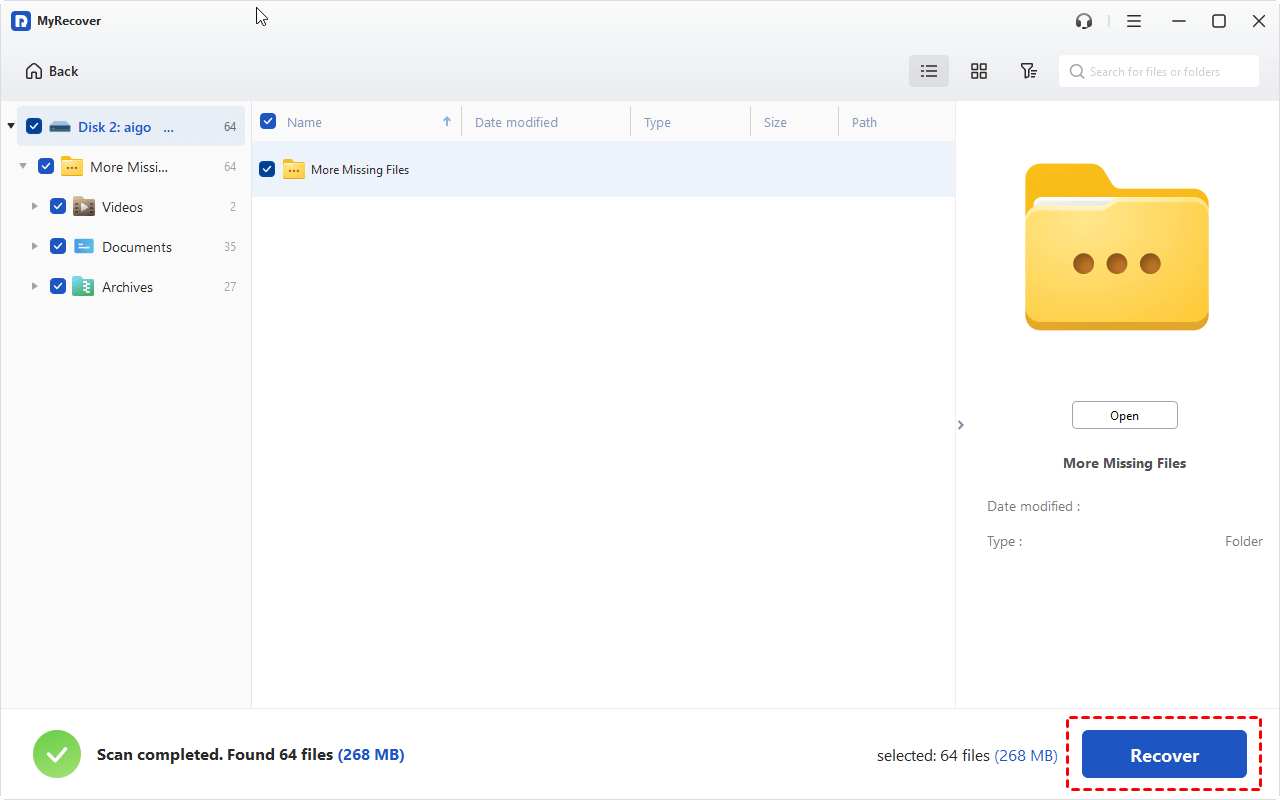
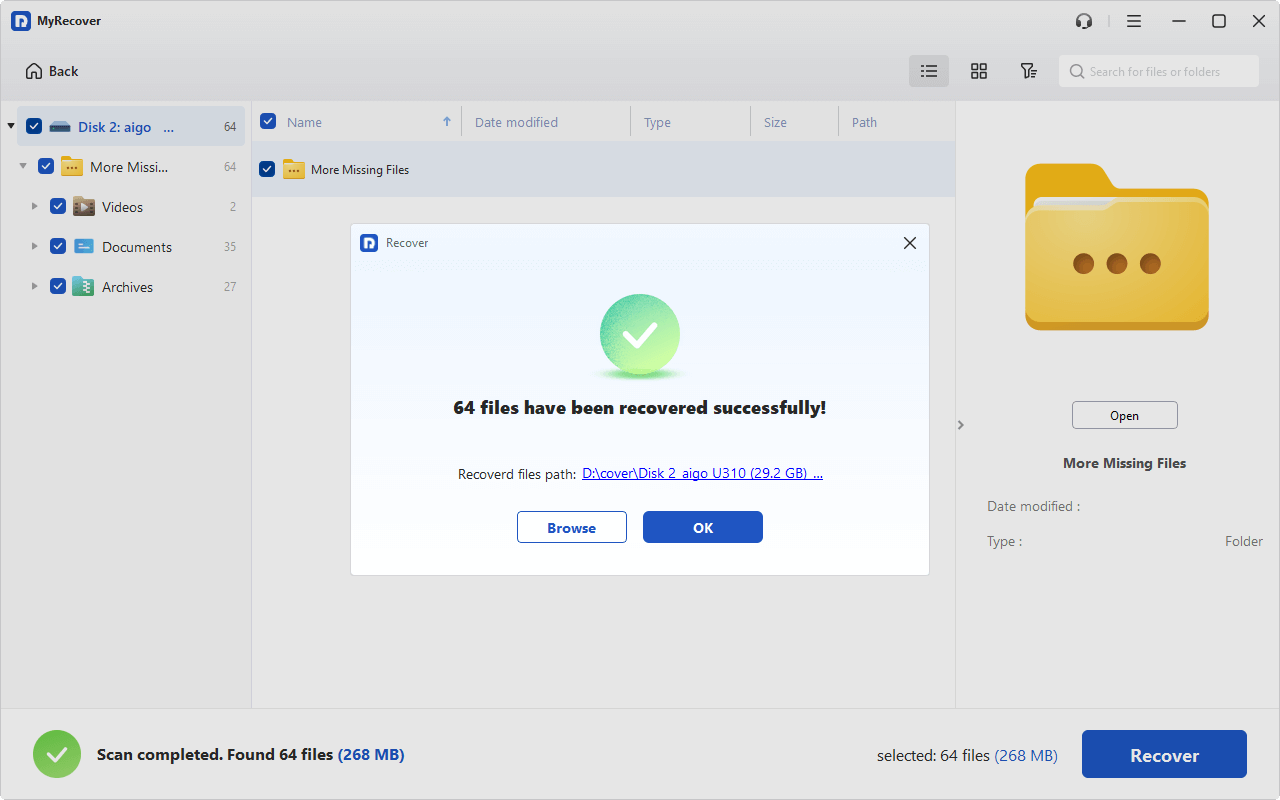
4. Preview and select the files on your FAT32 hard drive, and hit Recover.
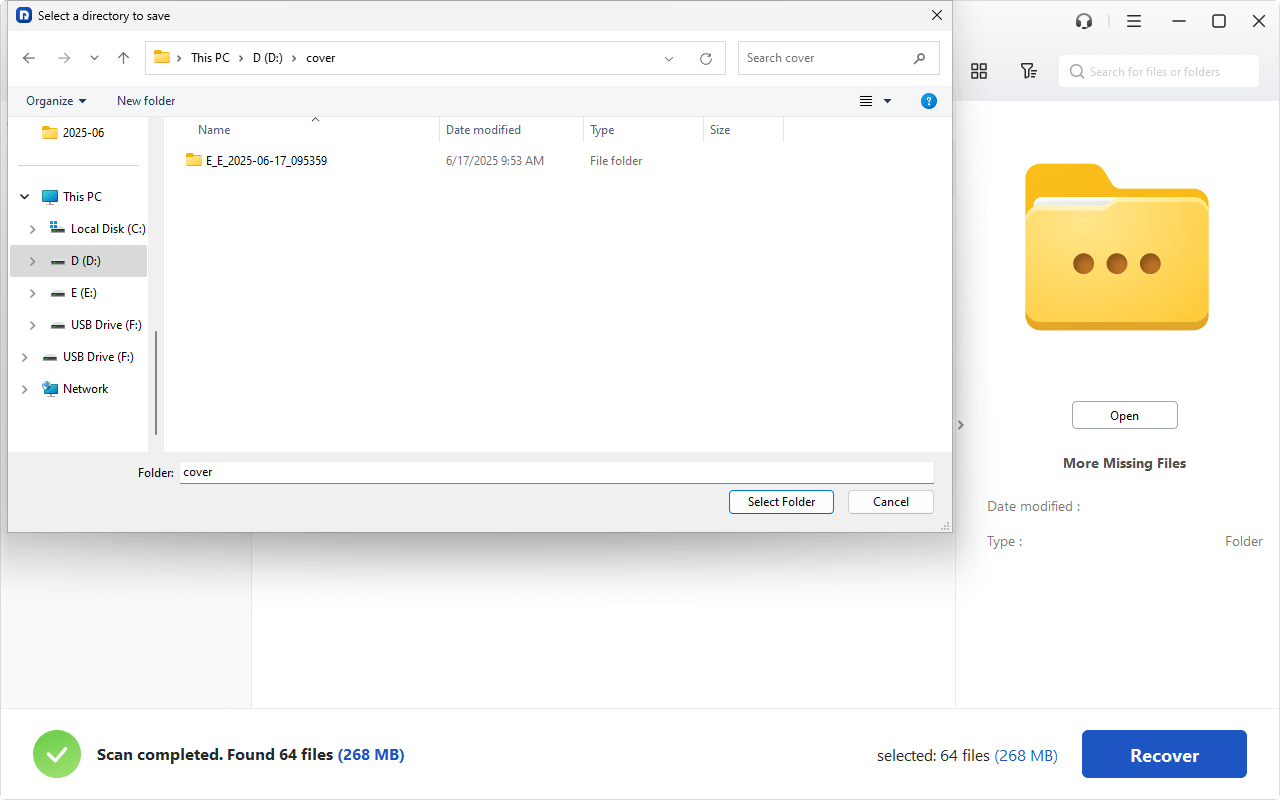
5. Opt for a new location, like an external hard drive, a local disk, etc, to keep them safe.
- Notes:✎...
- Once the scan is complete, all recoverable files will be listed. You can filter the results by file type (Documents, Photos, Videos, etc.) and file path, or search by file name, size, modified date, etc.
- You can view the file before recovering it to ensure it is the correct one.
- Upgrading to MyRecover Technician is a wise decision if you need to recover unlimited files or recover files from unlimited computers, etc.

 MyRecover
- Recover Deleted Files Easily with Simple Clicks
- 1000+ File Formats Supported
- Support HDD, SSD, External Hard Drive, USB Drive, SD Card, etc.
- Quickly Find Files Using File Types, Name, Size, etc.
- Preview Files Before Recovering
- Recover Unlimited Data
 100% Secure
How to Repair FAT32 File System in 5 Ways
Windows offers a couple of built-in utilities that can help you fix a corrupted FAT32 file system. These tools are free, relatively easy to use, and effective for minor to moderate corruption. Or you can try other third-party data recovery tools for that.
Way 1. Run CHKDSK to Scan and Fix Corrupted FAT32 File System
The CHKDSK (Check Disk) command is a powerful built-in tool that scans your drive for file system errors and attempts to repair them. To use it:
1. Plug in your drive, open File Explorer to note the drive letter (like E:).
2. Then open Command Prompt as administrator. Type chkdsk g: /f /r, replacing "g:" with your drive's letter, and hit Enter.
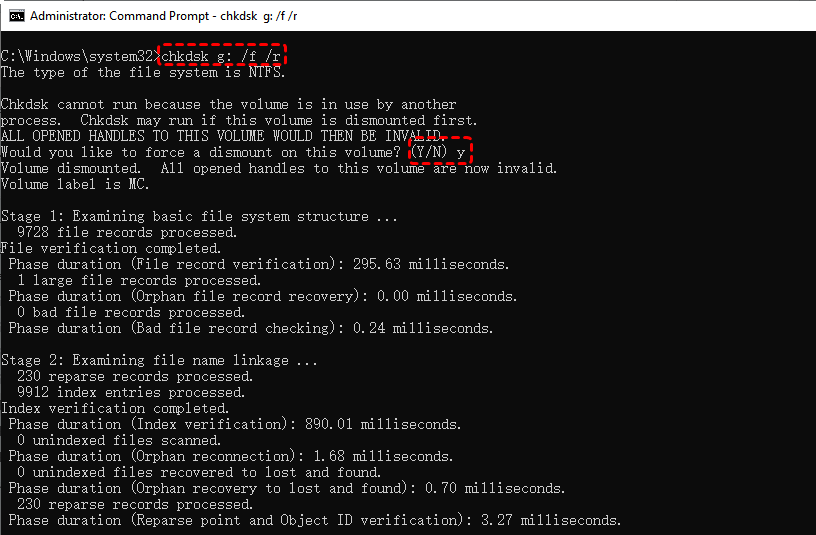
The /f flag instructs CHKDSK to fix errors, while /r locates bad sectors and attempts to recover readable data.
This is your first line of defense when trying to fix a corrupted FAT32 file system.
Way 2. Use DiskPart to Clean and Reformat the Drive
If CHKDSK cannot repair the drive, you may need to use DiskPart, a command-line disk partitioning tool. This is more aggressive and will erase all data on the drive, so only proceed if you have already recovered your files.
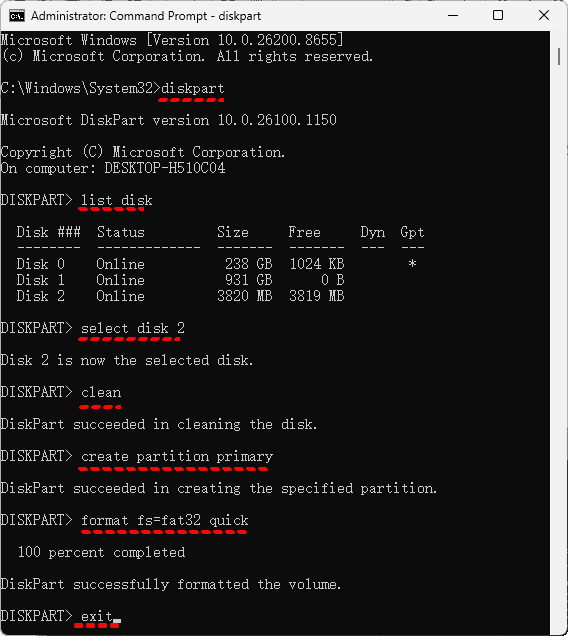
1. Open Command Prompt as administrator and type diskpart.
2. Then list disk to identify your drive.
3. Select it with select disk X (replace X with the correct number).
4. Then type clean to wipe the partition table.
5. To create a new partition, input: create partition primary
6. Format it with format fs=fat32 quick.
7. Hit exit.
Way 3. Apply the Error Checking Tool via File Explorer
If you prefer a graphical interface, Windows offers an Error Checking tool.
1. Right-click your USB drive in File Explorer, go to Properties > Tools.
2. Click "Check" under the Error checking section.
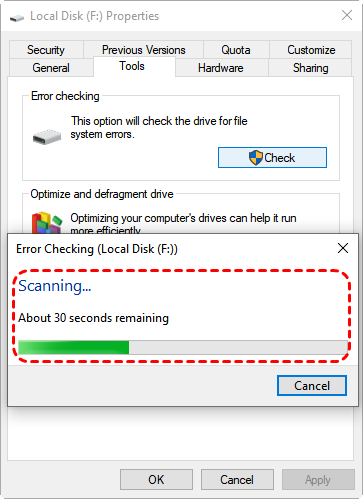
This will scan and attempt to fix a corrupted FAT32 file system without requiring command-line knowledge. It's the most beginner-friendly option and works well for logical errors from improper ejections.
How to Fix FAT32 Format Error 32 Quickly
Encountering a FAT32 format error GetLastError()=32 can be frustrating, especially when you are trying to quickly format a drive.
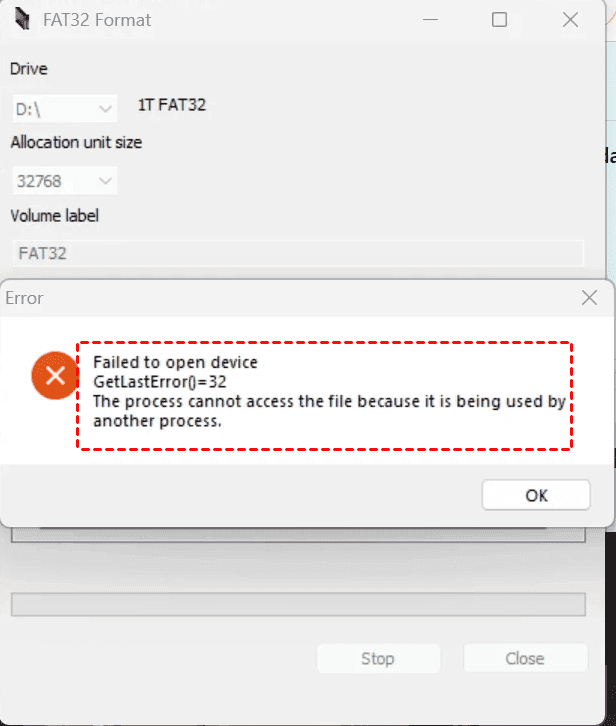
This error typically means that Windows cannot access the drive because it is in use by another process. This can happen if a program is reading or writing to the drive, or if the drive has not been properly closed by a previous operation.
Solutions for that:
Way 1. Close Programs Using the Drive
First, check if any applications are actively using the drive. Close all open File Explorer windows, media players, or any software that might be accessing files on the drive. Sometimes, a background process might still be using it, and a simple restart of your computer can unlock the drive and resolve the FAT32 format error 32.
Way 2. Use Safe Mode to Bypass Locked Files
If you still get the error, booting into Safe Mode can help. Safe Mode starts Windows with a minimal set of drivers and services, which often bypasses processes that might be locking your drive. Once in Safe Mode, try formatting the drive again.
FAQs About FAT32 Corruption
What causes FAT32 corruption on a USB drive?
A: The most common causes include improper ejection, sudden power loss during data transfer, physical damage or bad sectors, and virus or malware attacks. FAT32's lack of journaling makes it particularly vulnerable to these events.
Can I fix a corrupted FAT32 file system without losing data?
A: Yes, in many cases. Running CHKDSK with the /f and /r parameters can repair file system errors without affecting your files. If CHKDSK fails, you can use a data recovery tool like MyRecover to recover your data first, then format the drive. To learn how to repair FAT32 file system, always start with CHKDSK.
Is exFAT more reliable than FAT32?
A: Generally, yes. While both lack journaling, exFAT is more modern and robust, especially for large drives and files. It is less susceptible to corruption than FAT32, making it a better choice for most modern use cases. However, understanding the differences in exFAT vs. FAT32 corruption can help you choose the right file system for your needs.
How do I fix FAT32 format error 32?
A: This error usually means the drive is in use by another process. Close all programs that might be accessing the drive and restart your computer. If that doesn't work, boot into Safe Mode and try formatting again. These steps typically resolve the FAT32 format error 32 and allow you to proceed.
Does formatting a drive fix FAT32 corruption?
A: Yes, a full format can fix a corrupted file system by writing a new FAT32 structure to the drive. However, this will erase all data on the drive. Always recover your important files first using a tool like MyRecover, then format to fix the corrupted FAT32 file system.
Can I recover files from a FAT32 drive with bad sectors?
A: Yes, but it depends on the severity. Tools like CHKDSK with the /r flag can attempt to recover data from bad sectors. If that fails, data recovery software like MyRecover can scan the drive and recover what it can. For physically damaged drives, professional data recovery services may be necessary.

Stay Updated With Our
Latest Tips
Add us as a preferred source on Google to never miss helpful guides.
 Add as preferred source >>