 MyRecover



How to Recover LOST.DIR Fileson Android, Windows Easily?
This guide explains what the LOST.DIR folder is and provides safe, step-by-step methods for how to recover LOST.DIR files. You'll learn specific techniques for how to recover LOST.DIR files from SD card using reliable software and manual approaches to get your data back.

By Delores / Updated on January 23, 2026


Preface
You might be curious about the LOST.DIR folder while you connect your Android or the SD card. Are there any important files? How to recover LOST.DIR files? This guide will show everything about it and recover files from the LOST.DIR folder.
What is LOST.DIR Folder?
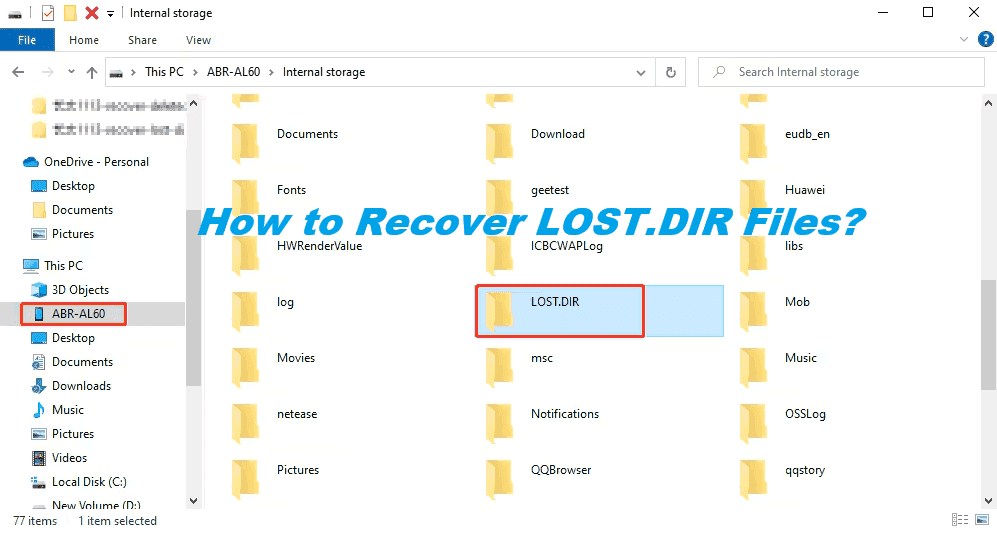
What is LOST.DIR? LOST.DIR is short for "lost directory". It's not a virus, not malware, but a system-generated folder primarily found on Android devices and SD cards formatted for use with them.
When your device encounters a file that becomes corrupted or loses its file path and metadata—during an unexpected shutdown, a faulty ejection, or a read/write error, it doesn't just throw the data away. Instead, it attempts to salvage the raw data by placing it into this LOST.DIR directory. The files inside often have scrambled names because the system can't identify them properly, but the core content—your photo's image data or your document's text—may still be perfectly intact. It means there's a very high chance you can learn how to retrieve LOST.DIR files from this protective folder.
How the LOST.DIR Files Created?
The LOST.DIR folder fills up due to these specific data interruption events:
- Improperly ejecting the SD card during an active file transfer.
- Sudden device power loss from a depleted battery.
- A system or application crashes while saving data.
- Using a failing, faulty, or counterfeit memory card.
- A card formatted with an incompatible file system.
- Unexpected device reboots or shutdowns.
Preparations Before You Attempt Recovery
First, the absolute golden rule: Do not delete the LOST.DIR folder or its contents.
Second, don't format the SD card if your device suggests it. Formatting will wipe the slate clean, making professional recovery exponentially harder and more expensive.
Third, avoid saving new files, taking new photos, or downloading anything to the SD card. Every new piece of data written risks overwriting the physical space where your lost files are still sitting.
Finally, don't start randomly renaming files in the LOST.DIR folder from within your phone; you might corrupt them further.
The goal is to create a frozen, read-only state for the card until you're ready to perform the recovery on a stable system.
Recover LOST.DIR Files on Android
If the LOST.DIR folder is on your phone’s internal storage; the process is more delicate, and using a trusted recovery app, like easy file exploreron the phone itself might be necessary. Here we will show you the steps of using Easy File Explorer to recover files from the LOST.DIR folder:
1. Download Easy File Explorer on your Android store, and install it.
2. Run the program, and locate the LOST.DIR folder.
3. Click one of these files, and tap Select All at the top.
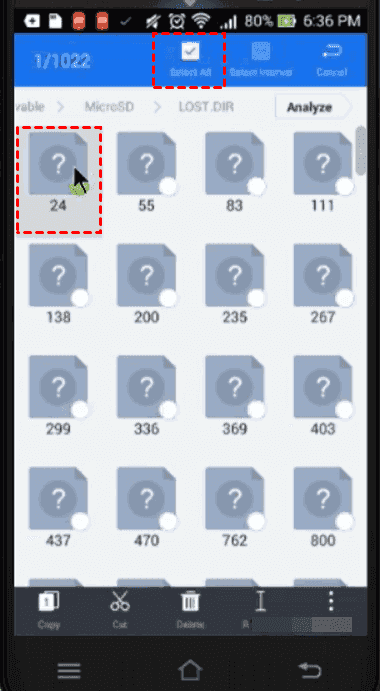
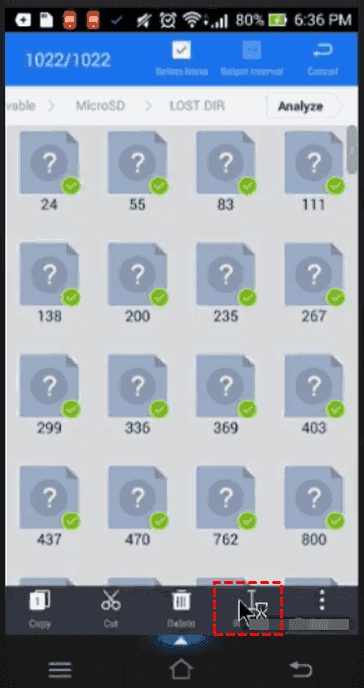
4. Tap Rename at the bottom.
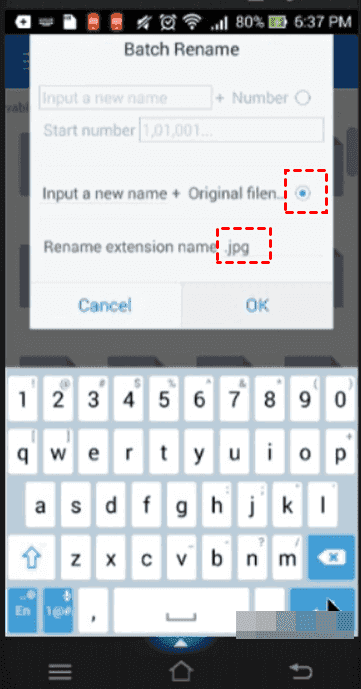
5. Tick the option Input a new name + orignal filename, and input the .jpg in the Rename extension name, and hit OK > Enter.
6. Now, these files will be shown as photos if they were.
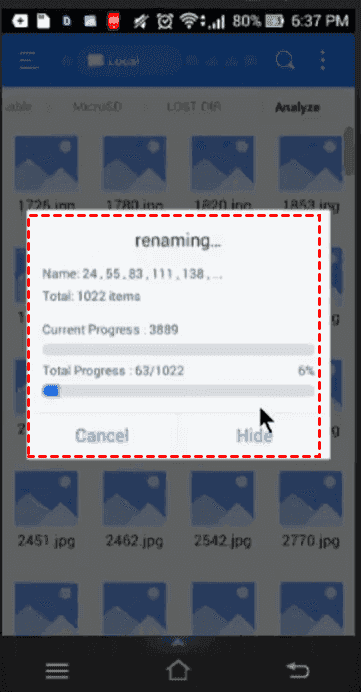
7. For other files, they will be shown as corrupted. Tap three-dot > View > Size descending to show large files; these might be video files. Tick these files manually, do the rename, and change the file extension to .mp4. These files will be videos.
8. Then move all these recovered photos and videos to another folder for safety.
Recover LOST.DIR Files Manually on Windows
If the LOST.DIR files are on an SD card—which is most common—your best bet is to power down the Android device completely. Gently remove the SD card and insert it into a quality, known-working USB card reader connected to a Windows or Mac computer. This allows your computer to see the card as an external drive, giving you more control and access to powerful recovery software that your phone simply doesn’t have.
You can rename these files in the LOST.DIR folder to recover them:
1. With your SD card connected to your computer, navigate to the LOST.DIR folder.
2. You'll likely see files with obscure extensions like *.000, *.chk, or just numbers. The trick here is that these files often still contain their original data format. You can try to identify them by size (a large file is likely a video) or by opening them in a relevant program.
3. Right-click a file, select "Open with", and try a relevant application—try a photo viewer for a suspected image, VLC Media Player for a potential video, or a text editor for a document.
4. Once you confirm a file is usable, you can rename it, adding the correct extension.
This hands-on approach is a direct answer for someone asking how to recover LOST.DIR files without extra tools, but it's time-consuming and hit-or-miss for a large number of files.
Recover Files After Formatting or Accidental Deletion
Sometimes, you might have formatted the SD card or deleted the LOST.DIR files before the LOST.DIR files recovery, how to get back these files? Here comes a powerful data recovery software, MyRecover. This tool performs deep, sector-by-sector scans of your storage media, searching for raw file signatures across the entire space. MyRecover can recover your files as long as they are not overwritten by new files after formatting or deletion.
Key features of MyRecover:
- The ability to preview found files before recovery ensures they are what you are looking for.
- Support for a vast range of file types.
- A clear interface.
- Various devices supported, including the SD card, USB flash drive, etc.
- High recovery rate.
Here is how to recover deleted LOST.DIR files from SD Card with MyRecover:
1. After safely inserting your SD card into your computer via a card reader, download and install MyRecover and then launch it.
 100% Secure
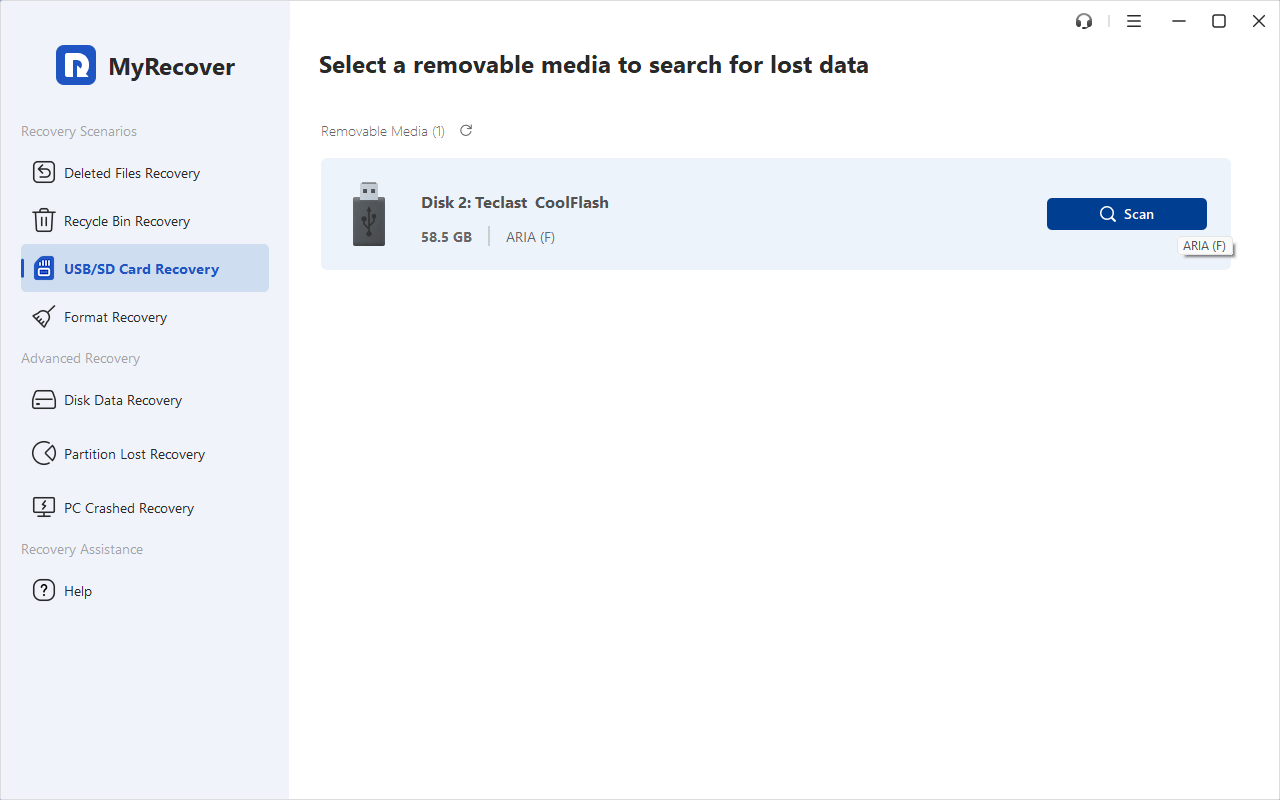
2. Tap USB/SD Card Recovery, choose your SD Card, and hit Scan while pointing at it. Hit OK when it’s done.
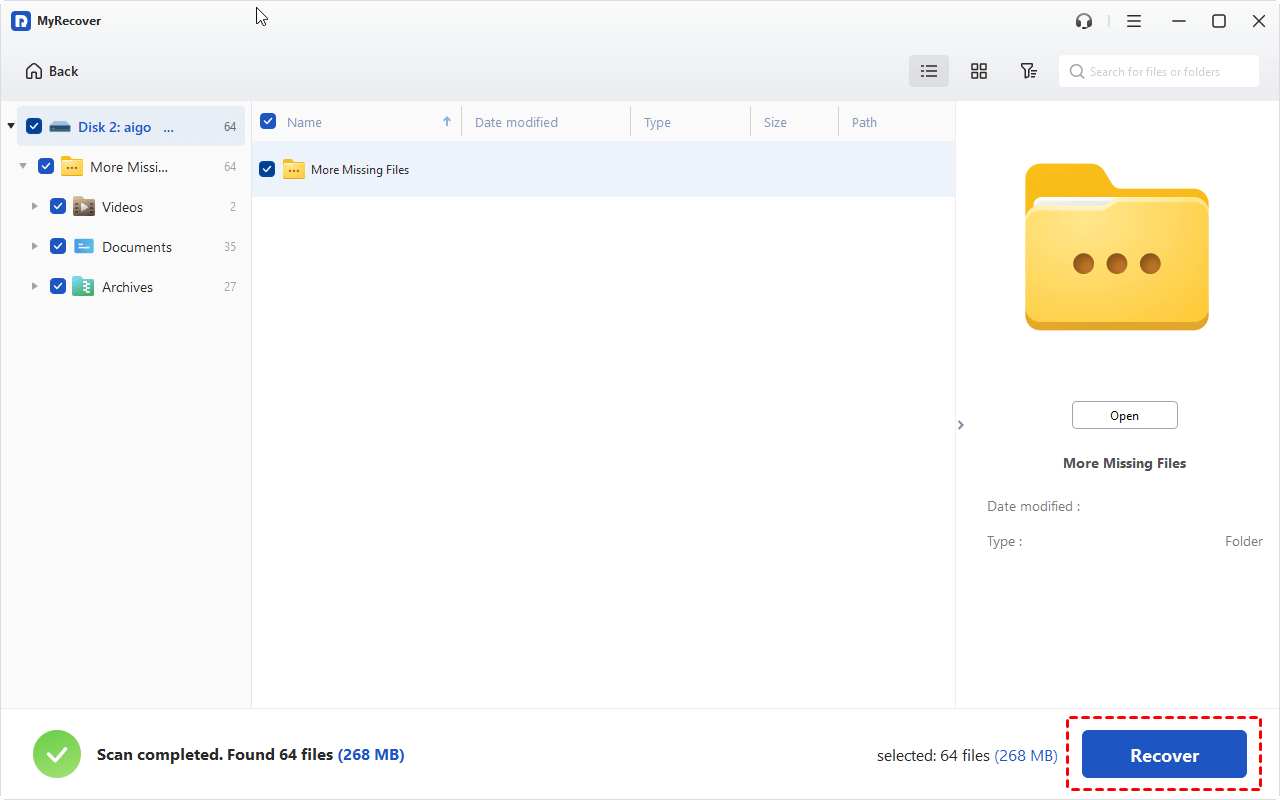
3. Tap Path, you can find the LOST.DIR folder or other folders, tick all the boxes before the files, and hit Recover.
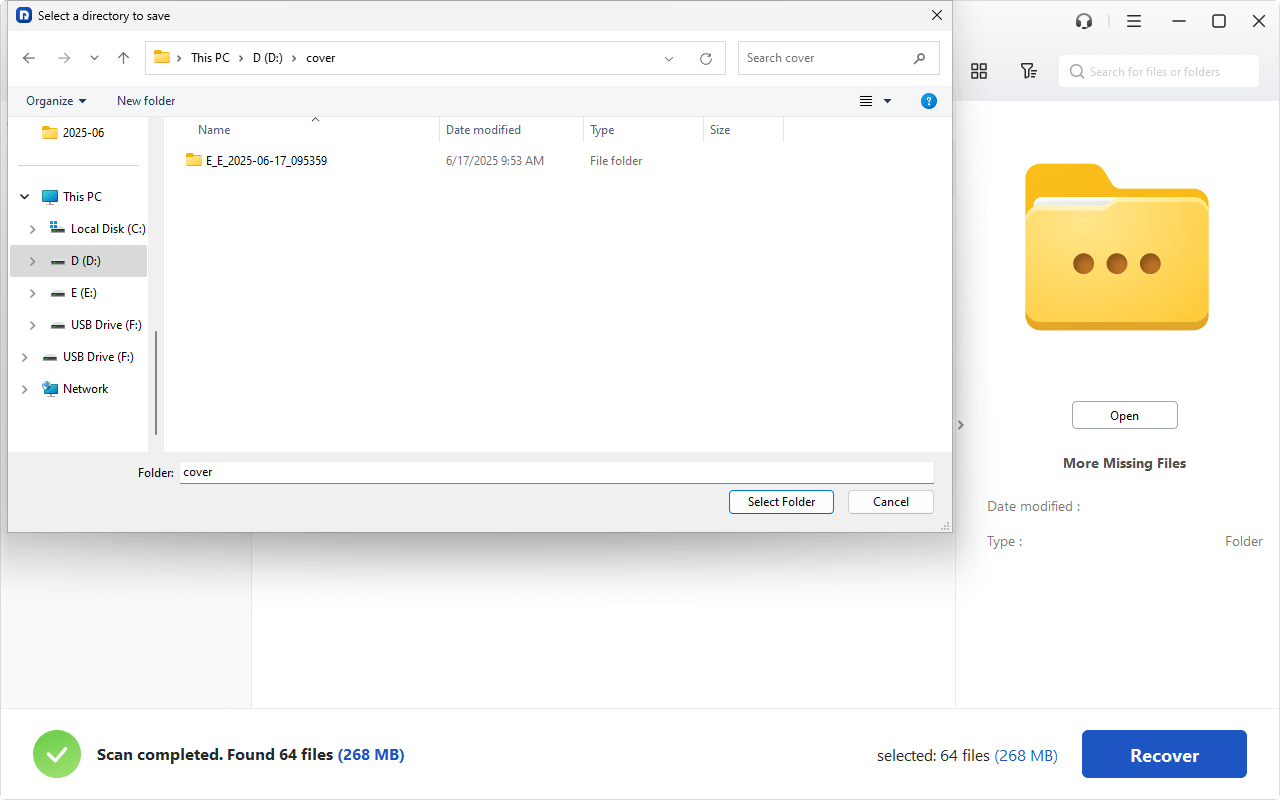
4. Opt for a safe location to keep the recovered files now, and hit Select Folder to confirm.
- Tips:✎...
- MyRecover will perform a deep scan (scan every sector) to find all the missing files. Wait patiently.
- Except for the file path and type, you can also search files by name, size, modified date, etc. Enjoy the easy search.
- To find what you need, you can preview these files before recovery ensure they are intact.
- Try MyRecover Technician if you need to recover files from unlimited computers in your company.
Once recovered, you can go to the destination folder to check if these files are usable. For LOST.DIR files, you can change the file extensions after recovery to check what they were, just like the above steps.
FAQs on Recovering LOST.DIR Files
Q: Is it safe to delete the LOST.DIR folder from my SD card or phone?
A: Only after you've recovered your files. The folder itself is harmless—it's a system-created holding area for recoverable data. Deleting it first is like tossing a lost-and-found box without looking inside. Once you've rescued your photos and documents, you can delete them to free up space. Your device will create a new one if needed.
Q: Can I recover files from LOST.DIR for free without any software?
A: Yes, but it's a tedious guessing game. You can try opening files directly by guessing their type—use VLC for a potential video or Paint for an image. If they open, save them with the correct extension. The problem? Files have names like F00001, so you won't know their original names or order. This method is only practical for a few files; for serious recovery, software is far more efficient.
Q: Why did my Android phone or camera create a LOST.DIR folder?
A: It's an automated crash-recovery system. The folder appears when a file operation is interrupted—like pulling the SD card out without ejecting, a sudden battery death, or an app crash. The system saves the orphaned data here to prevent total loss. It's a symptom of instability, not the cause.
Q: The files in my LOST.DIR folder have weird names like .CHK or numbers. Can I still recover them?
A: Absolutely. The strange names are just labels assigned when the system lost the original filenames. The actual content—your photo or video data—is often intact. Recovery software scans for these underlying "file signatures" to identify and rebuild the files correctly, letting you preview and save them with proper names.
Q: How can I prevent files from going into the LOST.DIR folder in the future?
A: Adopt safe handling habits. Always eject your SD card properly using "Safely Remove Hardware" on a PC or the Eject option in your phone's storage settings. Avoid letting your device die during file transfers. Use high-quality, genuine SD cards. Periodically back up your data and format the card in the device you use it with most to maintain a clean file system.
Q: I formatted my SD card, and now I see a LOST.DIR folder. Can I recover my old photos?
A: Yes, act immediately. A Quick Format only erases the file index, not the actual data. Your old photos are still there, but "unallocated". Use recovery software (like MyRecover with a Deep Scan) right away. Do not save new files to the card, as they will overwrite your old data. The sooner you scan, the better your chances.

Stay Updated With Our
Latest Tips
Add us as a preferred source on Google to never miss helpful guides.
 Add as preferred source >>