 MyRecover


INTERNAL_POWER_ERROR in Windows 11/10: Decode Stop Code 0xA0 and Fix It
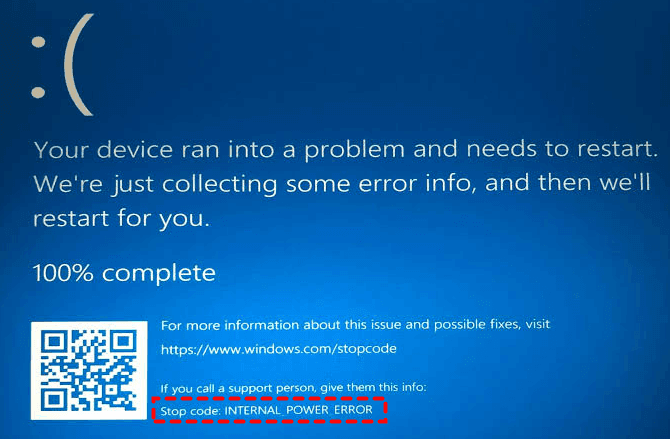
INTERNAL_POWER_ERROR in Windows 11/10 means stop code 0x000000A0: a fatal power-manager error. Read Parameter 1 in Event Viewer or a minidump to separate hibernation faults from driver timeouts, then follow the ordered fixes for sleep crashes, Dell systems, and storage errors, plus honest limits and FAQs.

By Delores / Updated on November 23, 2026


Quick Answer
A blue screen with INTERNAL_POWER_ERROR in Windows 11 is bug check 0x000000a0: Windows reports that the power policy manager experienced a fatal error. The stop code is a symptom, not a diagnosis. Microsoft's official reference states that Parameter 1 indicates the type of violation, so the arguments saved with the crash decide whether you should resize hiberfil.sys, roll back a graphics driver, update firmware, or test a disk. Reinstalling Windows first wastes time and can leave the real trigger in place.
The same bug check appears as an INTERNAL_POWER_ERROR in Windows 10 on older systems, and Dell INTERNAL_POWER_ERROR reports often follow a driver or BIOS change. This guide reads the parameter first, then matches it to a fix, and states where a parameter-based approach stops: a dump can narrow the failing operation without naming a driver.
Please Help! INTERNAL_POWER_ERROR in Windows 11!
INTERNAL_POWER_ERROR BSOD in Windows 11
I have a couple of new computers we are imaging at work with Windows 11, and for some reason, when we add them to a specific OU in AD, they blue screen with BSOD Internal_Power_Error. We have tried all the hibernation file stuff, etc and have narrowed it down to a specific OU causing it. I have even narrowed it down to a specific GPO that is causing it; I just have no idea what setting in that GPO it could be. Anyone ever see this before?
The computer model is a Cybernet G22. We have done all the basic troubleshooting steps (change hibernate file, etc.) and have narrowed it down to a GPO.
- Question from reddit.com
Other INTERNAL_POWER_ERROR Problems
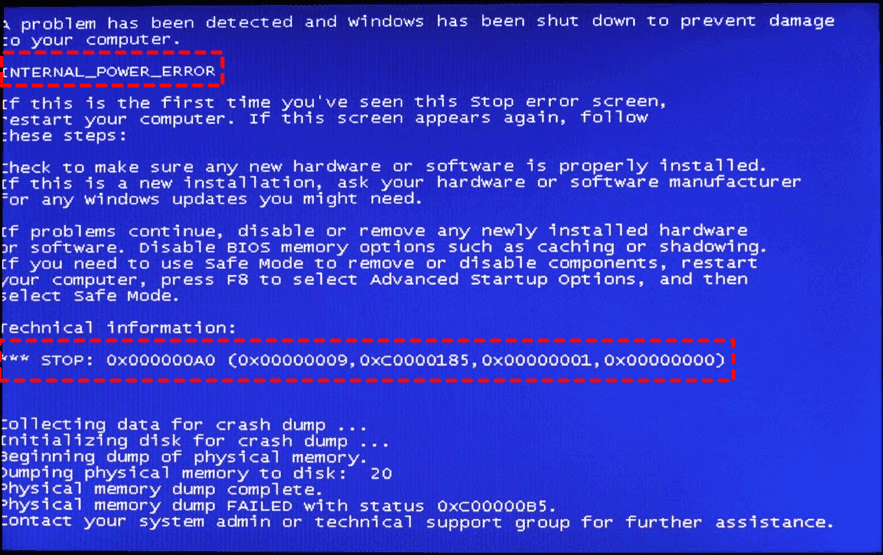
Besides, you might also encounter a similar INTERNAL_POWER_ERROR message like this:
A problem has been detected, and Windows has been shut down to prevent damage to your computer.
INTERNAL_POWER_ERROR
If this is the first time you've seen this Stop error screen, restart your computer. If this screen appears again, follow these steps:
Check to make sure any new hardware or software is properly installed. If this is a new installation, ask your hardware or software manufacturer for any Windows updates you might need.
If problems continue, disable or remove any newly installed hardware or software. Disable BIOS memory options such as caching or shadowing. If you need to use Safe Mode to remove or disable components, restart your computer, press F8 to select Advanced Startup Options, and then select Safe Mode.
Technical information:
*** STOP: 0x000000A0 (0x00000009,0x00000185,0x00000001,0x00000000)
Collecting data for crash dump ...
Initializing disk for crash dump ...
Beginning dump of physical memory.
Dumping physical memory to disk: 20
Physical memory dump FAILED with status 0xc0000005.
Contact your system admin or technical support group for further assistance.
What INTERNAL_POWER_ERROR 0xA0 Actually Reports
The On-Screen Text and the Dump Name
On screen, you see INTERNAL_POWER_ERROR with stop code 0x000000A0 and the line "The power policy manager experienced a fatal error".In dump analysis, the same event prints as INTERNAL_POWER_ERROR a0 the power policy manager experienced a fatal error; the underscore form INTERNAL_POWER_ERROR is the kernel's name for the check, not a second error. Faults in code that handles sleep, hibernation, resume, shutdown, or device idle states all produce it.
Parameter 1 Groups That Change the Fix
Microsoft's documented parameter table makes the stop code actionable. Four groups cover most crashes on a home PC.
- 0xB means the hibernation file is too small. Values 0x3, 0x4, 0x9, 0x108, 0x10A and 0x10E concern hibernation data, file preparation, or disk reads and writes.
- 0xD, 0xF, 0xF0 and 0xF1 mean the system failed to complete a power transition in time; they point toward a device or driver that did not finish suspend or resume.
- 0x680 reports that the runtime power framework could not parse a required ACPI table, which Microsoft attributes to a BIOS error.
- 0x1 and 0x613 describe driver-side mistakes with power IRPs or completion of requests Windows was not waiting for.
These groups are the fork in the road. A 0x10E crash caused by corrupt data read from the hibernation file deserves a disk check before a driver rollback; a 0xF0 suspend timeout on a laptop deserves device driver work first.
Timing Is a Second Clue
On Windows 10, a Lenovo IdeaPad Z710 on build 10.0.19041 published a dump with Arg1 0xF0, described as "the system failed to complete (suspend) a power transition promptly", after waking from hibernation. The advisor could not name the responsible driver and recommended the power troubleshooter, resetting the power scheme, rebuilding hiberfil.sys with powercfg -h off and on, and reinstalling graphics, chipset, and storage drivers. Same code and parameter family on both operating systems; only Settings labels change.
Read Your Parameters Before Changing Anything
If your computer won’t boot, boot into the Windows Recovery Environment to check your parameters in Event Viewer.
1. Enter the Windows Recovery Environment (by interrupting boot a few times or holding Shift while clicking Restart from the sign-in screen).
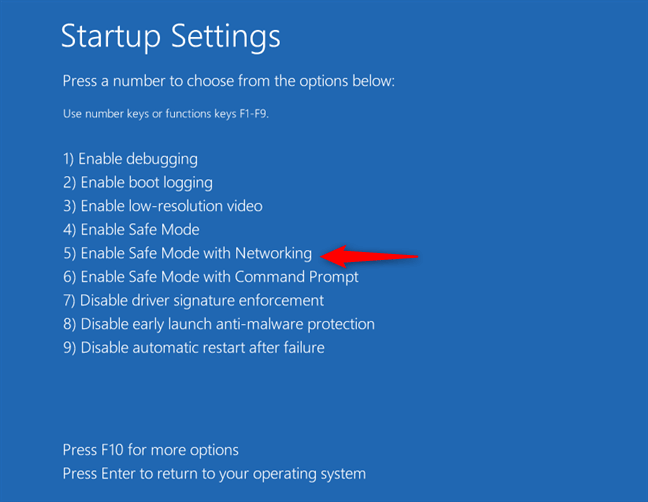
2. Go to Troubleshoot > Advanced options > Startup Settings > Restart.
3. Press 4 (F4) or 5 (F5) to start in Safe Mode.
4. Once logged in, press Win + R, type eventvwr.msc, and press Enter to open Event Viewer.
5. In Event Viewer, expand Windows Logs, select System, and find the BugCheck entry closest to the crash time; it records 0x000000a0 and the four arguments.
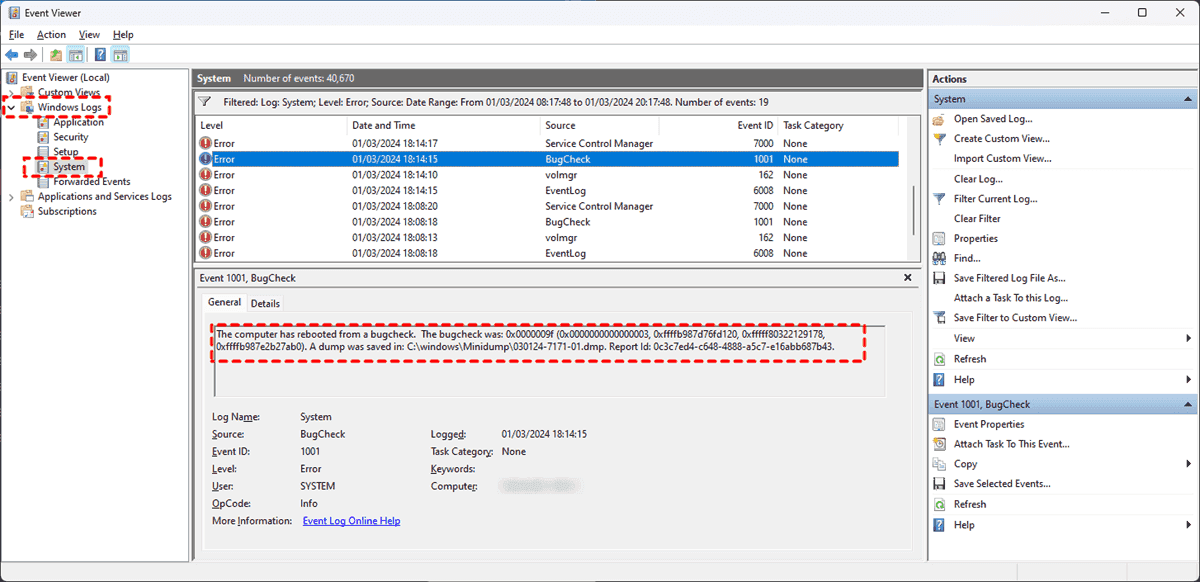
6. If you prefer the dump, open WinDbg Preview, load the newest file in C:\Windows\Minidump, and run !analyze -v; read BUGCHECK_P1 before the module name.
7. Write down whether the crash happened during sleep, resume, shutdown, or idle use, and list any driver or BIOS update from the previous week.
8. Group Parameter 1 into the four categories above and choose only the matching fix path below.
How to Fix INTERNAL_POWER_ERROR on Windows 11 and 10?
Lenovo's official knowledge base gives powercfg /hibernate /size 100 as the fix for the exact INTERNAL_POWER_ERROR a0 message, explaining that the default 75 percent hibernation file can be far smaller than current memory requires.
1. Check free space on the system drive. A hibernation file sized to 100 percent of installed RAM needs roughly that much room; clear temporary files first if the drive is nearly full.
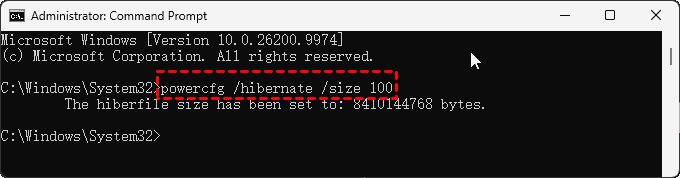
2. Open Terminal (Admin) on Windows 11 or Command Prompt (Admin) on Windows 10 and run powercfg /hibernate /size 100, then restart.
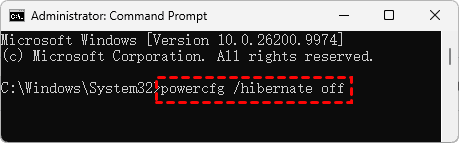
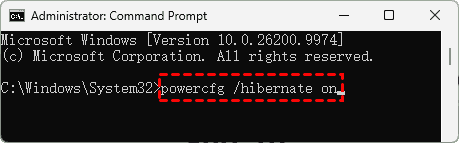
3. Rebuild the file when sizing alone fails: run powercfg /hibernate off, restart, then powercfg /hibernate on, and restart again.
4. Test with shutdown /h, then wake the PC once. If the same parameter returns, stop resizing and investigate the disk instead.
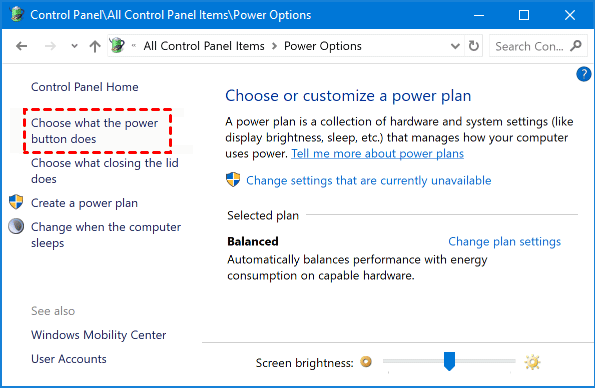
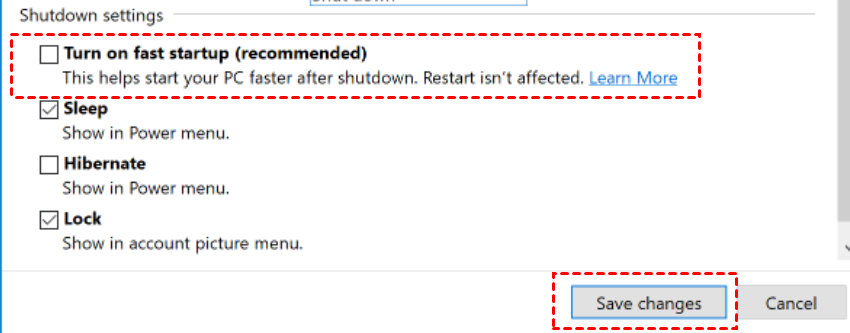
5. For a clean isolation test, disable Fast Startup in Control Panel > Power Options > Choose what the power buttons does; it uses the hibernation file during shutdown.
How to Deal with Dell INTERNAL_POWER_ERROR in Windows 11/10?
It’s another way for driver timeouts and firmware errors. For transition timeouts and ACPI values, vendor guidance is more reliable than generic driver tools. Dell's documented troubleshooting sequence covers unplugging external devices, pre-boot diagnostics, Safe Mode testing, and a fixed driver order.
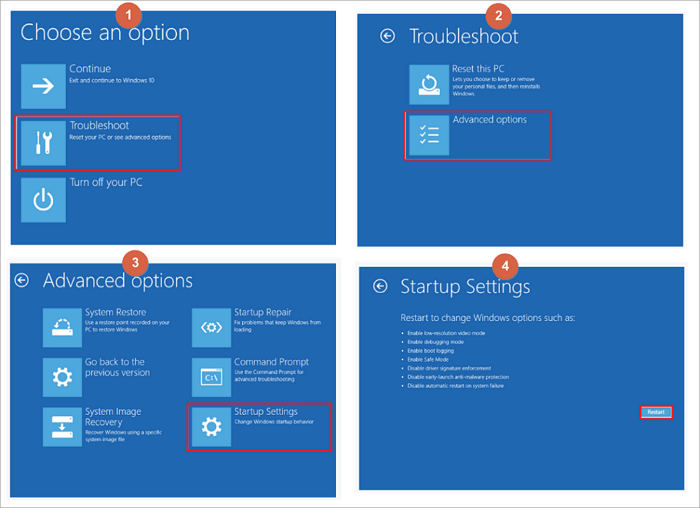
1. Boot into Safe Mode with Shift + Restart, then Troubleshoot > Advanced options > Startup Settings > Restart > 4, and repeat the trigger. No crash in Safe Mode favors a third-party driver.
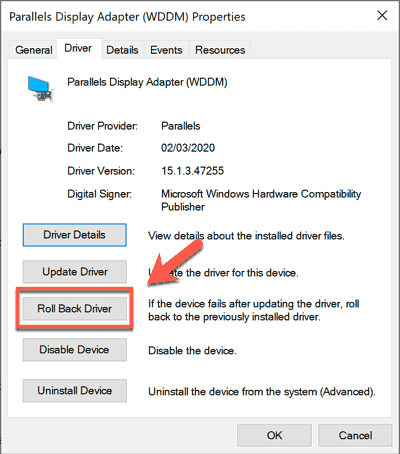
2. Roll back a recently updated graphics, storage, or chipset driver in Device Manager under Properties > Driver > Roll Back Driver if the crashes began after that update.
3. If no rollback is available, install the latest version of chipset, graphics, and storage drivers from the PC or motherboard maker rather than a generic driver host.
4. On Dell hardware, update in this order: BIOS, chipset, video, audio, network, then other drivers, retesting after each one.
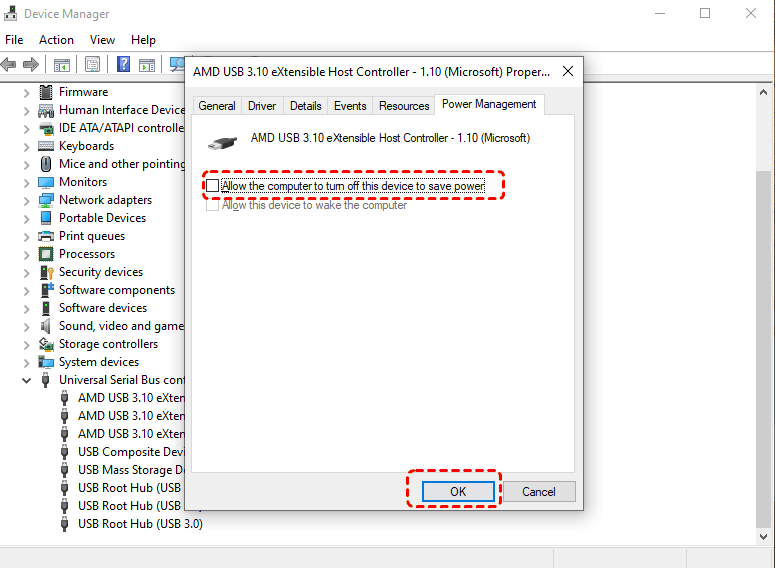
5. Check a suspect network or USB adapter in Device Manager for a Power Management option that lets Windows turn the device off, and clear it as a targeted test.
6. When Parameter 1 is 0x680, update BIOS or UEFI from the exact model's support page with the charger connected, because Microsoft ties that value to a missing or malformed ACPI table.
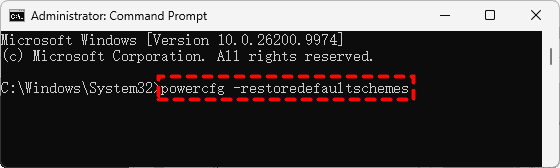
7. Reset power settings with powercfg -restoredefaultschemes if several tweaks were tried and the trigger is now unclear.
When Storage or Memory Is the Real Cause
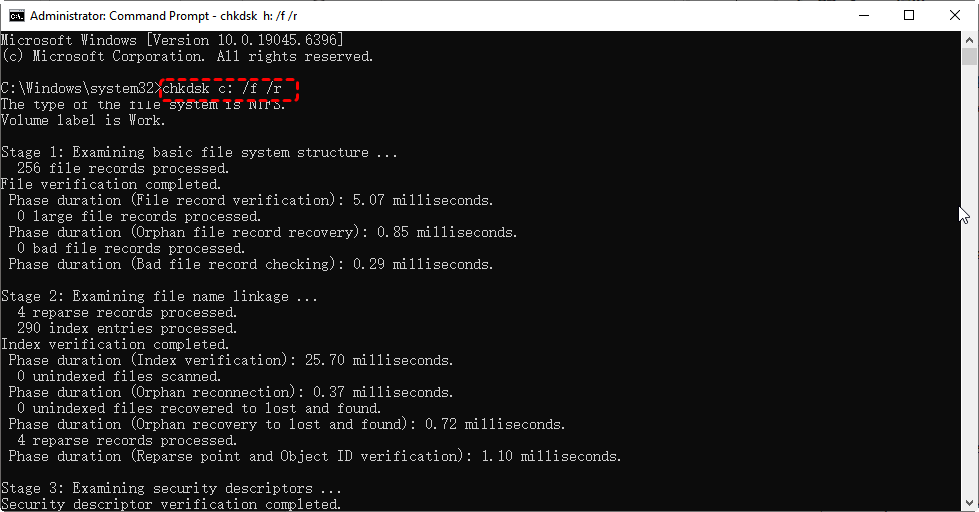
1. For 0x108, 0x10A, or 0x10E, run chkdsk C: /f /r from an elevated prompt and schedule the restart when prompted.
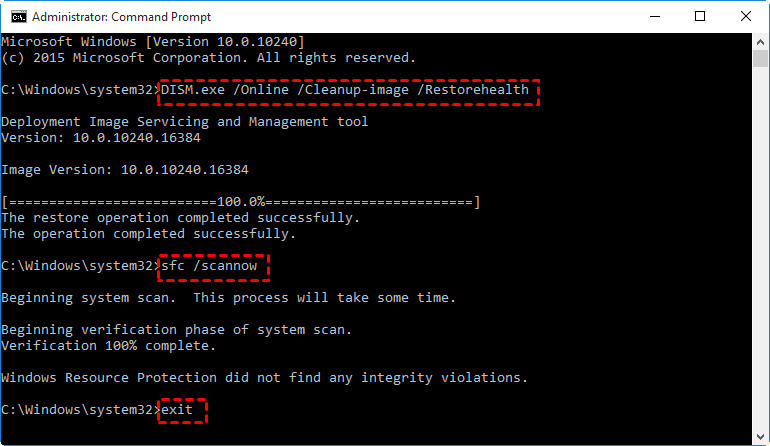
2. Repair Windows components with DISM /Online /Cleanup-Image /RestoreHealth, then sfc /scannow.
3. Run mdsched.exe for a memory test, and use manufacturer diagnostics on Dell or Lenovo systems before blaming the power supply.
4. Back up important files before repeating repairs, and stop testing writes on a drive that returns read errors.
Recover Important Files If You Can’t Fix INTERNAL_POWER_ERROR
If the same 0xA0 crash returns after every path above and Windows no longer starts, treat the machine as a data-recovery case rather than a repair case. MyRecover is a Windows file recovery utility for documents, photos, and other files on HDDs, SSDs, USB drives, and external media. Its PC Crashed Recovery workflow targets a computer that will not boot, and the vendor also explains how to recover data from an inaccessible C drive when normal sign-in is impossible. Download the free recovery tool on a working computer before you begin.
1. On a working Windows PC, install MyRecover there — never on the system disk whose personal files you need to recover.
 100% Secure
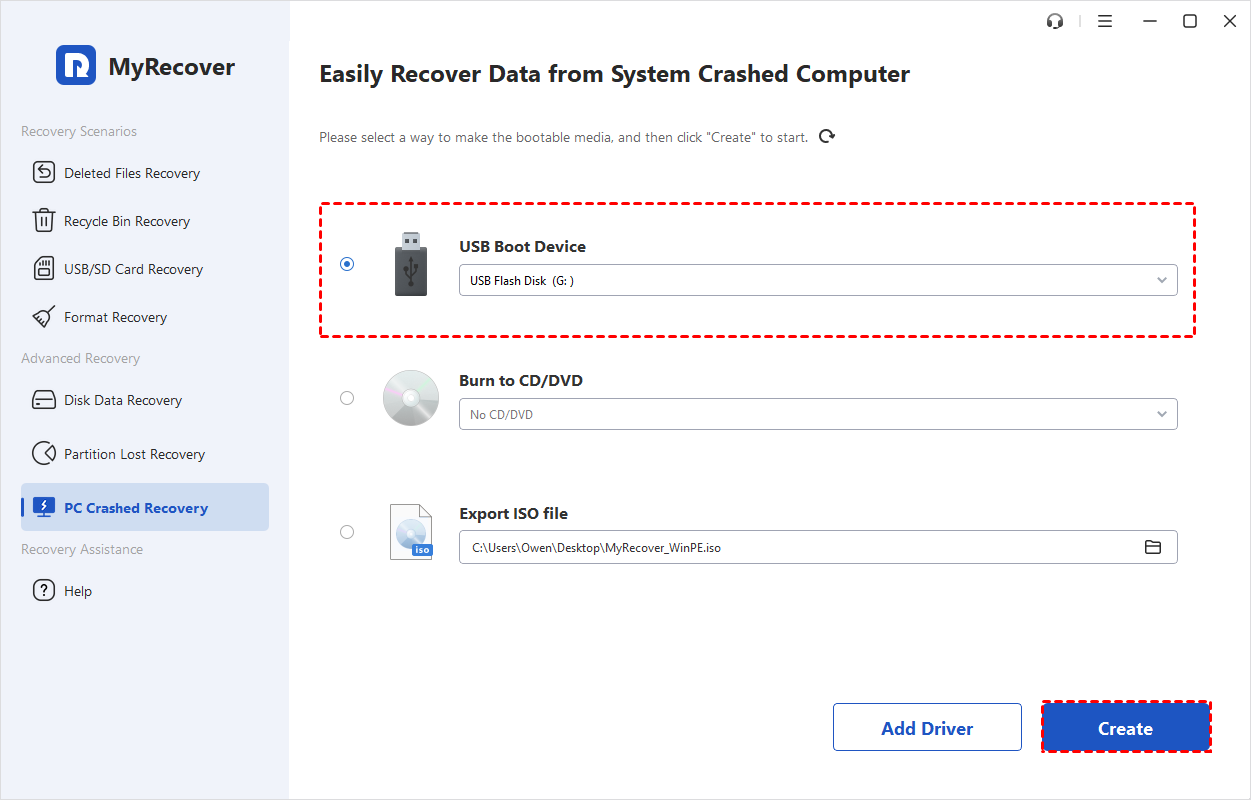
2. Launch the tool, pick PC Crashed Recovery, tick USB Boot Device, select your USB flash drive, and hit Create. It produces a Windows 11 bootable USB drive that loads MyRecover outside the failed installation.
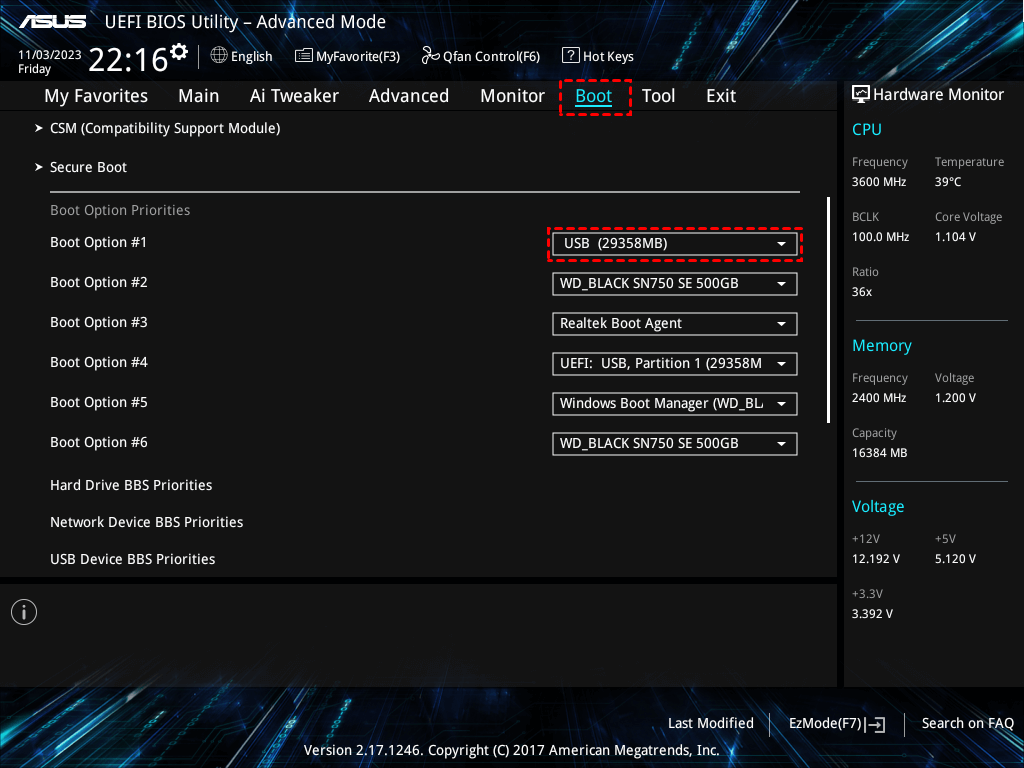
3. Insert that bootable USB into the unbootable PC, enter BIOS settings, choose the USB Drive in the boot menu, and wait for MyRecover to load.
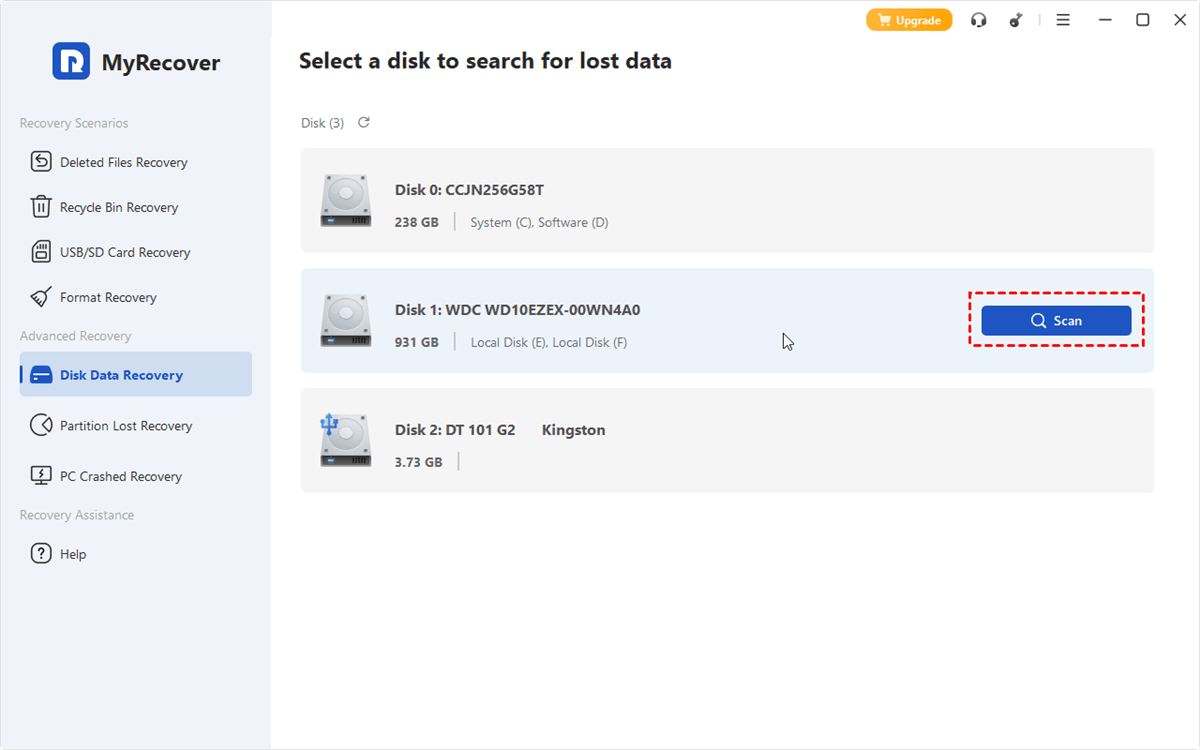
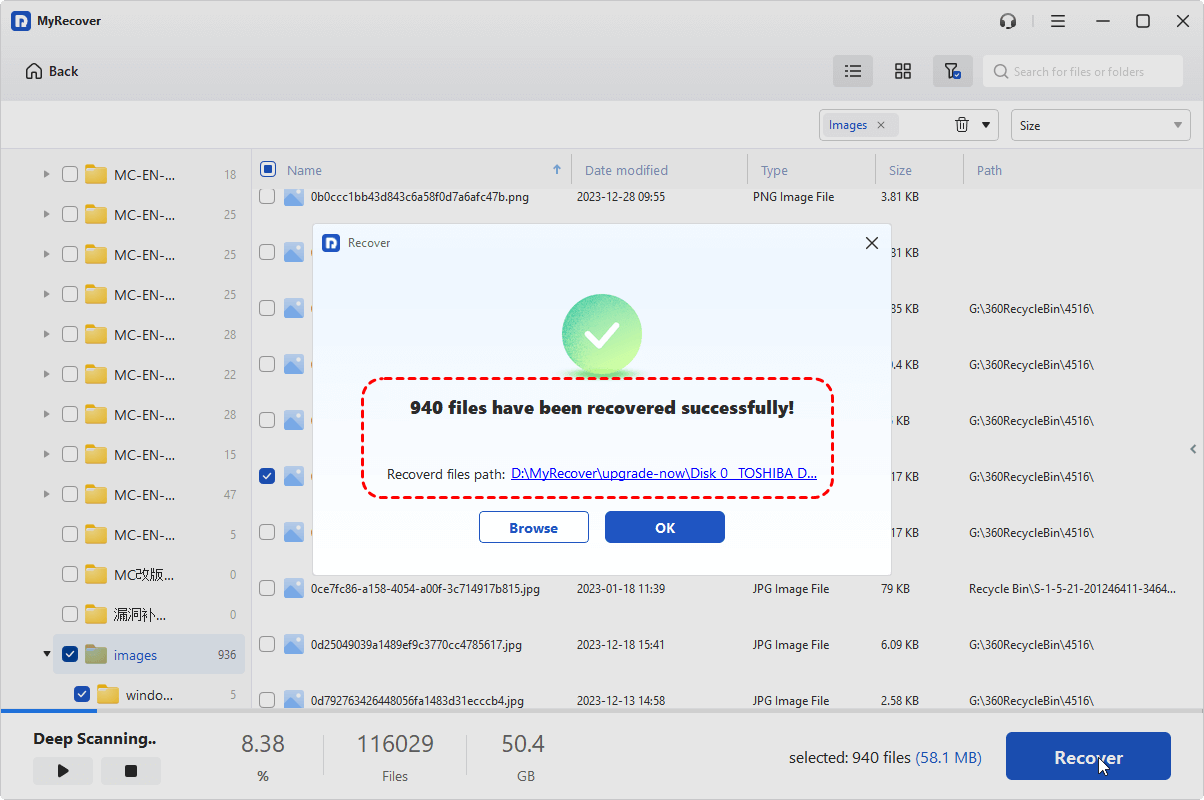
4. Select Disk Data Recovery, point it at the disk that contains the C drive, and hit Scan. After the scan, use Filter by file path, name, size, or modified date, preview the personal files you need, tick them, and press Recover.
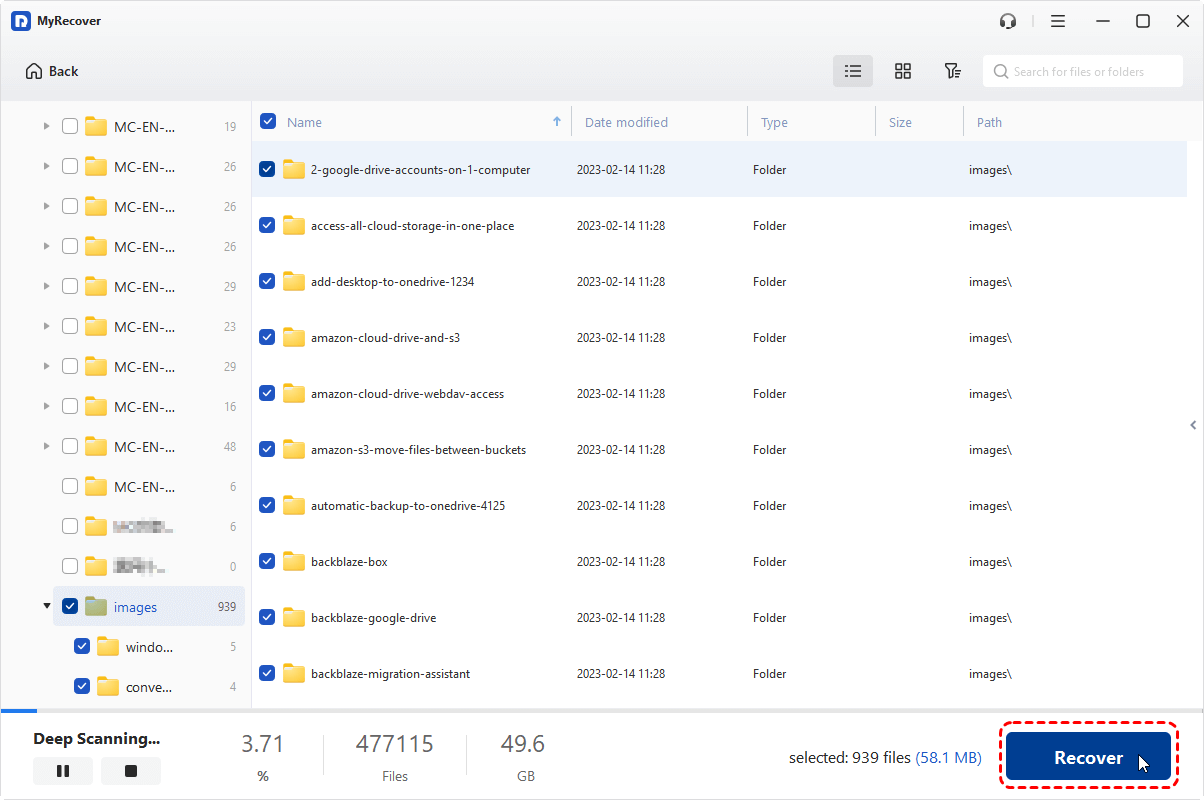
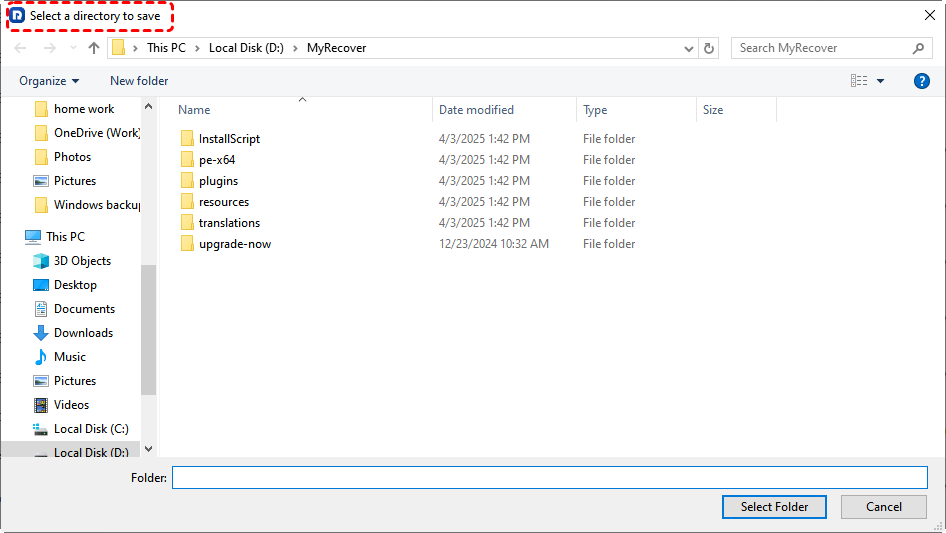
5. Choose an external drive or another partition as the destination, then open the recovered copies there and confirm they are readable before relying on them.
- Tips:✎...
- Two rules are non-negotiable: stop writing to the affected system disk immediately, and save every recovered file to a different drive or partition. Installing onto the C drive or saving back to it can overwrite the files you are trying to keep.
- Keep the BitLocker recovery key handy if the system drive is encrypted, and try copying files through the WinRE Notepad Open dialog first if the PC can still reach recovery options.
- To recover files from a crashed computer, recover unlimited computers, please upgrade to MyRecover Professional or Technician.
 MyRecover
- Recover Deleted Files Easily with Simple Clicks
- 1000+ File Formats Supported
- Supports HDD, SSD, External Hard Drive, USB Drive, SD Card, etc.
- Quickly Find Files Using File Types, Name, Size, etc.
- Preview Files Before Recovering
- Recover Unlimited Data
 100% Secure
FAQs About INTERNAL_POWER_ERROR in Windows 11
What does INTERNAL_POWER_ERROR a0 the power policy manager experienced a fatal error mean?
It is the on-screen wording of bug check 0xA0. Windows could not complete an internal power operation safely, and the first dump argument identifies which operation failed.
Is a blue screen INTERNAL_POWER_ERROR in Windows 11 a hardware failure?
Not by itself. Driver, firmware, and hibernation-file faults are common. Repeated checksum or disk-read values such as 0x10E justify storage diagnostics before any hardware replacement.
Can I use the same steps for INTERNAL_POWER_ERROR in Windows 10?
Yes, for the commands and the parameter logic. Menu labels differ: Windows 10 uses Windows PowerShell (Admin) and Settings > Update & Security, while Windows 11 uses Terminal (Admin) and Settings > Windows Update.
Does a Dell INTERNAL_POWER_ERROR always need a BIOS update?
No. Update BIOS when the parameter indicates ACPI or firmware trouble, or when Dell's support page lists a power-management fix for your exact model. Otherwise, start with chipset and graphics drivers.
Will disabling hibernation fix stop code INTERNAL_POWER_ERROR in Windows 11?
It can avoid a hibernation-related crash, but it is a test rather than a universal fix. It also disables Fast Startup and hybrid sleep.
Where are the minidump files stored?
Small dumps are normally in C:\Windows\Minidump and larger dumps in C:\Windows\MEMORY.DMP, depending on the configured dump type.
Conclusion
Start with Parameter 1, not with a reinstall. Hibernation-size and checksum values call for file and disk work; transition timeouts call for driver and firmware work; ACPI values call for BIOS updates. The published cases show that even a dump without a named driver can be addressed by methodical platform-driver testing, which is the strongest argument for reading the arguments before changing anything.

Stay Updated With Our
Latest Tips
Add us as a preferred source on Google to never miss helpful guides.
 Add as preferred source >>