 MyRecover



What Does the Recycle Bin Do in Windows? The Ultimate Guide
Wondering what is the recycle bin in Windows? Discover the use of the recycle bin in computer systems, its hidden location, and how to recover files with MyRecover.

By Vera / Updated on May 7, 2026


What Is the Recycle Bin in Windows?

What is the recycle bin in Windows exactly? At its core, it is a special system folder that acts as a temporary buffer for deleted data. Instead of erasing files immediately from your storage media, Windows re-indexes them to this protected area. This provides a "grace period," allowing you to change your mind and restore data without needing complex recovery tools.
Many new users ask, "what is the use of recycle bin in computer systems?" Think of it as a safety cushion—it doesn’t prevent the "fall" (the deletion), but it softens the impact by ensuring the data isn't gone forever. It is the primary defense against accidental data loss in the Windows ecosystem.
A Brief History & Evolution
The Recycle Bin has been a staple of the Windows experience since Windows 95. While its icon has changed from a bulky plastic bin to a sleek, modern glass-like container in Windows 11, its logic remains the same: protecting users from the high cost of human error.
Where Is the Recycle Bin Actually Located?
If you are looking for the physical recycle bin location in Windows, the answer is more complex than just a desktop icon. Every partition (C:, D:, etc.) has its own hidden system folder named $Recycle.Bin.
- Why does it work this way? By having a local bin on each drive, Windows avoids the time-consuming process of moving large files across partitions when you hit "Delete."
- Safety Logic: Microsoft hides these folders by default to prevent users from accidentally deleting the "bin" itself, which would cause file system errors.
What Does the Recycle Bin Do in Windows?
How does the Recycle Bin in Windows work?
What does the Recycle Bin in Windows actually do? Is it just a glorified folder and a holding place for soon to be deleted files, or does it do something specific?
Specifically, are files that are "moved" to the Recycle Bin actually moved on the hard disc, or are just the pointers to the files moved? I am a fairly experienced user, I just wanted a more depth explanation of the Recycle Bin.
- Question from https://superuser.com/
To fully understand what is the use of recycle bin in computer management, we have to look at the "pointer" system.
When you move a file to the Recycle Bin:
- The Pointer Shift: The file’s physical data does not move on the disk sectors. Instead, the File Allocation Table (the "map" of your drive) simply updates the file's directory path to the hidden $Recycle.Bin folder.
- Metadata Preservation: Windows creates a "header" file that remembers the file's original name and location.
- Space Reservation: Because the file still exists on the sectors, it continues to occupy disk space.
The "Shift + Delete" Exception:
When you use Shift + Delete, Windows skips the Recycle Bin entirely. It marks the file's space as "Available" for new data. This is why standard recovery methods won't work for Shift-Deleted files—the "safety net" is bypassed.
- >> You may want to know "can Shift + Deleted files be recovered?".
How to Restore Files from the Recycle Bin
Accidentally deleted something important? Don’t panic.
Method 1: Restoring Files via the Standard Interface
This is your first line of defense. Use this when you’ve recently deleted a file (without using Shift) and haven't emptied your bin yet.
This method relies on Windows' internal tracking. By selecting "Restore," you are telling Windows to read the metadata header and move the file pointer back to its original "home" directory.
1. Open the Bin: Double-click the Recycle Bin icon on your desktop.
2. Locate and Sort: Use the Date Deleted column to find the most recent items.
3. The Restore Command: Right-click the file and select Restore.
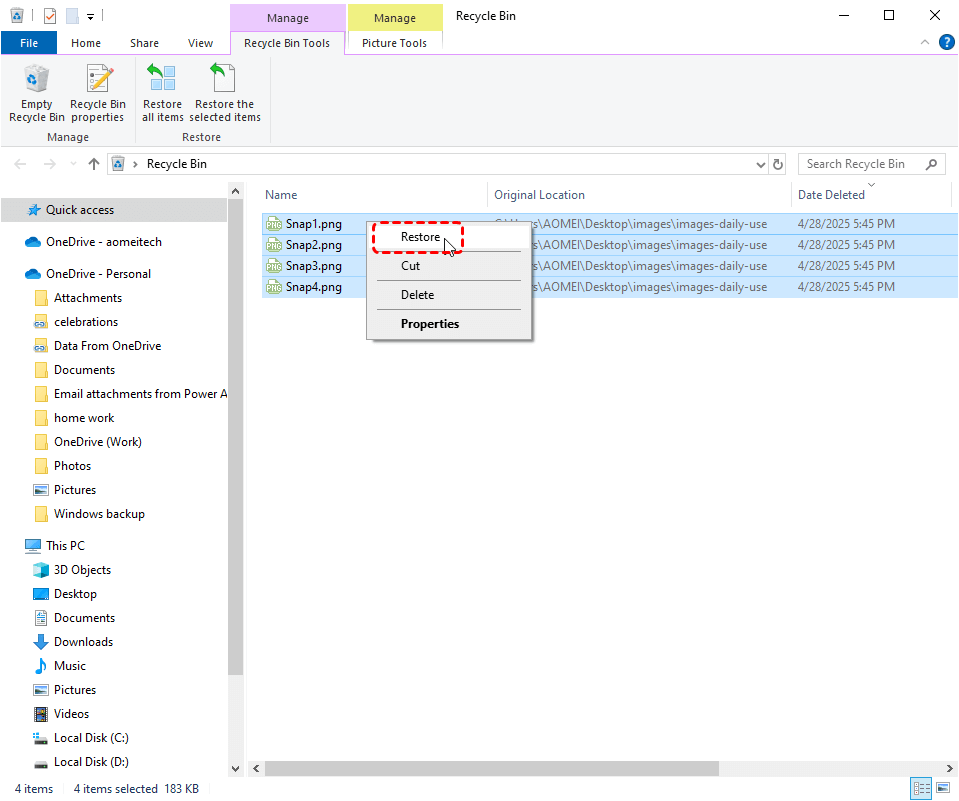
4. Check the Source: The file will instantly reappear in the folder it was deleted from.
While the standard restore method is perfect for accidental clicks, it is useless if you have already clicked "Empty Recycle Bin" or if the file was deleted from a USB drive. In these high-stakes scenarios, you need a more powerful solution.
Method 2: Advanced Recovery with MyRecover
Use this method when the "Safety Net" has failed. This includes cases where the Recycle Bin was emptied, a Shift+Delete command was used, or the drive was formatted.
Why MyRecover is the Best Choice for Recycle Bin Loss:
When you empty the bin, Windows removes the pointers, making the files invisible to the OS. However, MyRecover is designed to look deeper. It is specifically tailored for Windows users who need to:

 MyRecover
- ✨Recover Emptied Bin Data: It scans the disk clusters to find data that hasn't been overwritten yet.
- ✨Handle Shift-Delete Recovery: It bypasses the need for the Recycle Bin folder entirely.
- ✨Maintain Original Formats: It retrieves files with their original filenames and paths, which is often lost during other recovery processes.
 100% Secure
Steps to Recover Permanently Deleted Data:
Here’s how the recovery process usually works:
Step 1: Install MyRecover
Download and install MyRecover on a drive different from the one where data was lost to avoid overwriting recoverable files.
Step 2: Select the Drive
Launch the software and choose the drive where the files were originally deleted (for example, the C: drive).

Step 3: Scan for Lost Data
MyRecover performs:
- A basic Scan for recently deleted files;
- A Deep Scan for older or more complex data loss;
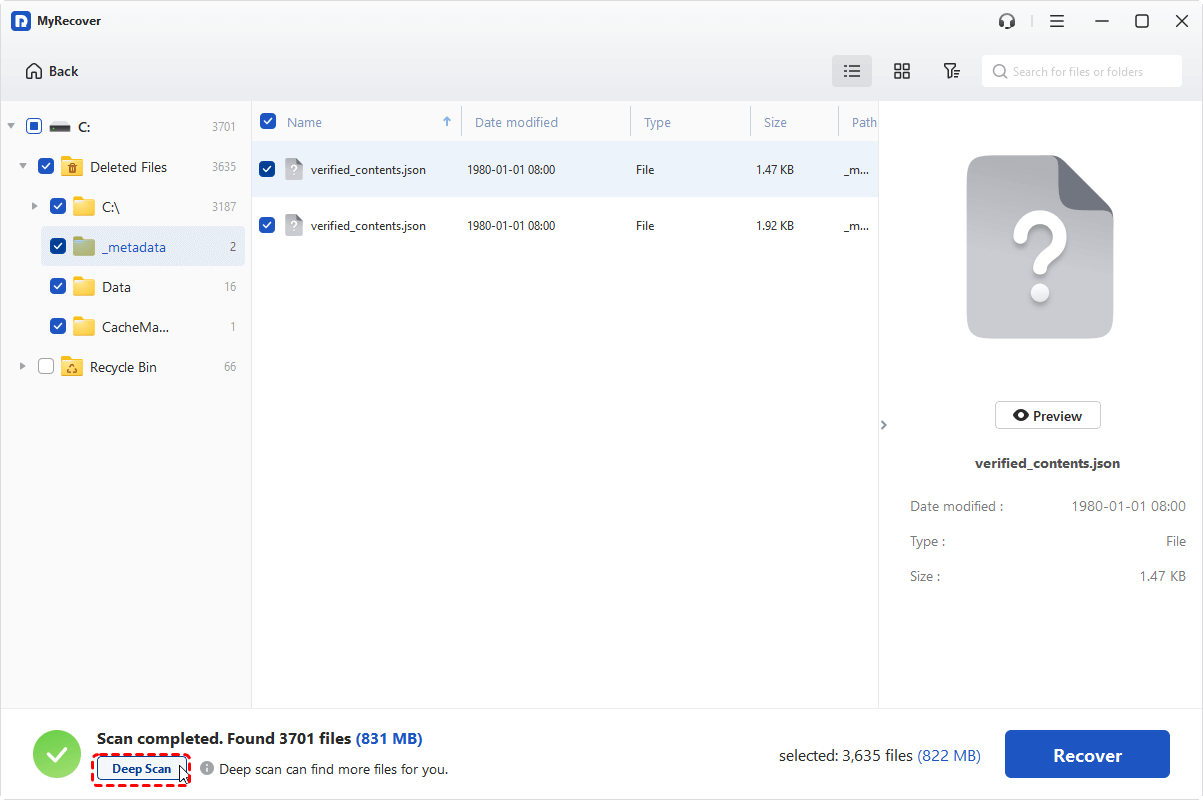
This maximizes recovery chances.
Step 4: Preview and Recover Files
Once the scan is complete:
- Preview recoverable files;
- Select what you need;
- Click Recover and save them to a safe location;
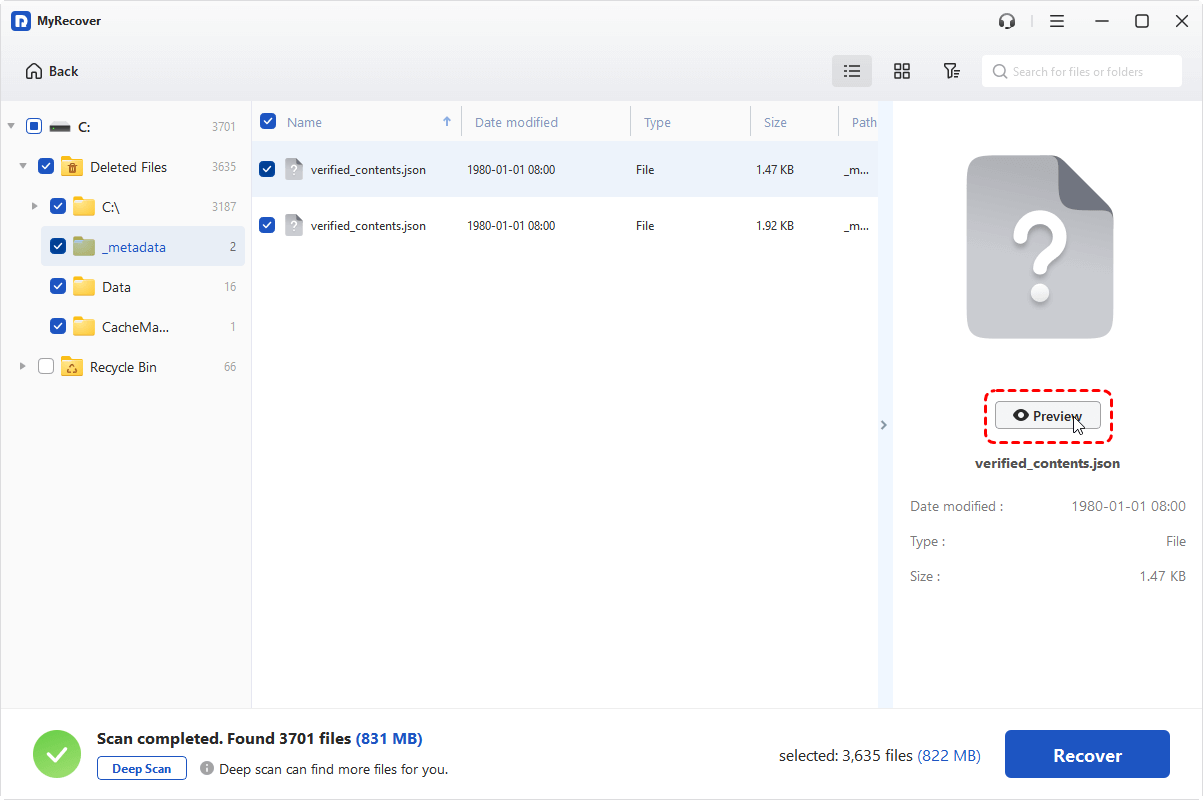

It’s surprisingly straightforward—even for non-tech users.
How to Configure Recycle Bin Settings
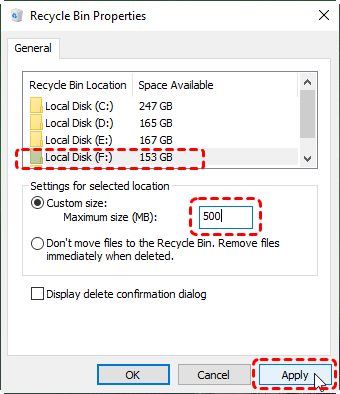
If your Recycle Bin is taking up too much disk space or deleting files too quickly, you need to adjust its capacity. By customizing the "Max Size," you control how much disk overhead you are willing to sacrifice for safety.
How to Configure:
1. Access Properties: Right-click the Recycle Bin icon and select Properties.
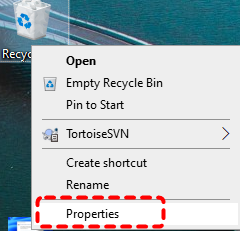
2. Select Drive: You can set different rules for each recycle bin location in windows (C:, D:, etc.).
3. Set the Limit: Choose Custom size. (Recommendation: 5-10% of your drive capacity).
4. Safety Check: Ensure "Display delete confirmation dialog" is checked to add an extra layer of protection.
Troubleshooting: Common Recycle Bin Problems and Fixes
Even a safety net can break. System crashes or malware can sometimes corrupt the Recycle Bin's internal database.
Problem 1. "Recycle Bin Is Corrupted" Error
This usually occurs after a system crash, leaving the index in an unreadable state.
Fix:
1. Search Command Prompt and open it as administrator.

2. Type rd /s /q C:\$Recycle.bin and hit Enter.
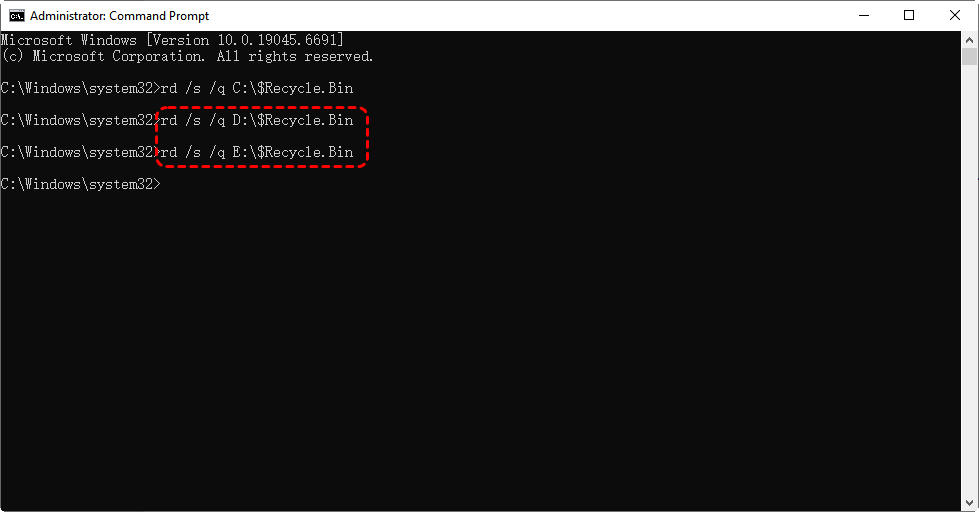
3. This forces Windows to delete the corrupted bin and recreate a fresh one upon restart.
Problem 2. Files Disappear from the Recycle Bin
If your files disappear immediately upon deletion without you hitting Shift, your settings are likely misconfigured.
Fix:
1. Right-click Recycle Bin -> Properties.
2. Ensure "Custom size" is selected and the limit is high enough for your typical file sizes.
3. Ensure the option "Don't move files to the Recycle Bin. Remove files immediately when deleted" is unchecked.
4. Click Apply → OK.
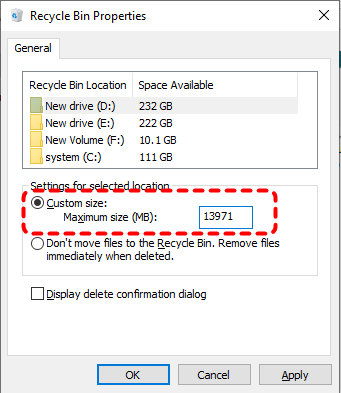
This usually solves the issue instantly.
Conclusion
Understanding what is the recycle bin in Windows and what is the use of recycle bin in computer maintenance is vital for any user. It is more than just a folder; it is a sophisticated system designed to balance storage efficiency with data security. By knowing the physical recycle bin location in Windows, you can troubleshoot errors effectively, and with tools like MyRecover, you can ensure that even "permanent" deletions aren't truly final.
Frequently Asked Questions (FAQ)
Q1: Does emptying the Recycle Bin actually free up space on my SSD?
Answer: Yes. While the files aren't physically "wiped" until new data overwrites them, Windows updates the file system to recognize that space as "Free." This allows the OS to perform TRIM operations on SSDs, optimizing performance.
Q2: Why do files deleted from a USB flash drive not go to the Recycle Bin?
Answer: By design, Windows treats external removable drives as "temporary storage." To save on write cycles, Windows deletes USB files permanently. If you lose a file on a USB, you must use a tool like MyRecover to recover deleted USB files immediately.
Q3: Can I change how long files stay in the Recycle Bin before being deleted?
Answer: Standard Windows settings don't have a "timer," but Windows Storage Sense does. You can go to Settings > System > Storage > Storage Sense and configure Windows to automatically empty the bin every 1, 14, 30, or 60 days.
Q4: How to permanently delete files from the Recycle Bin
Answer: There are 2 feasible options for you:
👉 Option 1. Emptying the Recycle Bin
To permanently delete everything:
1. Right-click the Recycle Bin.
2. Select Empty Recycle Bin.
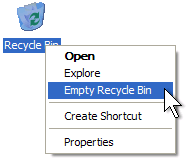
3. Confirm the action.
Once emptied, recovery becomes much harder (and often impossible without special tools).
👉 Option 2. Using Keyboard Shortcuts
- Shift + Delete = instant permanent deletion (Use with caution ⚠️)
Q5: How long do files stay in the Recycle Bin?
Answer: By default, files stay in the Recycle Bin indefinitely until you manually empty it or until the bin reaches its maximum storage limit. If the bin gets full, Windows will automatically delete the oldest files to make room for newly deleted ones.
Q6: Why didn't my deleted file go to the Recycle Bin?
Answer: There are several reasons a file might bypass the bin and be deleted permanently:
-
External Drives: Files deleted from USB flash drives or SD cards usually do not go to the Recycle Bin.
-
Network Drives: Files deleted from a shared network folder are deleted immediately.
-
File Size: If a file is larger than the maximum capacity allocated to the Recycle Bin, Windows will ask if you want to delete it permanently.
-
Shift + Delete: If you used the keyboard shortcut Shift + Delete, the file skips the bin entirely.

Stay Updated With Our
Latest Tips
Add us as a preferred source on Google to never miss helpful guides.
 Add as preferred source >>