 MyRecover



Fast & Secure XQD Card Data Recovery for Deleted Files
Need to retrieve files from a corrupted or formatted XQD card? This article provides a clear step-by-step process for successful XQD card data recovery. Learn how to evaluate and use the best XQD recovery software to ensure complete and secure data restoration.

By Delores / Updated on January 9, 2026


About XQD Card
The XQD card was the professional's choice for speed, built to handle high-resolution photos and 4K/8K video with its PCIe-based design. Used primarily in high-end Nikon and some Sony cameras, it offered remarkable durability and performance.
However, the market shifted to its successor, CFexpress Type B, which shares the same shape but is faster and is now the universal standard. If you are still using the XQD cards, please ensure you have backups for that data on the XQD card in case of data loss.
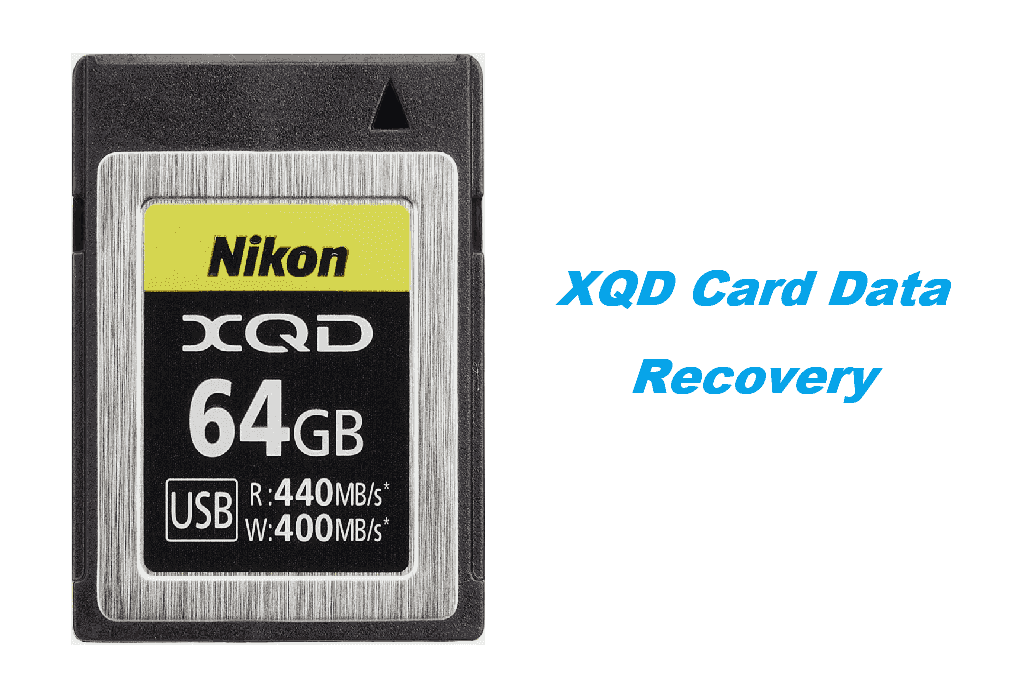
However, if you need to perform XQD card data recovery, this post is your lifesaver. Whether it’s a corrupted card, accidentally formatted, or showing "Card Error". This guide gives you a clear, actionable path to getting your data back.
What Cause The XQD Card Corruption or Failure?
Data loss on XQD cards is typically due to the following reasons: physical damage, or logical errors (file system errors, etc.).
⭕ A sudden power loss from a depleted battery.
⭕ Physical damage to the card's connectors can also prevent access.
⭕ Furthermore, improper ejection from a computer or unforeseen firmware errors can corrupt the file system.
⭕ In most cases, the stored data remains physically intact on the card's memory; only the directory pointing to it is damaged.
The Critical First Steps After Data Loss
1. Please stop using the XQD card at once.
2. Do not do the following things if you need to recover files from XQD cards:
- Do not capture new images or attempt to save any files to it. Any new data written to the card can overwrite the lost files, permanently destroying any chance of recovery.
- Do not format the card if prompted by your camera or computer, as this reinitializes the file system and complicates recovery significantly.
- Refrain from using standard disk repair utilities, which are designed to restore functionality, not data, and may worsen the situation.
The correct procedure is to safely disconnect the card, store it securely, and proceed with a dedicated recovery tool.
Best XQD Card Recovery Software - MyRecover
How to find the right XQD data recovery software. You need a program that specifically understands the XQD file system and can handle the complex, often fragmented data from high-resolution photos and videos. The right XQD card recovery software scans the raw data sectors to recover your files without causing further damage.
Prioritize software with these essential capabilities:
- Deep Scan Technology: The tool must perform a "raw recovery" or signature scan, which reconstructs files based on their inherent data patterns. This is vital for recovery after formatting.
- File Preview: A preview function allows you to verify recoverable photos and videos before purchasing, confirming the software's effectiveness.
- Read-Only Operation: The software should only read data from your card, preventing any writes that could overwrite lost files.
- Format Support: Ensure it supports professional camera formats, such as .NEF, .ARW, .CR3, .MP4, and .MOV.
Fortunately, here comes the powerful Windows data recovery software, MyRecover, which meets all the requirements and provides the highest recovery rate in the market, up to 99%. Additionally, you can easily recover files with the user-friendly interface.
A Step-by-Step Guide to XQD Card Data Recovery
Now, we will show you the detailed steps for XQD card data recovery. Here is how:
1. Now, you'll need a Windows PC and a reliable XQD card reader. Download and install MyRecover on your computer, and launch it. Now insert your problematic XQD card into the reader and connect to your computer.
 100% Secure
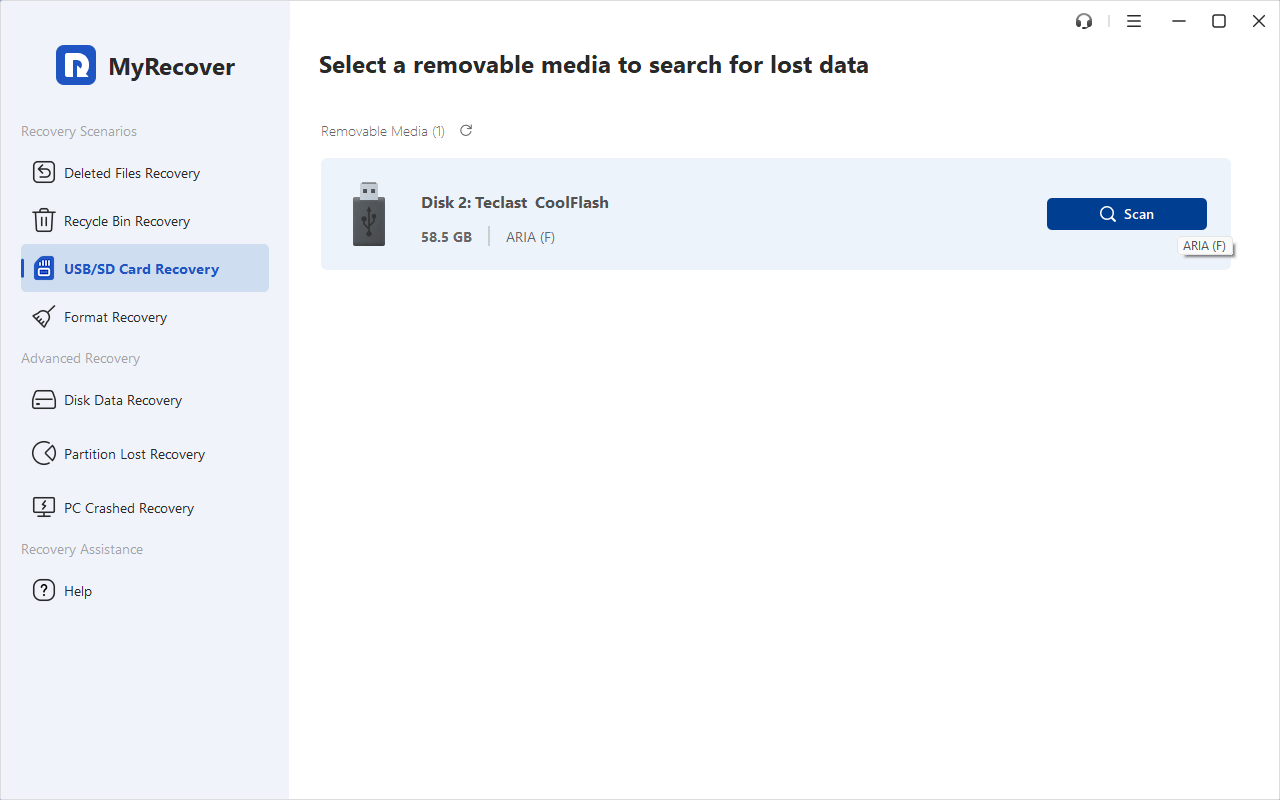
2. Tap USB/SD Card Recovery, choose your XQD card, and hit Scan. Wait for the scanning to complete, then hit OK to confirm.
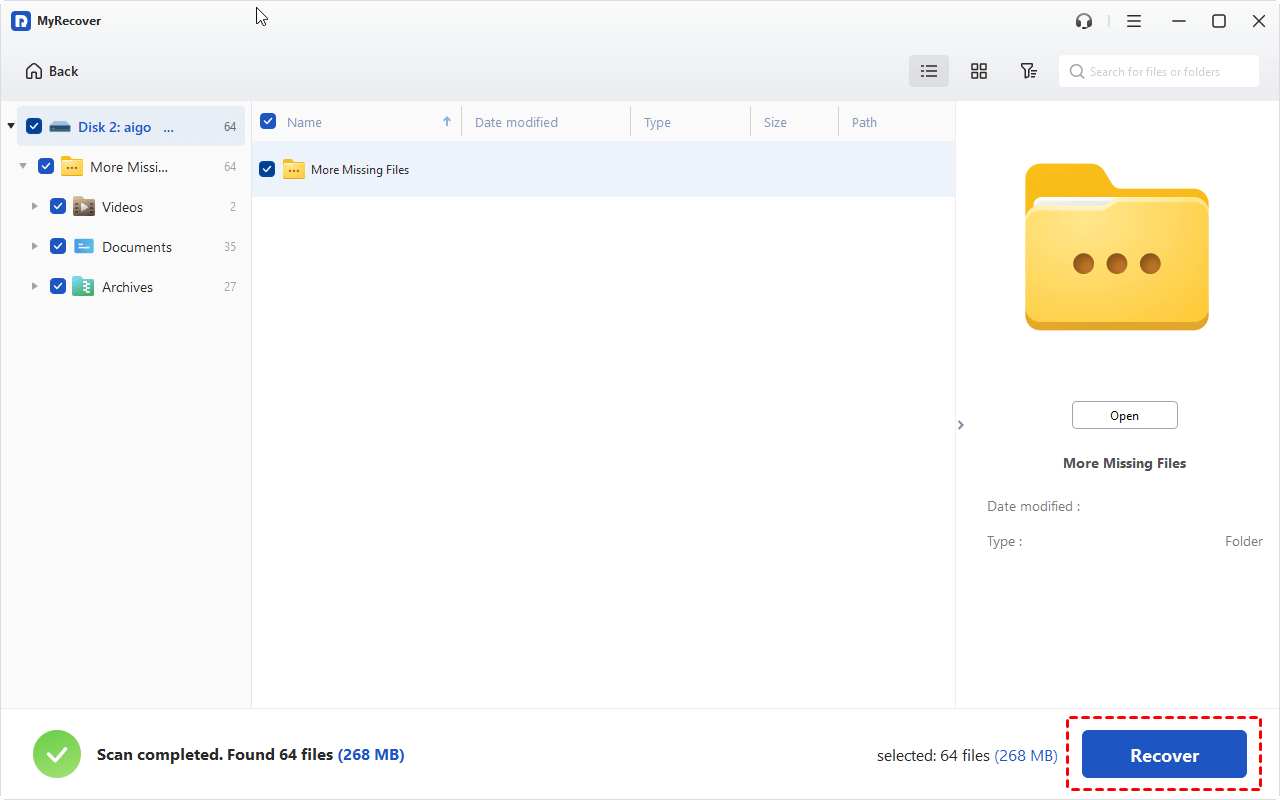
3. Preview the files you need, and tick all the boxes before the files and folders, and hit Recover.
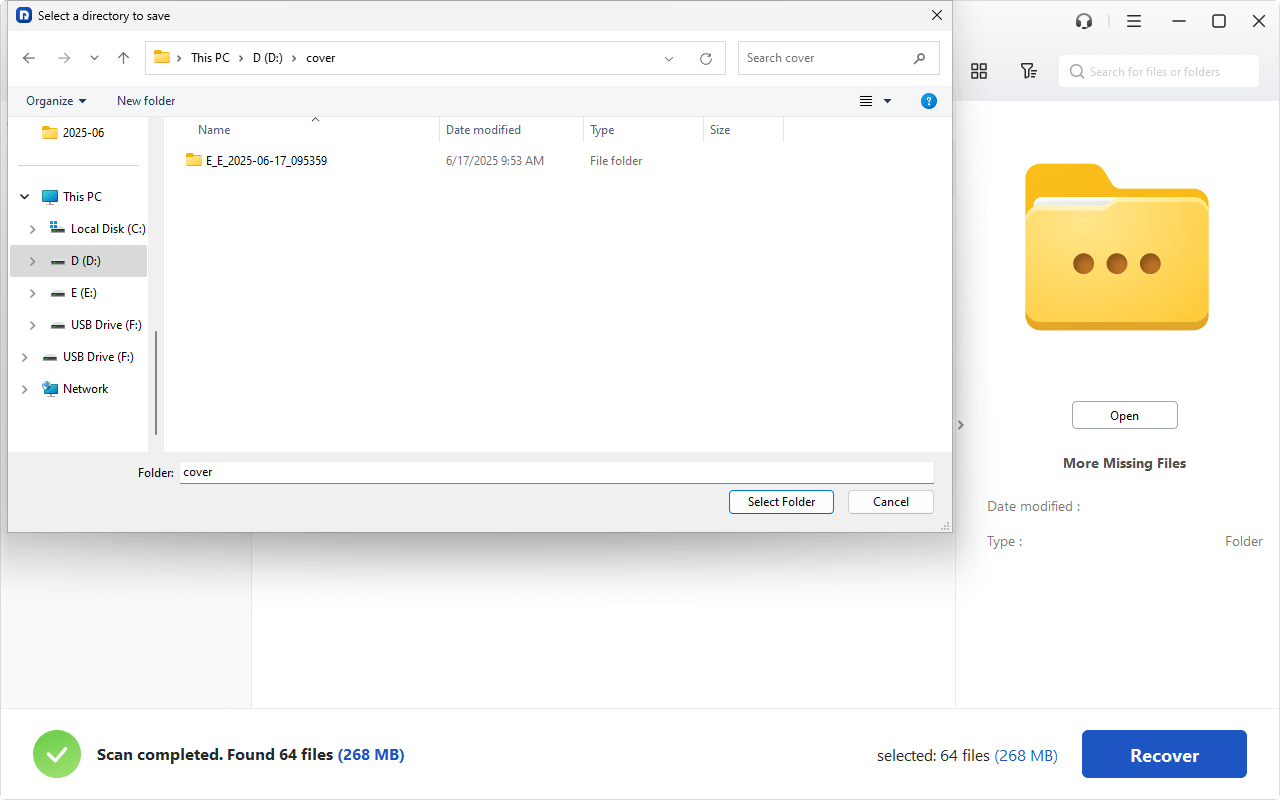
4. Choose a safe location to save them now.
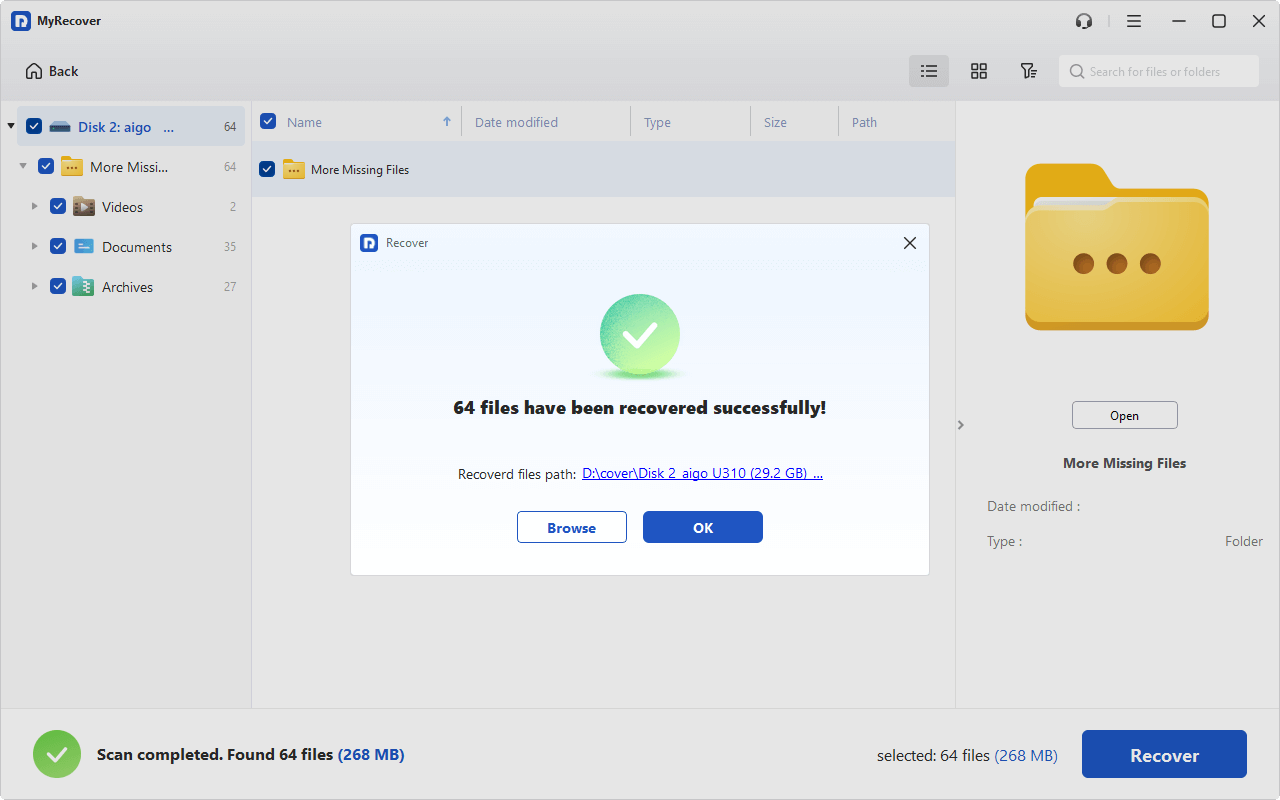
- Tips:✎...
- By default, MyRecover will do a quick scan to find the recently deleted files. If that comes up short, proceed to the "Deep Scan". It will take much longer as it scans every sector on the XQD card.
- Once the scan completes, you'll be presented with a tree-like structure of found files, often organized by file type (Photos, Videos, Documents) and original folder structure if it was recoverable.
- This is where the preview pane is gold—click on JPEGs, RAW files, or videos to verify they are intact and uncorrupted.

 MyRecover
- Recover Deleted Files Easily with Simple Clicks
- 1000+ File Formats Supported
- Support HDD, SSD, External Hard Drive, USB Drive, SD Card, etc.
- Quickly Find Files Using File Types, Name, Size, etc.
- Preview Files Before Recovering
- Recover Unlimited Data
 100% Secure
Best Practices to Prevent Future Data Loss
After going through the stress of recovery, you'll be highly motivated to avoid a repeat performance. Adopting a few simple habits can save you worlds of hassle down the line.
Proper XQD Card Handling and Maintenance
- Treat your XQD cards like the valuable data vaults they are.
- Always, always eject the card properly from your computer using the "Safely Remove Hardware" function.
- In-camera, ensure the camera is fully powered off before removing the card.
- Use a high-quality card reader from a reputable brand to avoid bent pins and connection issues.
- Periodically, in-camera, use the camera's format function (not your computer's) to format the card. This ensures the file system is perfectly aligned with your camera's requirements.
- And for goodness' sake, label your cards clearly so you're not mixing them up or accidentally formatting the wrong one.
Deploy a Reliable Backup Strategy
Download files from your XQD cards to a laptop and a portable hard drive before formatting them in the field.
Consider cameras with dual card slots that can write simultaneously—having an instant backup is the ultimate peace of mind.
FAQs About XQD Recovery
Q: Can I use generic SD card recovery software for my XQD card?
A: Not reliably. XQD cards use a different hardware interface and complex file structures. Software designed for XQD card recovery specifically interprets these protocols for a successful scan. Generic tools may fail or miss data.
Q: How long does an XQD data recovery take?
A: It varies. A Quick Scan takes minutes. A Deep Scan on a large, full card can take several hours, depending on capacity and your card reader's speed. The final file-saving step is much faster.
Q: Can I recover data from a formatted XQD card?
A: Yes, usually. Formatting typically just removes the file index, not the data itself. Using XQDrecovery software to perform a Deep Scan can rebuild files from raw signatures, provided no new data has overwritten them.
Q: What are the signs my XQD card is failing?
A: Warning signs include: slow camera writing/playback, intermittent "Card Error" messages, very slow file transfers on a computer, CRC errors, or corrupted files. Any unusual noise from the card reader is also a major red flag.
Q: Are free XQD recovery software options safe?
A: Be cautious. Reputable free trials that scan and preview are safe and useful for verifying that recovery is possible. Avoid unknown freeware, which may contain malware or damage your card. The safest path is a trusted software's free trial, then purchase it to actually recover the files.
Q: What's the difference between "logical" and "physical" damage?
A: Logical damage is to the card's software (e.g., corruption, formatting). XQD card recovery software can typically fix this. Physical damage is hardware failure (e.g., cracks, water damage). Software cannot help; a professional recovery lab is required.

Stay Updated With Our
Latest Tips
Add us as a preferred source on Google to never miss helpful guides.
 Add as preferred source >>