 MyRecover



[Solved]: External Hard Drive Taking Forever to Load
Is your external hard drive taking forever to load or open files or folders and disrupting your workflow? This guide explains why it happens and how to fix issues when your external hard drive is taking forever to load, with practical solutions to restore speed and access files safely.

By Aria / Updated on March 3, 2026


External Drive Taking Forever to Load. Help!
Hello everyone, Hope you are well!
My PC is not loading my external hard disk properly, it keeps getting stuck on loading the drive and everything related to the drive just keeps getting stuck. I can't open it, I can't disconnect from it, I can't check the properties in devices, everything is just hung."
- Question from TirthaShrestha
Have you ever experienced that when you plugged in your external hard drive, only to realize that it’s taking an unusually long time to appear on your computer? If so, you’re not alone. Many users experience situations where external hard drive is taking forever to load, leaving them frustrated and unable to access important files. This issue can happen to anyone, whether you’re using Windows 10 or other versions, and it often strikes suddenly without warning.
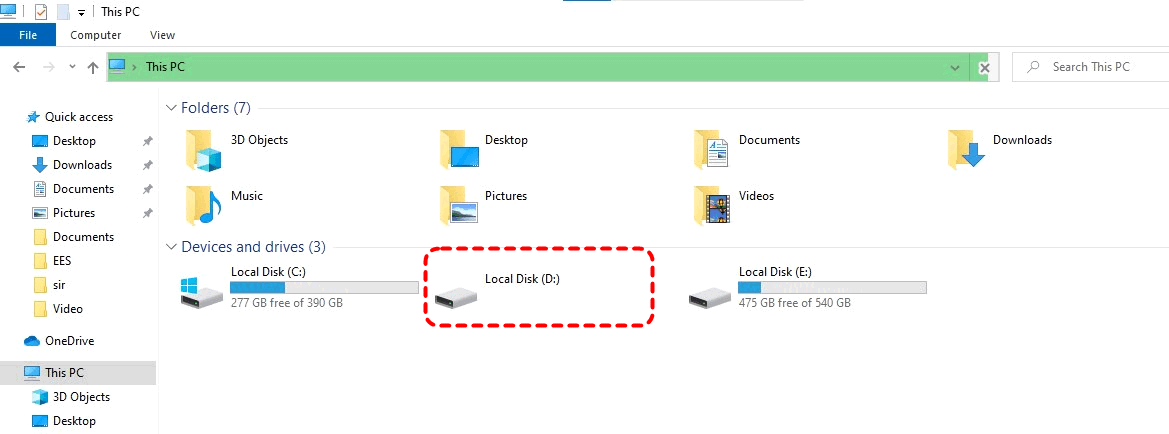
When an external hard drive is taking forever to load, it can disrupt work, delay file transfers, and even raise concerns about potential data loss. The problem can stem from multiple causes: from hardware glitches and outdated drivers to corrupted file systems or fragmented data.
Common Causes of an External Hard Drive Taking Forever to Load
Before jumping into solutions, it’s important to understand why your external hard drive is acting slowly. Identifying the root cause can help you choose the most effective fix and prevent future slowdowns. Here are the most common reasons why the external hard drive is taking forever to load:
🎧Corrupted or Fragmented File System
Over time, files on your external drive can become fragmented or the file system may get corrupted. When this happens, Windows struggles to read and display files, which can make your external hard drive very slow suddenly.
🔔Outdated or Faulty Drivers
If the USB or disk drivers are outdated, incompatible, or corrupted, Windows may take longer to recognize and load the external drive. This is a common reason why this happens right after system updates.
💽Hardware Issues
Faulty cables, damaged USB ports, or an aging hard drive can slow down performance dramatically. Even if the drive shows up in File Explorer, accessing folders and files may take an unusually long time.
🗂️Excessive Disk Usage or Large Number of Files
Drives filled to near capacity or containing thousands of small files may load very slowly. Windows has to read each file entry, which can lead to delays and the perception that your external hard drive is taking forever to load.
🛠️Malware or Background Processes
Some viruses, malware, or background programs scanning the drive can interfere with normal loading, causing delays or errors when opening your external hard drive.
How to Recover Data from Slow External Hard Drive
If your external hard drive is taking forever to load and you cannot access files normally, recovering important data should be your first priority. When the external disk freezes frequently or files cannot be opened, professional recovery software like MyRecover provides a safer and more thorough solution.
It can scan your hard drive and locate recoverable data, even from corrupted hard drives or inaccessible USB drives. Its "Quick Scan" and "Deep Scan" modes not only let you recover your desired files quickly but also ensure no important files are missed. Follow these steps to recover files from slow external hard drive:

 AOMEI Backupper
- No complex steps—just scan, preview, and recover.
- Easily recover documents, photos, videos, audio files, emails, compressed files, and morebeyond.
- Quickly filter file types during scanning for faster and more accurate recovery.
- Preview files before recovery to ensure you restore exactly what you need.
 100% Secure
Step 1. Download and install MyRecover on a different drive (not the slow external disk).
Step 2. Launch MyRecover and select the problematic external hard drive, then click "Scan" to search for deleted files.

Step 3. Wait for the scan to complete, choose the files you attempt to recover from the recoverable lists and click "Recover".

If you're looking for unlimited recovery, real-time file previews, MyRecover Professional edition gives you everything you need to ensure your data is safe. It even allows you to recover data from a system that won’t boot.
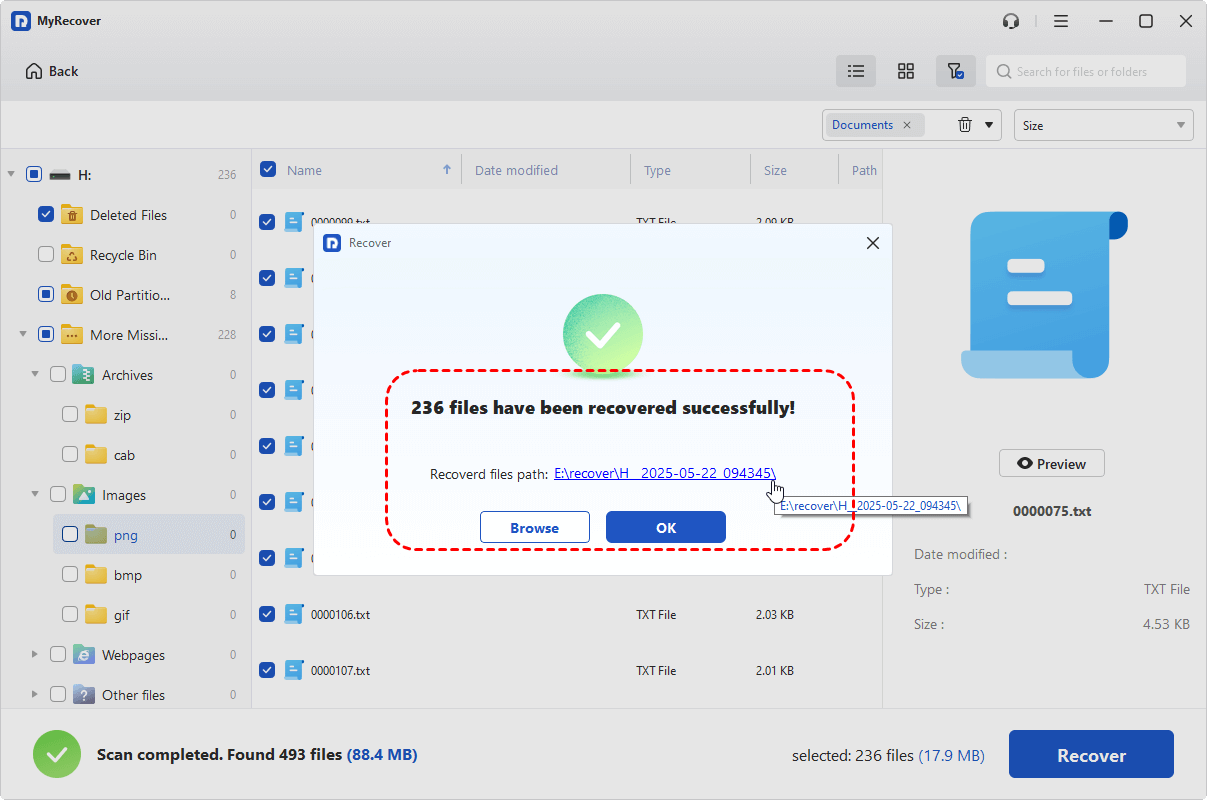
Step 4. Select a safe location to save the recovered files (not the original one).

Once the process is done, you can verify the recovered files in the destination folder by clicking on the "Browse" button.
How to Solve External Hard Drive Taking Forever to Load
After securing your important files, you can proceed with targeted fixes to restore normal drive performance. Follow the below solutions in order to efficiently resolve the issue while minimizing further risk to your external drive.
Solution 1. Check the Physical Connection
Connection instability is one of the most overlooked causes when an external hard drive is taking forever to load. A loose cable, insufficient power, or faulty USB port can cause repeated read retries, making the drive appear frozen. Verifying the hardware path first is fast and can eliminate many simple failures.
Step 1. Safely unplug the external drive and inspect the USB cable for damage or looseness.
Step 2. Reconnect the drive using a different USB port, preferably on the back panel of the PC.
Step 3. If available, test with another USB cable or another computer to rule out port failure.
Solution 2. Run the CHKDSK Command
If the connection is stable but the drive remains slow, logical file system errors may be responsible. Running CHKDSK scans for bad sectors and repairs directory inconsistencies that can significantly delay drive loading. This built-in Windows tool is effective for mild to moderate corruption.
Step 1. Type Command Prompt in Windows search and right-click on it, then choose "Run as administrator".

Step 2. Enter the following command: chkdsk X: /f /r (replace X with your external drive letter).

Step 3. Press "Enter" and wait patiently for the scan and repair process to complete.
Solution 3. Update or Reinstall the Disk Driver
Driver conflicts or outdated USB controllers can prevent Windows from communicating efficiently with the external device. Refreshing the driver stack often resolves cases where the external hard drive is taking forever to load on Windows 10/11, especially after system updates.
Step 1. Press "Win" + "X" and select "Device Manager" to open it.

Step 2. Expand "Disk drives" or "Universal Serial Bus controllers".
Step 3. Right-click the external drive or USB controller and choose "Update driver".

Step 4. Click "Search automatically for updated driver software" to continue the process.
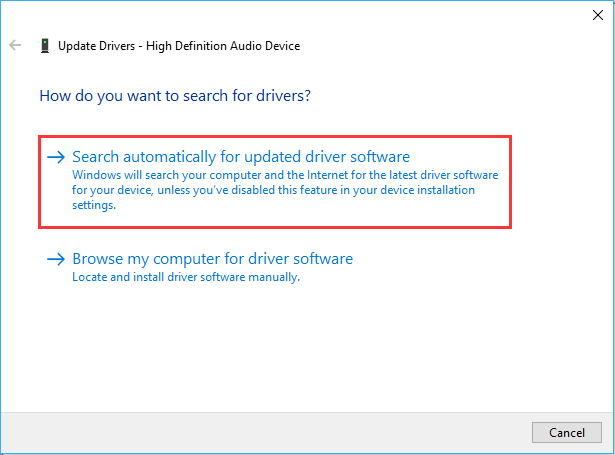
If no updates are available or the update doesn’t work, you can also try uninstalling the device with same steps. Restart Windows and reconnect the external hard drive, and Windows will reinstall it automatically.

Solution 4. Perform Disk Defragmentation (HDD Only)
If you are using a traditional HDD (not SSD), heavy fragmentation can slow directory loading and file access. Defragmentation reorganizes scattered file blocks, allowing Windows to read data more efficiently.
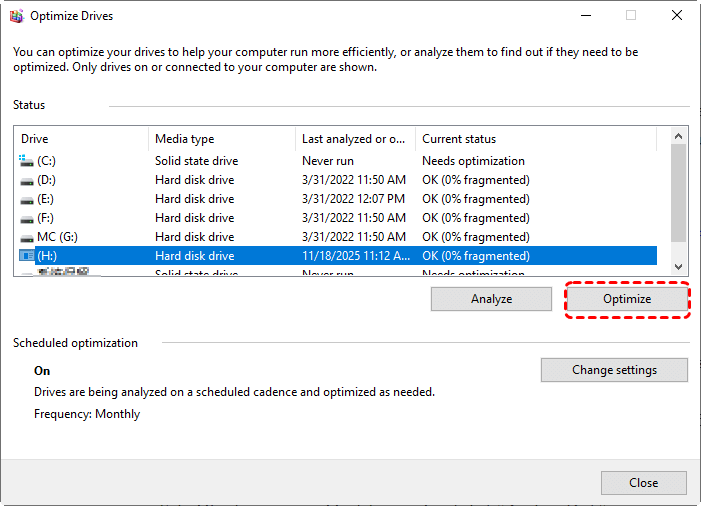
Step 1. Search for "Disk Defragmenter" in Windows and open "Defragment and Optimize Drives".
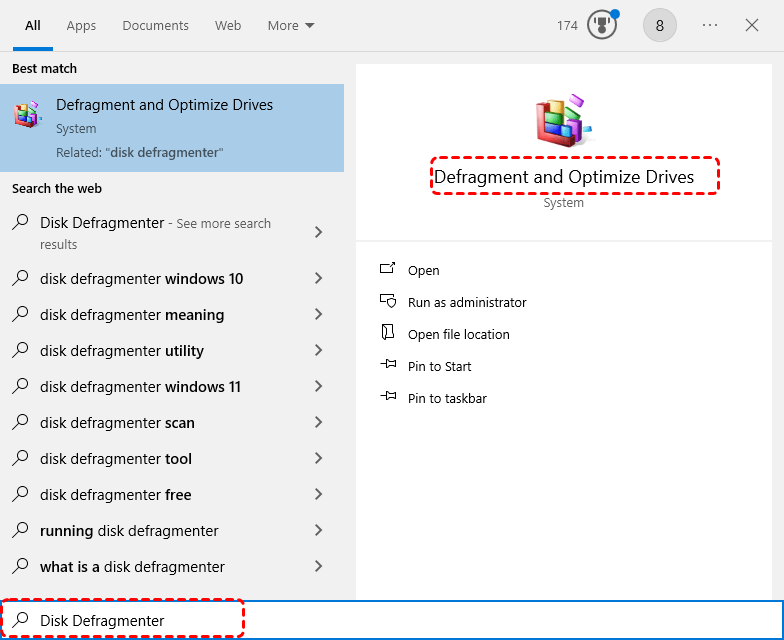
Step 2. Select the external HDD from the list.
Step 3. Click "Optimize" and wait for the process to finish.
- Notes:✎...
- If you are using an SSD, please do not use this method. Disk defragmentation will shorten the lifespan of the SSD and cause additional wear and tear.
Solution 5. Clear Disk Space
Drives that are nearly full or packed with massive numbers of small files often respond very slowly. Freeing up space improves file table processing and reduces load time when accessing the disk.
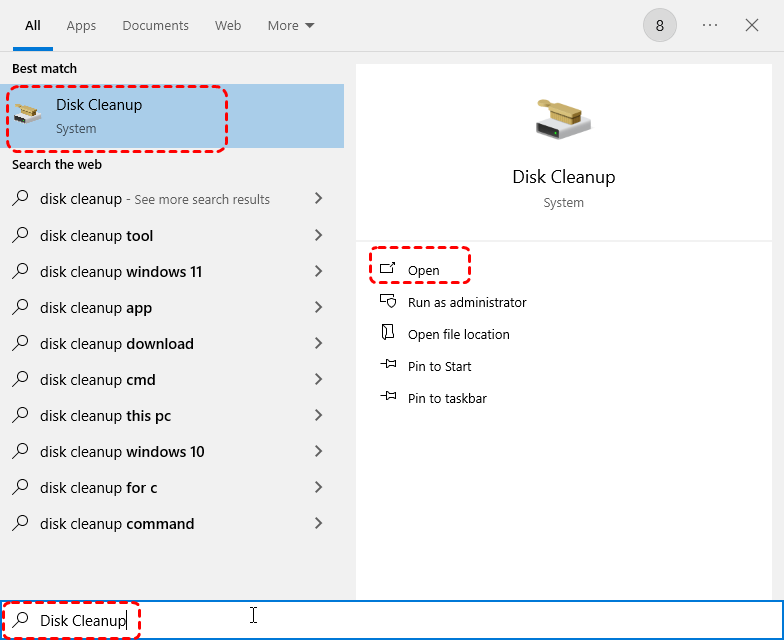
Step 1. Enter "Disk Cleanup" in the Start menu and open it.
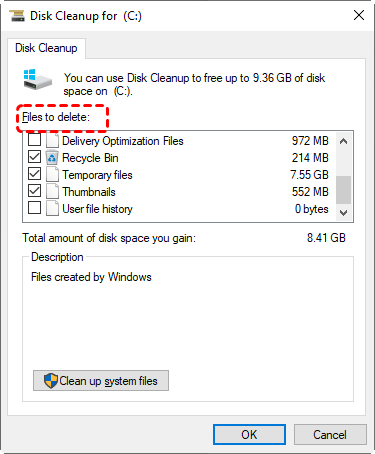
Step 2. Select the external hard drive to clean.
Step 3. Choose the unnecessary large files like Temporary files, Recycle Bin, Thumbnails, etc. to remove, then click "OK".
Solution 6. Run Virus & Threat Protection Scan
Malware can hook into disk operations or continuously scan removable drives, causing severe slowdowns. A full security scan with Microsoft Defender or reliable antivirus software helps eliminate malicious interference that may make your external hard drive very slow suddenly.
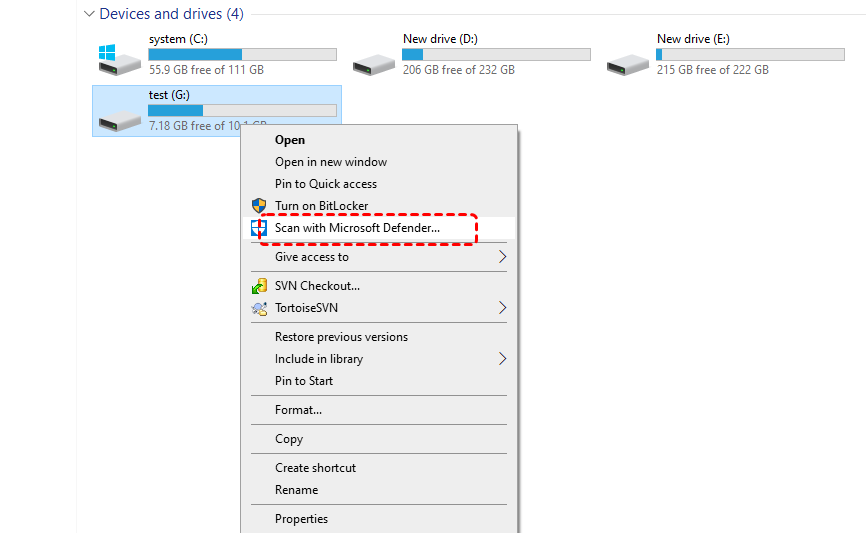
Step 1. Locate the failed external hard drive in File Explore and right click on it.
Step 2. Choose "Scan with Microsoft Defender" from the context menu. This will perform a quick scan for the whole system.
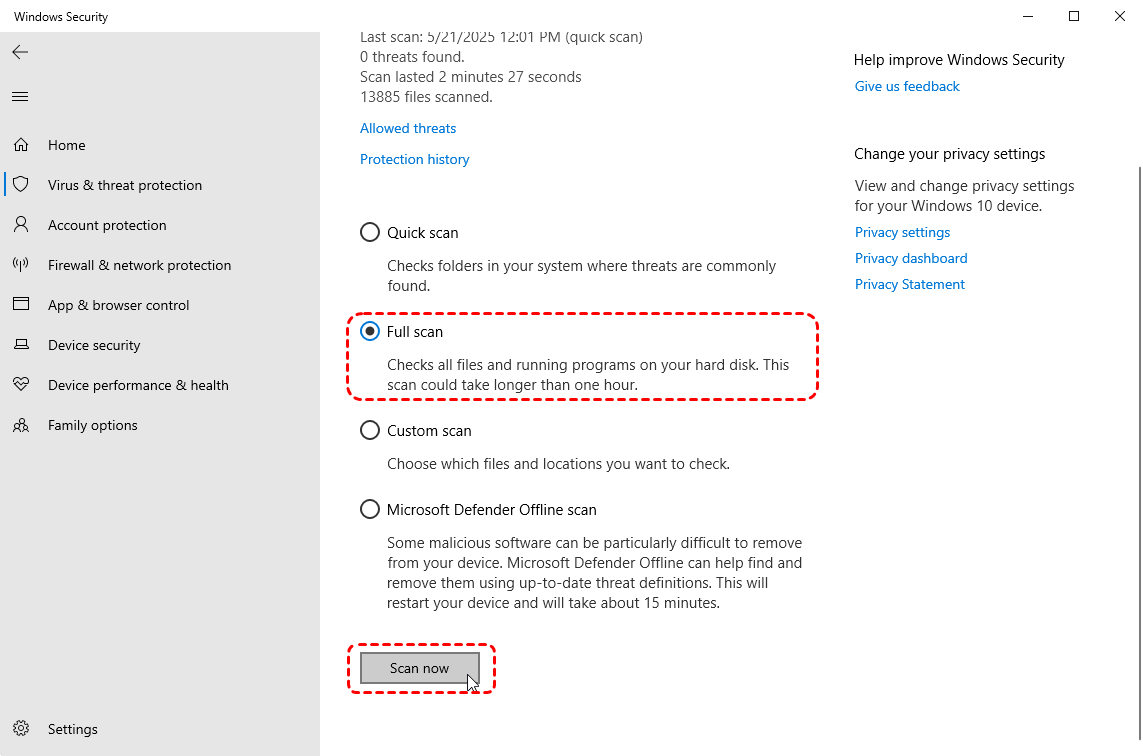
Step 3. If any suspicious files or threats are detected, remove or quarantine it. After the quick scan completed, you can also run a "Full scan" under the "Scan options" if needed.
Solution 7. Format the External Drive (Last Resort)
If the file system is severely damaged or incompatible with Windows, formatting may restore normal hard drive performance. However, please note that this method will erase all data on the hard drive. Make sure you have backed up or recovered all files before proceeding.
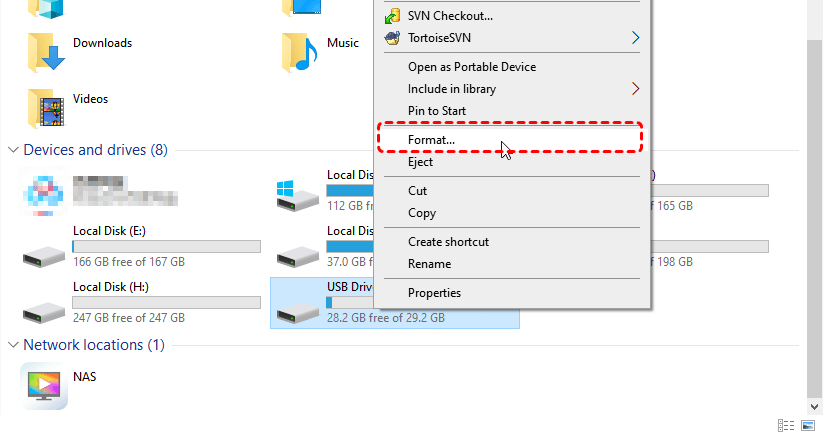
Step 1. Open File Explorer and locate the hard drive, then right-click on it and choose "Format".
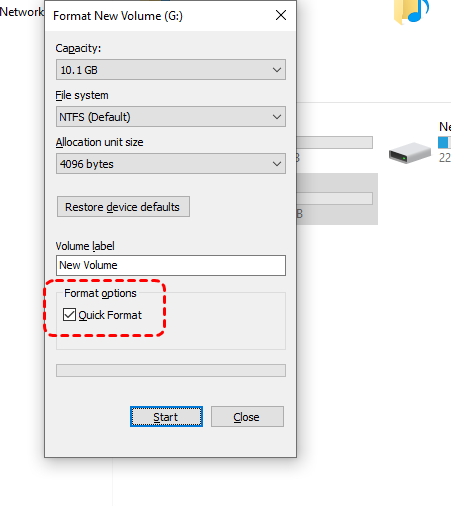
Step 2. Select a suitable file system (NTFS or exFAT) and keep "Quick Format" checked.
Step 3. Click "Start" and wait for the process to finish.
Solution 8. Replace the External Drive
If none of the above methods work and your external hard drive still loads slowly or makes unusual noises, it may be physically damaged. At this stage, replacing the device is the most reliable long-term solution.
Bottom Line
When an external hard drive is taking forever to load, the key is to prioritize data safety first, then troubleshoot methodically. In many cases, these steps restore normal performance without data loss. However, if the drive continues to freeze or shows signs of hardware failure, formatting or replacing the device may be necessary. Acting early and following a structured approach significantly improves both recovery success and long-term drive stability.

Stay Updated With Our
Latest Tips
Add us as a preferred source on Google to never miss helpful guides.
 Add as preferred source >>