 MyRecover



Saved Word Document Disappeared Suddenly? Get It Back Now
Losing a saved Word document can be incredibly frustrating, especially when you’re sure it was saved correctly. If your saved Word document disappeared, this guide will walk you through the common reasons behind the issue and provide several effective ways to recover your lost document.

By Aria / Updated on May 19, 2026


Introduction
I’m having an issue with Microsoft 365 and Word files. I saved several Word documents (pretty sure they were saved properly), but now I can’t find them anywhere. They’re just gone. I’m using Microsoft 365 on Windows (or Mac – change if needed). Is there any way to recover missing Word files in Microsoft 365? Could this be a sync issue with OneDrive or autosave? Any help or ideas would be really appreciated. Thanks!
- Question from Roberta
Have you ever saved a Word document, only to find it suddenly disappeared? This situation can be incredibly frustrating, especially if you’ve spent hours working on an important document. Whether it’s due to a system crash, an accidental close, or a technical glitch, losing a saved Word document can lead to potential setbacks, delays, and even loss of crucial work.

In this article, we will walk you through several proven methods to recover your missing document. From checking hidden folders and using Word’s AutoRecover feature to using data recovery tools, we’ll cover the most effective ways to retrieve your saved Word document.
Common Causes of Missing Word Documents
When you suddenly can’t find a Word document that you’ve saved, it’s important to understand the possible causes of the issue. The disappearance of files can be due to a variety of reasons, and identifying the root cause is the first step in recovering your work. Here are some common causes of missing Word documents:
📤 Sync Issues with OneDrive:
If you're using Microsoft 365 with OneDrive, there could be a syncing issue that prevents the document from appearing on your device. This is particularly common when working across multiple devices or when there are interruptions in the network connection.
✂️ AutoSave or AutoRecovery Failures:
Microsoft Word’s AutoSave and AutoRecovery features are designed to automatically save your progress at regular intervals. However, if these features are disabled or encounter issues, documents might not save correctly, leaving you with missing content.
📌 Accidental File Deletion or Misplacement:
Sometimes, Word documents are inadvertently moved to other folders, deleted, or misplaced during file management activities. This can happen if you accidentally drag and drop the file or if it was placed in a temporary location.
📂 Corrupt Document Files:
If there’s a corruption in the document file, Word may fail to open it, causing it to appear as though the file has disappeared, even though it's still on your computer.
🔌 System Crashes or Power Loss:
Unexpected system shutdowns or power failures while working on a document may result in unsaved changes or cause the file to be temporarily inaccessible. In some cases, the document may not save properly before the system crashes.
How to Recover Saved but Disappeared Word Documents
When your saved Word document is missing, the first thing you should do is check if it can be found through common locations, such as recent files, search functions, or cloud storage. The sooner you act, the higher the chance you’ll recover your document. Below are some practical methods to locate and restore your missing Word document.
Method 1. Check Recent Documents in Microsoft Word
Microsoft Word keeps a history of recently opened files, which may help you quickly locate your missing document. If the file was saved recently, it may still appear in the Recent Files list. Even if you have forgotten the save location, you can still access it again from Recent Documents.
Step 1. Open Microsoft Word and click on the "File" tab at the top left.
Step 2. Select "Open" from the menu.
Step 3. Scroll down to "Recent" or "Recent Documents" to see a list of files you’ve recently worked on.
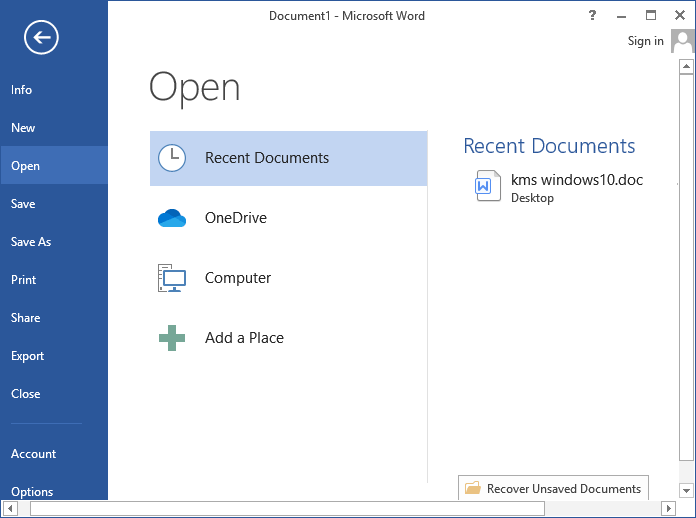
Step 4. Click on your missing document if it appears in the list, and it will open. If it does not appear, proceed with the following solutions.
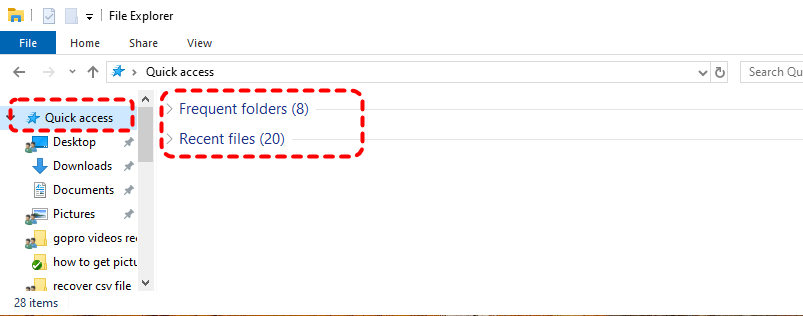
In addition, you can also check for the disappeared file in File Explorer Quick Access, which offers similar functionality to Word’s Recent Documents.
Method 2. Search in File Explorer
If the document is not showing up in Word’s recent files, you can try searching for it directly through Windows File Explorer. You can search by the file name, extension, or even keywords of the file name.
Step 1. Open File Explorer by pressing "Win" + "E" or double clicking on the "This PC" icon.
Step 2. In the search bar at the top right, type the name of the document or use the "*.docx" extension to search for all Word documents.

Step 3. Look through the search results to find your missing document, and open it from there.
Method 3. Check Cloud Drive (OneDrive or Other Cloud Services)
If you are using cloud storage like OneDrive, Dropbox, or Google Drive, your Word document might be synced there. Sometimes, documents may not appear locally but could still be in the cloud.
Step 1. Open your OneDrive, Dropbox, or Google Drive (depending on what you use).
Step 2. Look for the "Recent" or "Documents" folder within your cloud storage. You can also search using file extension or name in cloud services.

Step 3. If your document appears, download or open it directly from the cloud interface.

If saved word documents disappear due to an interrupted network sync, simply stabilize your internet connection and re-sync to make the files reappear.
How to Recover the Unsaved Word Document on Windows
If you still cannot find the disappeared document after trying the above methods, it is likely that your document was not saved properly or you accidentally closed the application without saving it. By following these steps, you can restore your unsaved files and avoid further data loss, ensuring that your work is safely recovered.
Method 1. Recover from the AutoRecover Folder
Microsoft Word’s AutoRecover feature automatically saves versions of your document every few minutes. If Word crashes or closes unexpectedly, you may be able to retrieve an unsaved document from the AutoRecover folder.
Step 1. Open Microsoft Word once the computer and Word works normally.
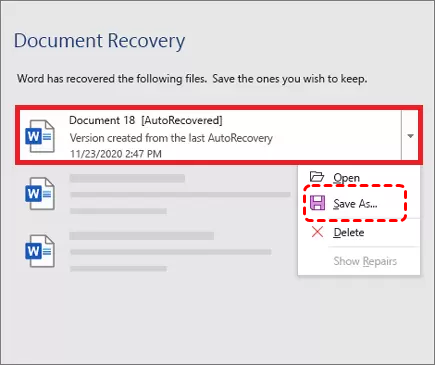
Step 2. When Word is re-opened, it will automatically pop up the Document Recovery panel to list all unsaved files. If your needed file is on the list, click "Open" to check its content or "Save As" to save it to a safe location.
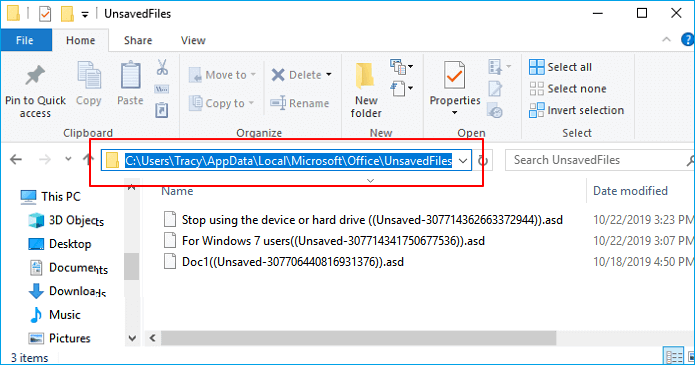
Alternatively, you can also go to the AutoRecover folder path to check the unsaved files: C:\Users\Username\AppData\Local\Microsoft\Office\UnsavedFiles. Locate the files with the .asd extension and save them to a secure location. You can open them to preview their contents to confirm which one is the document you need.
Method 2. Recover with Auto Save Feature
If AutoSave is enabled in Word, recovering unsaved Word documents becomes much easier. This feature regularly records all changes made to your files, serving as an effective safeguard against data loss from unsaved and closed documents.
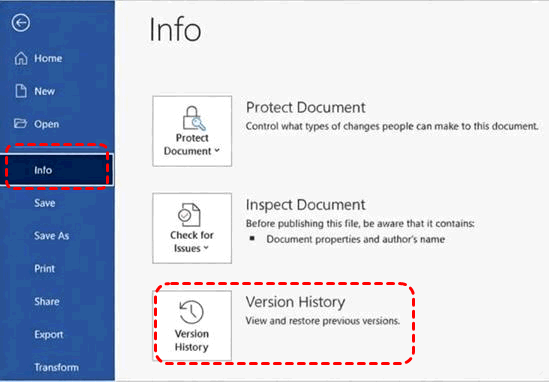
Step 1. Open the unsaved document in Word and go to "File" > "Info".
Step 2. Select "Version History" and browse the list of unsaved versions.
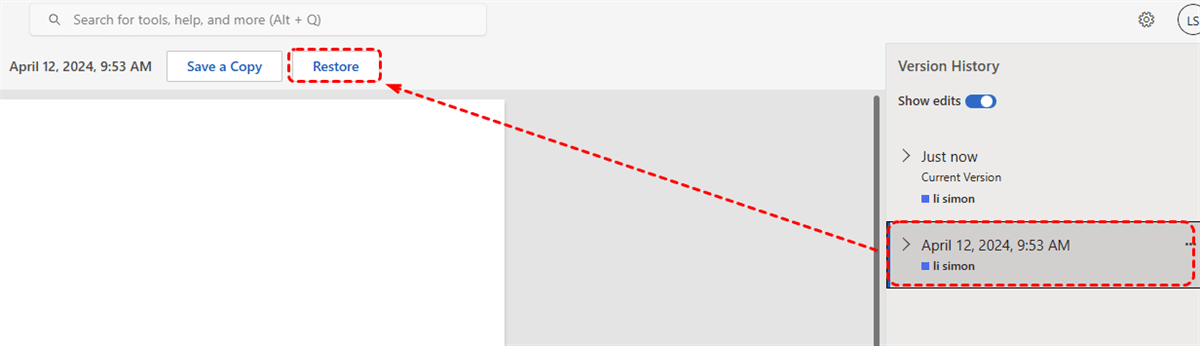
Step 3. Choose a desired one to open it and click "Save a Copy" to create a new copy or "Restore" to replace the current version.
Method 2. Check the Temp Folder
Sometimes, Word creates temporary files during the editing process, and you might be able to recover them from the Temp folder if the program crashes. Follow these steps:
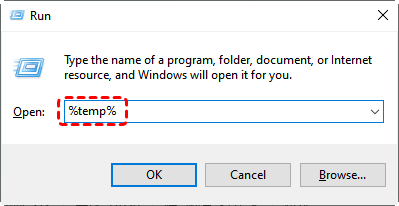
Step 1. Press "Win" + "R" to open the Run dialog box.
Step 2. Type "%temp%" and press "Enter" to open the Temp folder.
Step 3. Look for files with the extension ".tmp" or files that start with "~$".
Step 4. Open the relevant files in Word to check if they contain the lost content. If they do, save them immediately.
Method 4. Restore Previous Versions
If you have backed up the file using Windows File History, you can restore previous versions of the document from these backups. File History automatically saves full copies of the file on a regular basis whenever it detects changes.
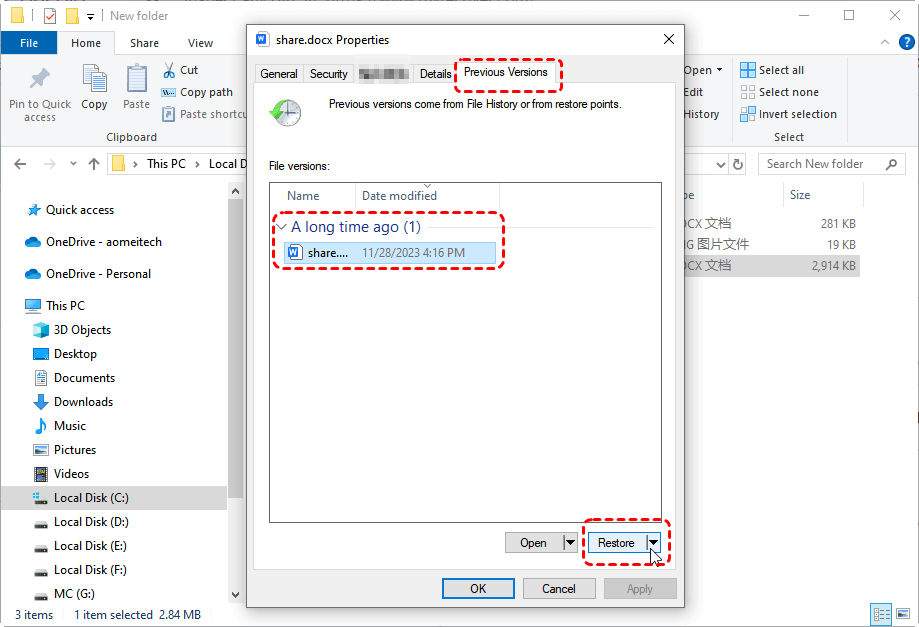
Step 1. Open File Explorer and go to the folder where the document was last saved.
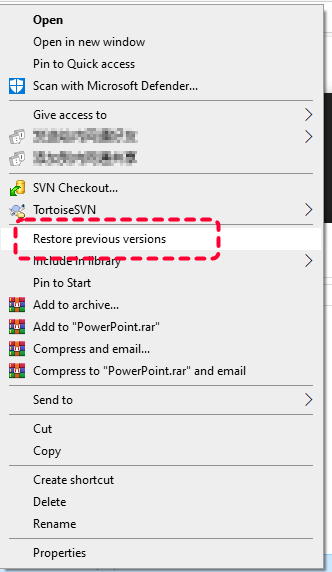
Step 2. Right click on the folder and choose "Restore previous versions" from the context menu.
Step 3. If you find a backup of your document, select a desired version based on the backup date and click "Restore". Then, open it in Word and save it to a safe location.
How to Recover Deleted or Lost Word Documents
If none of the above methods help you find your missing Word document, the only possibility is that the file has been lost or deleted. In this case, Word’s built-in features will usually no longer work. By following below methods, you can restore your document and avoid further data loss, ensuring that your work is safely recovered.
Method 1. Check the Recycle Bin
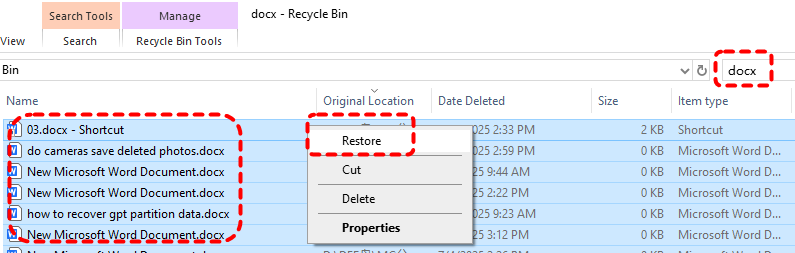
When files go missing, the first place to check is the Recycle Bin. It keeps deleted files until they are overwritten or the Recycle Bin is emptied, and allows you to restore deleted files to their original locations. If you accidentally deleted the document, it might still be in the Recycle Bin.
Step 1. Double-click on the Recycle Bin icon on your desktop.
Step 2. Look for your missing Word document.
Step 3. Right-click on the document and select "Restore" to recover it to its original location.
Method 2. Try Professional Data Recovery Tool: MyRecover
If the deleted file is not in the Recycle Bin, it has been permanently removed. Even so, a professional data recovery tool like MyRecover can easily retrieve your lost or deleted Word documents. It can detect lost, deleted, or corrupted Word files even if they were removed from the Recycle Bin or affected by system crashes. By thoroughly scanning your hard drive or external drives, MyRecover increases the chances of retrieving missing documents.

 MyRecover
- Recover deleted & lost files from HDD, SSD, USB, SD card, camera as you need.
- Support 1000+ formats of photos, videos, docs, archives, emails, compressed files, etc.
- Reliable rescue for deletion, formatted disk, emptied Recycle Bin, system crashes and more.
 100% Secure
Step 1. Download and install MyRecover on your computer. Make sure to install it on a drive different from the one where the missing Word file was stored to avoid overwriting data.
Step 2. Open MyRecover and select the drive or folder where the document was originally saved, then click "Scan" to allow MyRecover to perform a quick scan for all recoverable files. For more complexed data loss scenarios, click "Deep Scan" to perform a through scan for files.

Step 3. Once the scan completes, use the search bar or file filter to locate your missing Word document. You can also preview the file content in the right pane to verify it's the one you want.
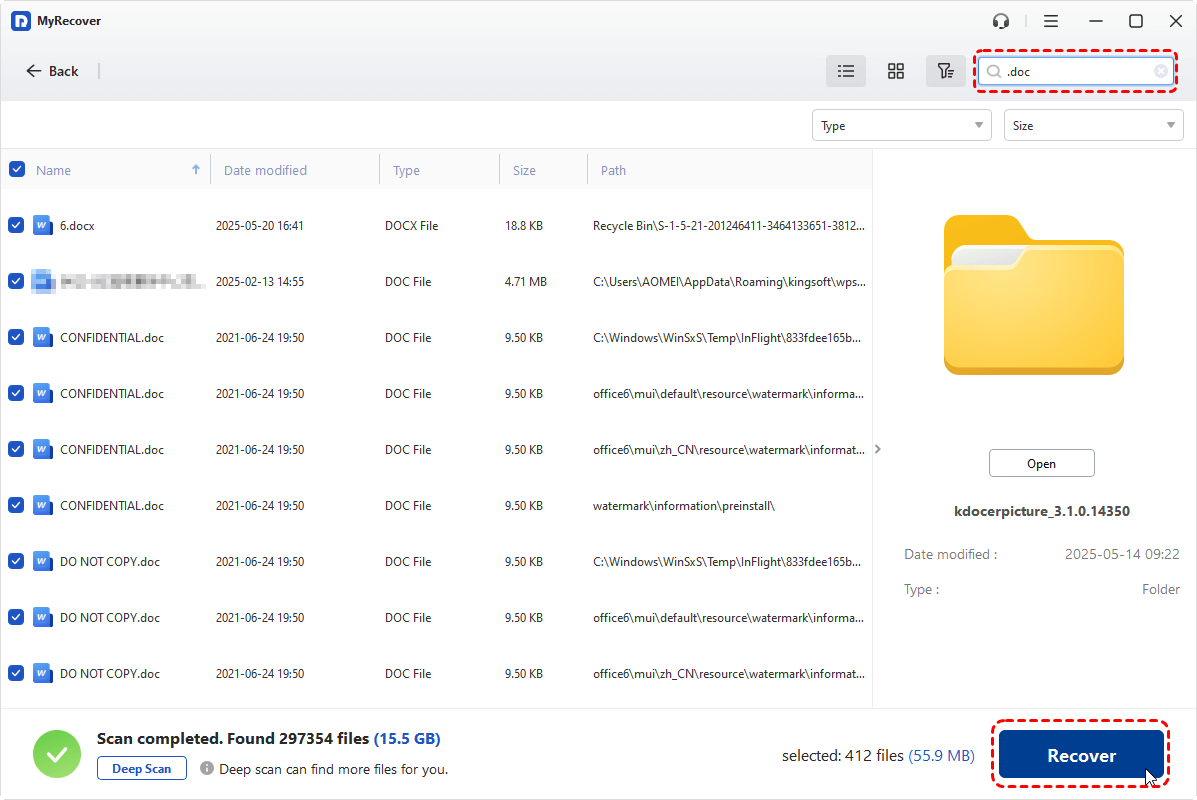
Step 4. Select the target file and click "Recover" to save it to a safe location, ensuring it is not restored to the same drive to prevent data loss.
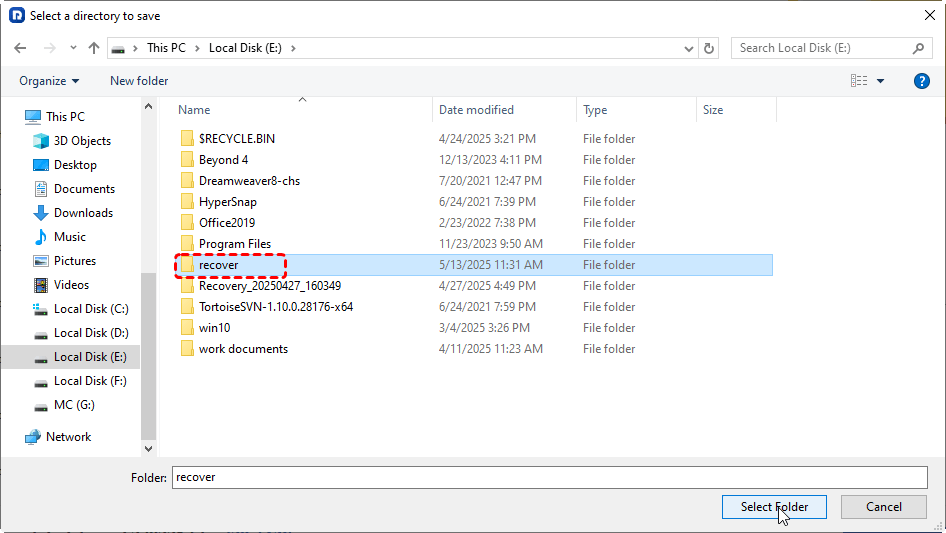
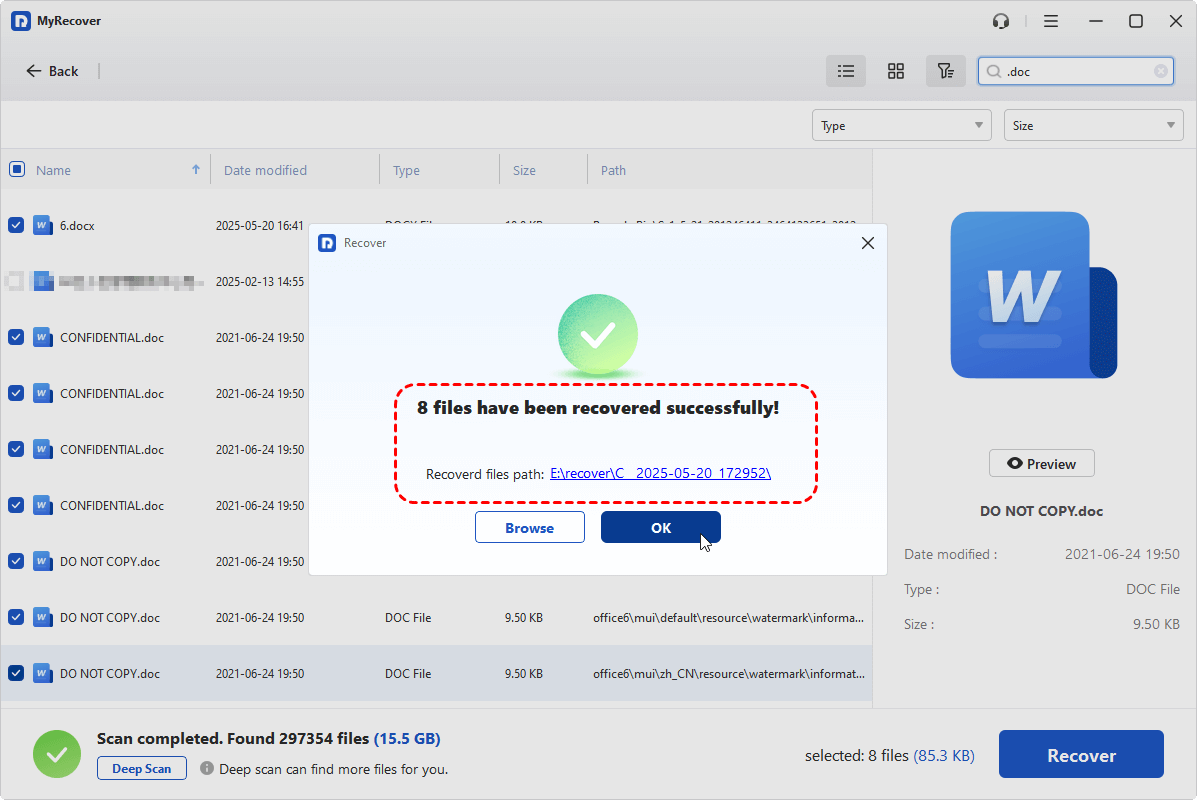
When the process is done, you'll get a message "Files have been recovered successfully". Then, you can access and check the recovered files in the destination folder.
Conclusion
A saved Word document disappeared can be frustrating and stressful, but it’s often recoverable with the right approach. There are multiple ways to restore missing or unsaved documents. If these methods fail, professional tools like MyRecover offer a reliable solution to retrieve deleted or lost files safely, even when Windows cannot locate them. By applying these recovery strategies step by step, you can minimize data loss and ensure your work is restored efficiently.
FAQs
Q1: How do I recover a lost Word document that was not saved?
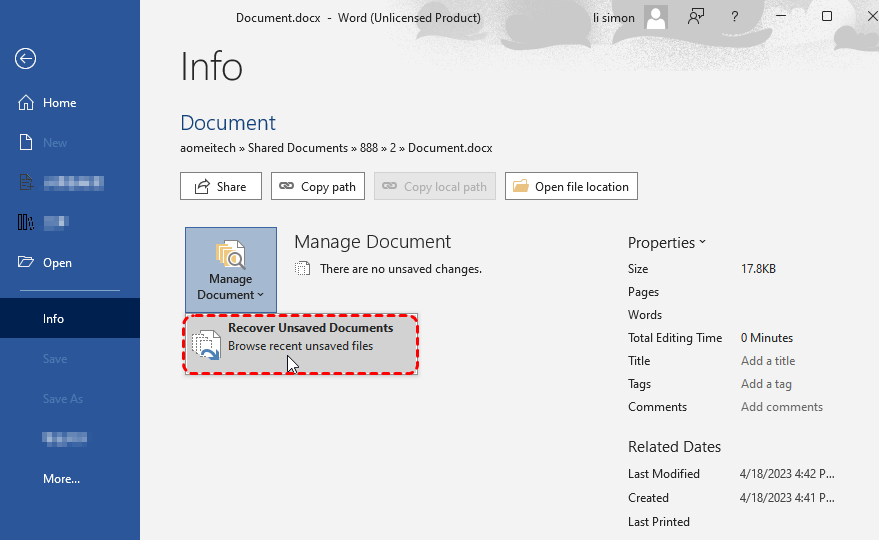
You can recover an unsaved Word document using Word’s AutoRecover feature. Open Word, go to "File" > "Info" > "Manage Document" > "Recover Unsaved Documents", then select your file and save it to a secure location.
Q2: How to retrieve a Word doc that disappeared?
Check Word’s Recent Documents, search in File Explorer using the file name or *.docx, and look in cloud storage like OneDrive. If needed, explore AutoRecover or temporary files.
Q3: Why do my Word documents keep disappearing?
Documents may disappear due to accidental deletion, AutoSave/AutoRecover failures, OneDrive sync issues, file corruption, or system crashes during editing.
Q4: How do I retrieve my lost documents?
Start by searching Recent Files, File Explorer, or cloud storage. If unavailable, check AutoRecover, Temp folders, and Recycle Bin, or use professional recovery software like MyRecover.
Q5: How to restore a Word document lost after saving?
Look for previous versions via File Explorer by right-clicking the folder containing the document and selecting "Restore previous versions". Alternatively, check backups or cloud storage.
Q6: Where are unsaved Word files saved?
Unsaved Word files are stored in the AutoRecover folder, usually at:
C:\Users\Username\AppData\Local\Microsoft\Office\UnsavedFiles. Open the .asd file in Word to recover your document.

Stay Updated With Our
Latest Tips
Add us as a preferred source on Google to never miss helpful guides.
 Add as preferred source >>