 MyRecover



AutoCAD File Recovery Software: Restore Unsaved & Corrupted DWG Drawings
Corrupted or unsaved DWG files rarely require paid tools. Autodesk documents a built-in path: the Drawing Recovery Manager, BAK backups, and SV$ autosave files. This guide explains each method, shows when third-party recovery software is justified, and covers free-download limits and safety cautions.

By Delores / Updated on November 20, 2026


If a DWG will not open or close before you save, the fastest route to AutoCAD file recovery is rarely a paid download. Autodesk itself documents a built-in path that restores most crash-related work: the Drawing Recovery Manager, a BAK backup, and the SV$ autosave file.
Third-party AutoCAD file recovery software has a place, but mainly when those copies are missing, corrupted, or the file was deleted from disk. Start with what AutoCAD already wrote to your drive, then escalate only when the built-in options are exhausted.
That order matters because recovery success depends on what is still on the disk.
This guide follows the sequence Autodesk recommends, adds the exact commands and menu paths, and marks the point where a dedicated AutoCAD drawing recovery software becomes reasonable.
Why AutoCAD Drawings Fail to Open or Vanish
- Unsaved Work After a Crash
Autodesk lists the triggers plainly: the program or operating system crashes, a blue screen appears, or power is cut while a DWG or DXF is open. A drawing may reopen without your latest changes, refuse to open at all, or be missing. Because autosave runs on an interval, the gap between the last autosave and the crash is the work most at risk.
- Corruption, Deletion, and Storage Faults
Not every failure is a crash. Autodesk's recovery guidance identifies files that were closed without saving, overwritten, or damaged by a storage medium problem. Drawing files that fail to open can also stem from repeated reuse of old drawings, termination during save, outdated software versions, third-party add-ons, objects written by non-Autodesk products, bad sectors, faulty RAM, network transfer errors, or power surges. Deletion and formatting are a separate case; you can try data recovery software to recover them.
About Backup and AutoSave Files in AutoCAD
Before evaluating any tool, know the three files AutoCAD may already have created. Autodesk documents them as the current DWG, the BAK backup, and the SV$ autosave, with a fourth temporary type that is widely misunderstood. This distinction is the basis of the AutoCAD file recovery workflow below.
BAK Backup Files (.bak)
By default, each manual save writes a BAK file beside the DWG with the same name and a .bak extension. It is an exact copy of the drawing before the last save, and only one is kept; each new backup replaces the previous one. Autodesk notes it is created only when the ISAVEBAK system variable is 1, which corresponds to 'Create backup copy with each save' in the Open and Save tab of Options.
SV$ Autosave Files (.sv$)
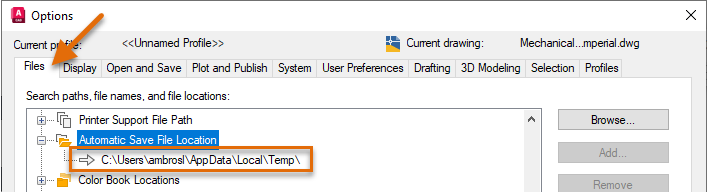
Autosave runs by default every 10 minutes and writes a temporary .sv$ file rather than altering the current drawing. The interval is controlled by the SAVETIME system variable and the 'Minutes between saves' setting; the location comes from the Automatic Save File Location path, or SAVEFILEPATH. On Windows, the default folder follows the TEMP environment variable, reachable by typing %TEMP% in the Start menu or File Explorer. On macOS, it is /Users//Documents/Autodesk/Autosave. A successful QSAVE, SAVE, or SAVEAS deletes the current .sv$ file and restarts the timer.
ac$ Temporary Files (.ac$)
Temporary .ac$ files hold information used by commands such as UNDO. Autodesk states explicitly that they contain no drawing data that can be recovered. Many third-party guides tell readers to rename .ac$ to .dwg; that advice conflicts with the official description and usually yields nothing usable. Treat .ac$ as noise when triaging a failed drawing.
3 Ways to Perform AutoCAD File Recovery
Way 1. Open the AutoCAD File Recovery Manager
The Drawing Recovery Manager, often searched for as an AutoCAD file recovery manager, was introduced in AutoCAD 2006. After a crash, it lists the drawings that were active, together with their backup and autosave files, in one panel and can open those files directly without manual renaming.
1. Relaunch AutoCAD after the crash. The Drawing Recovery Manager normally opens automatically and shows the affected drawings.
2. If it does not appear, type DRAWINGRECOVERY at the command line and press Enter, or choose Application menu > Drawing Utilities > Open Drawing Recovery Manager.


3. Expand the entry for the affected drawing to reveal its associated backup and autosave files.
4. Compare the saved dates and open the most recent copy that is not damaged.
5. Accept the prompt to rename the file, then save it immediately under a new name before you keep working.
Way 2. Rename a BAK or SV$ File Manually
When the manager panel is empty or missing, recover from the files directly. Autodesk documents both options in its guide to restoring drawings from backup files.
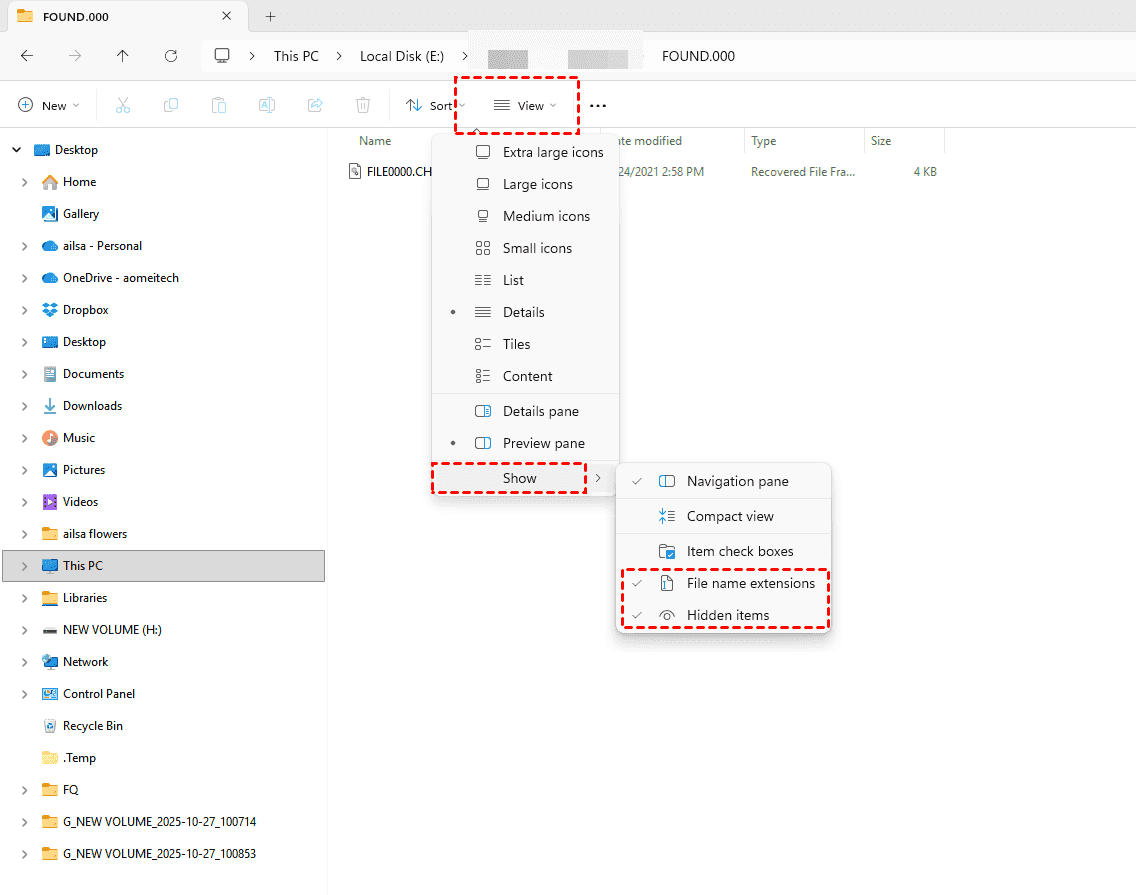
1. Open the folder that contains the original DWG and turn on file name extensions in Windows Explorer if they are hidden.
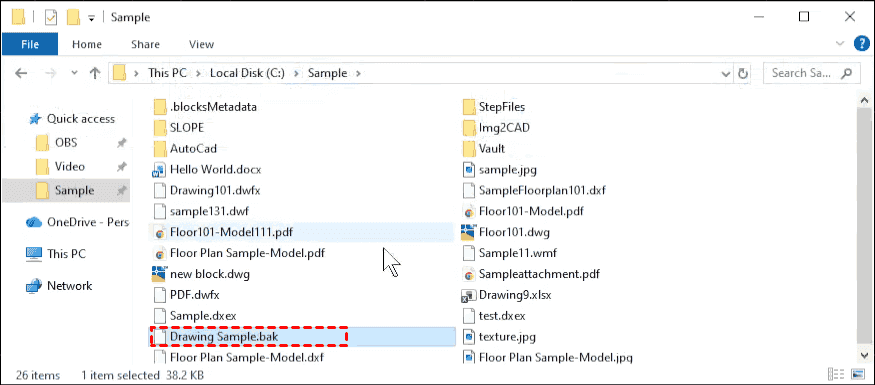
2. For a BAK recovery, find the file with the same name and a .bak extension beside the DWG.
3. For an autosave recovery, open the Automatic Save File Location folder (or type %TEMP%), sort by modified date, and find the .sv$ file with a matching name and timestamp code.
4. Copy the chosen file to a different folder, then rename its extension from .bak or .sv$ to .dwg.
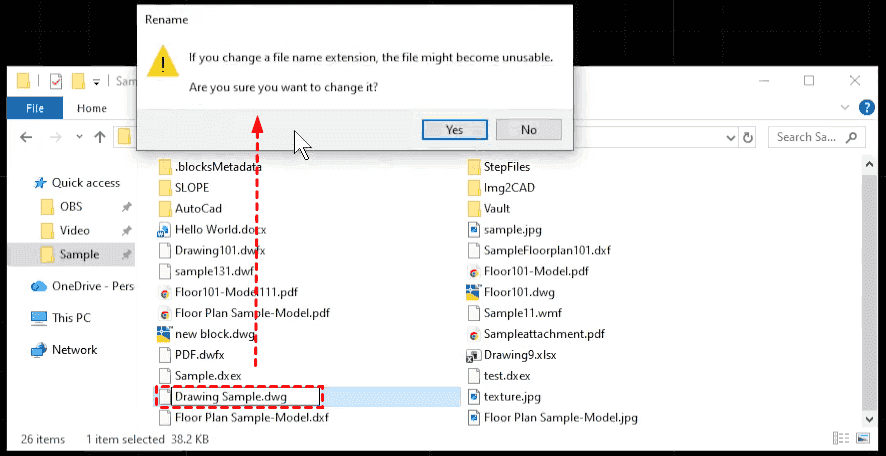
5. Open the renamed file in AutoCAD, verify the geometry, and save it under a new name.
Confirm the built-in options are exhausted: check the Drawing Recovery Manager, BAK, SV$, Recycle Bin, cloud version history, and any IT backup. If you have enabled Windows volume shadow copy, you can check the backups under Properties > Previous Versions. Or you have to try third-party AutoCAD file recovery software to recover missing AutoCAD files.
Way 3. The Best AutoCAD File Recovery Software - MyRecover
Escalate to third-party AutoCAD file recovery software only for cases where the built-in path cannot cover: a drawing deleted or lost to formatting, or a damaged volume where BAK and SV$ copies are gone or themselves corrupt. MyRecover is your best choice for AutoCAD file recovery.
- ★Pros of MyRecover for AutoCAD file recovery:
- DWG/SV$/BAK preview and recovery support — Lets you preview DWG files before recovery and intelligently categorizes them by file path, type, modified date, size, etc., reducing the risk of recovering the wrong version.
- Simple three-step workflow — "Scan → Preview → Recover", no technical background required, quick to get started.
- Dual scanning mechanism — Quick Scan locates recently deleted files, while Deep Scan searches sector by sector for more lost files, useful for files deleted long ago or after the Recycle Bin has been emptied.
- Free version available to try first — The free version supports scanning and recovering up to 500MB of data, usually enough for small DWG files.
- Up to 99% recovery rate — It provides the highest recovery rate on the market to recover your missing files fast and stably.
Here is how to perform AutoCAD file recovery after formatting with MyRecover on a Windows 11/10/8.1/8/7 computer:
1. Install MyRecover on a different drive from the one being scanned.
 100% Secure
2. Tap Format Recovery, choose the drive you have formatted, and hit Scan. Or try other features that suit you best.
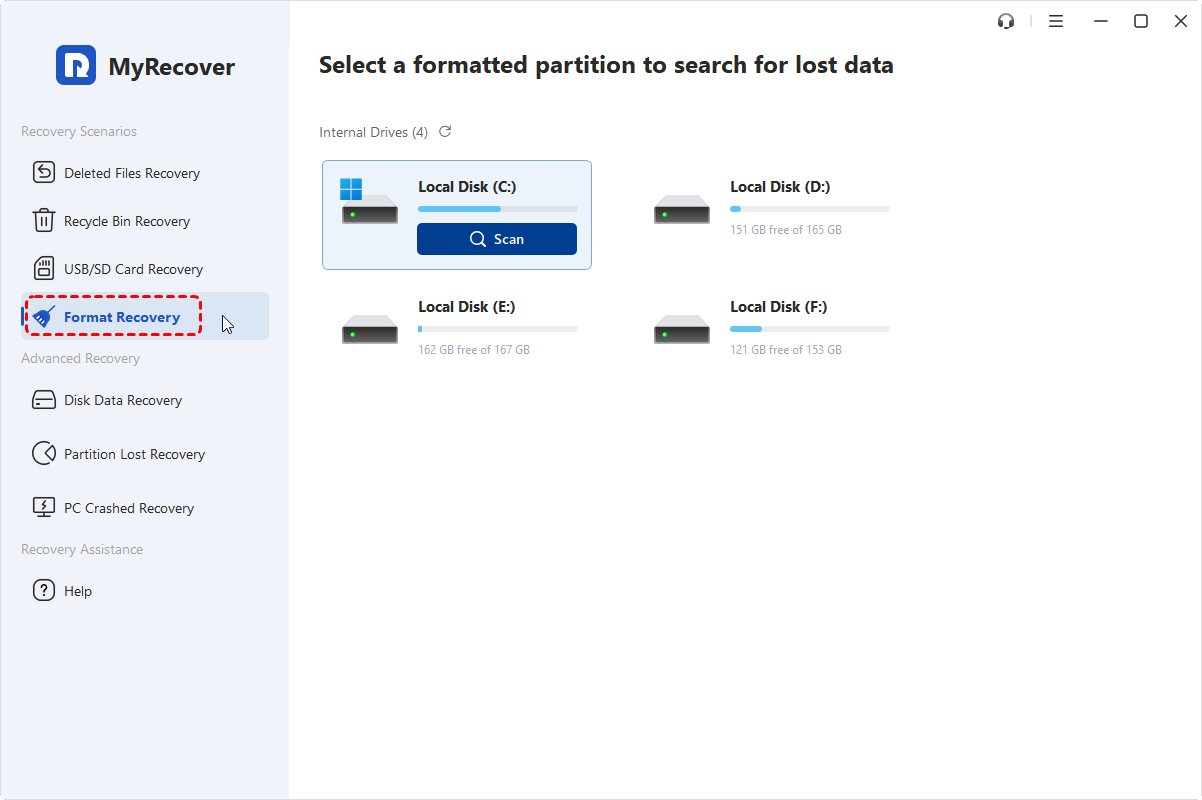
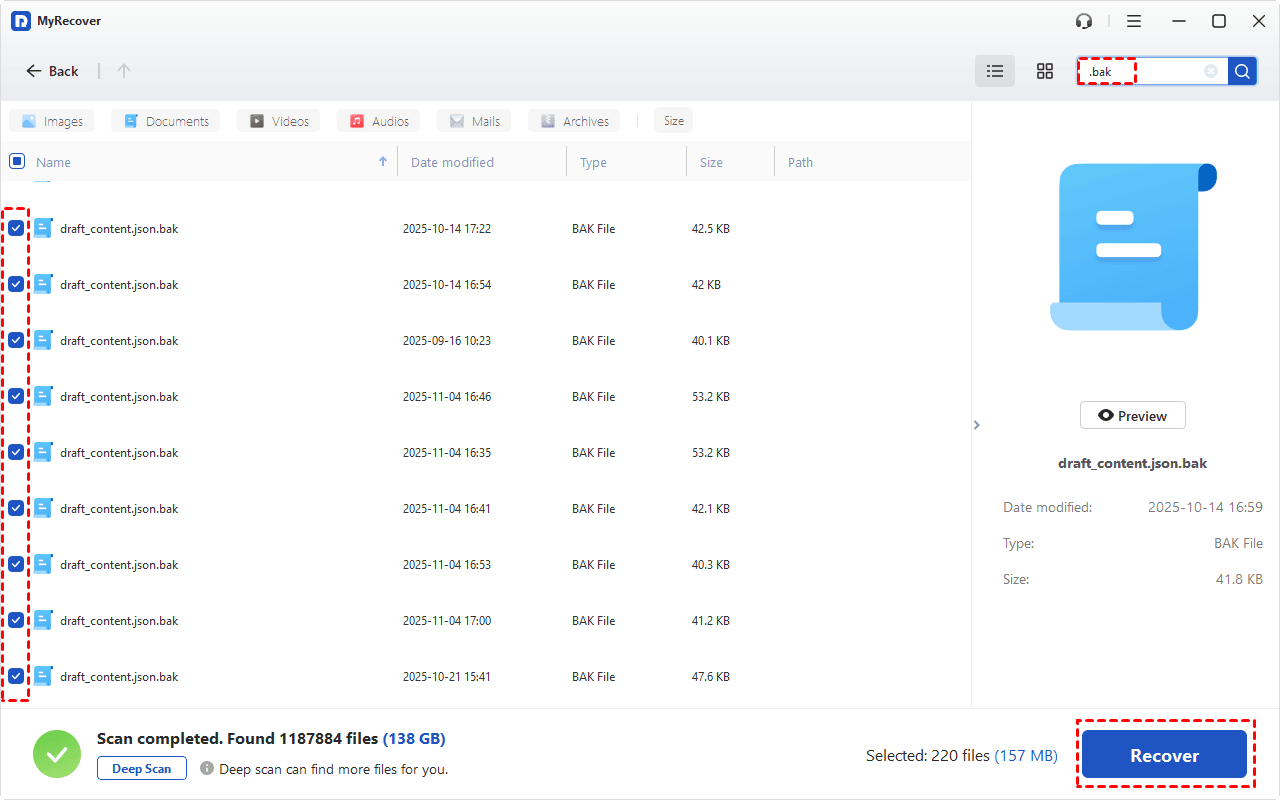
3. It will perform a deep scan to find all your missing AutoCAD files. Once scanned, preview the DWG/SV$/BAK files you need, tick them, and press Recover.
4. Select a safe location to save these AutoCAD files.
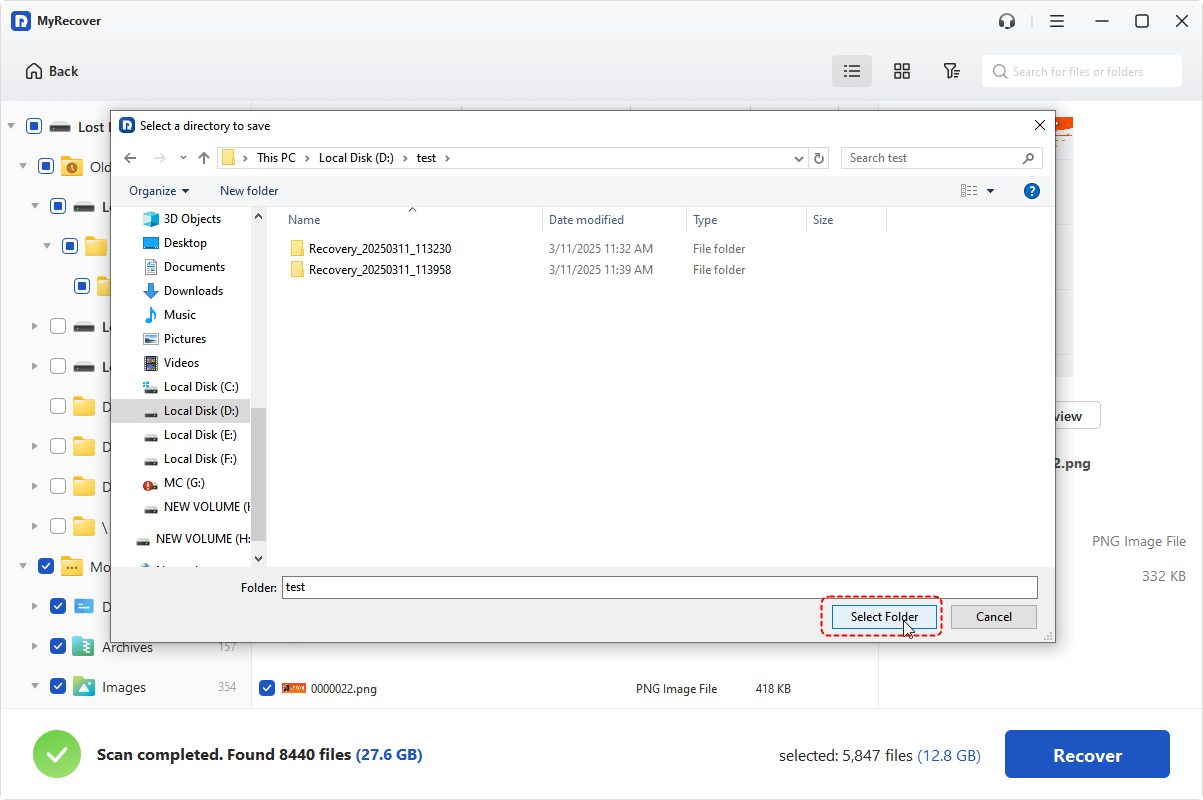
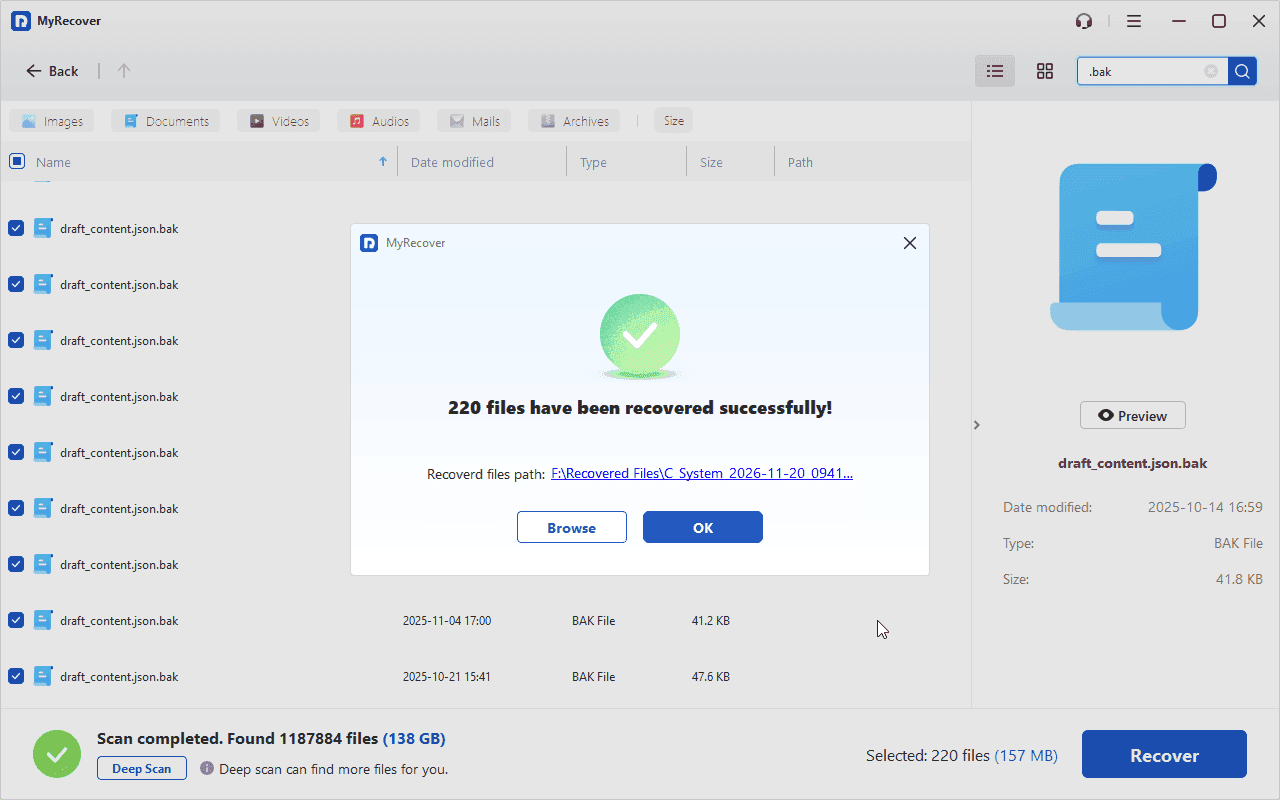
Once completed, check the recovered files in the destination. Then open the recovered files in AutoCAD and confirm the drawing is complete before relying on it.
- Tips:✎...
- A narrow DWG repair utility and a general data recovery tool solve different problems: the first rebuilds a damaged file, the second finds a deleted one.
- If you need to recover files from an unbootable computer, recover unlimited files, etc., please upgrade to MyRecover Professional or Technician.
- If you remember the file name, you can also use the file name to search for it after scanning to find it quickly.
 MyRecover
- Recover Deleted Files Easily with Simple Clicks
- 1000+ File Formats Supported
- Supports HDD, SSD, External Hard Drive, USB Drive, SD Card, etc.
- Quickly Find Files Using File Types, Name, Size, etc.
- Preview Files Before Recovering
- Recover Unlimited Data
 100% Secure
FAQs About AutoCAD File Recovery Software
Where is the AutoCAD Drawing Recovery Manager?
After a crash, it usually opens on the next launch. Otherwise, type DRAWINGRECOVERY at the command line, or use Application menu > Drawing Utilities > Open Drawing Recovery Manager. It only lists drawings from a crashed session.
Can I recover an AutoCAD file without autosave?
Yes, if another copy exists. Check the BAK file beside the DWG, Windows Previous Versions or cloud version history, and the Recycle Bin. If autosave was disabled with SAVETIME set to 0, no SV$ file was created, and those alternatives are your first stop.
What is the RECOVER command in AutoCAD?
RECOVER opens a damaged drawing and runs a diagnostic audit, saving a repaired report; RECOVERALL handles a set of files. Both are different from DRAWINGRECOVERY, which lists drawings from a crash. For a file that still will not open, Autodesk also suggests inserting it into a blank drawing or converting its version in DWG TrueView.
Where are AutoCAD temporary files stored?
Autosave files are saved on Windows in the TEMP folder (type %TEMP% to open it) and on macOS in /Users//Documents/Autodesk/Autosave. The exact path is set under Options > Files > Automatic Save File Location. Note that .ac$ temp files contain no recoverable drawing data.
Conclusion
Recovering a DWG is mostly a matter of order and restraint. Use the Drawing Recovery Manager first, then BAK and SV$ files, and reserve third-party AutoCAD file recovery software for corruption or deletion that those copies cannot fix. Stop writing to a suspect drive, work on copies, and save every recovered drawing under a new name. Verify the geometry before you trust it, and treat autosave as a last-resort safety net rather than a backup strategy.

Stay Updated With Our
Latest Tips
Add us as a preferred source on Google to never miss helpful guides.
 Add as preferred source >>