 MyRecover



Find the Best RAID Data Recovery Software to Rescue Your Array Fast
Facing a failed RAID array? Our in-depth analysis reveals the best RAID data recovery software on the market. We detail how each RAID recovery tool performs with different RAID levels, file systems, and damage types to help you choose.

By Delores / Updated on January 15, 2026


Is There Any RAID Data Recovery Software?
What's the best RAID recovery software?
My RAID array just failed, and I'm desperate to recover some critical business data. I've tried a few tools, but none have worked so far. What RAID recovery software do you recommend that's reliable and effective?
- Question from mepis.org
No matter what the situation is, a failed RAID can feel like a digital heart attack. The data stored across those drives isn’t just files; it’s your projects, your memories, your operational backbone.
So, for many users, finding the best RAID data recovery software is the best solution. This guide shows you how to find the best RAID data recovery software, and even walks you through a hands-on recovery process step-by-step. Let’s get that data back.
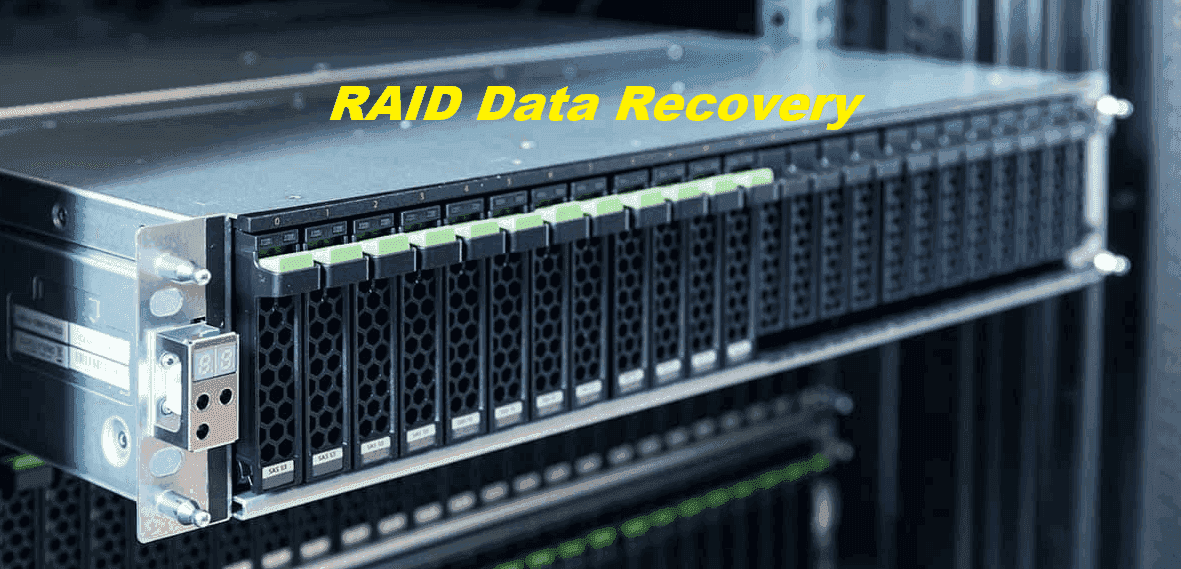
Why Did Your RAID Fail?
A RAID (Redundant Array of Independent Disks) is fantastic for speed or safety, but it adds a layer of complexity that a single drive just doesn’t have. When it fails, it’s rarely a simple case of a single broken component.
When a RAID array throws in the towel, it’s usually due to a combination of issues.
- You might have a classic mechanical failure—that ominous clicking sound from one of the drives is a dead giveaway.
- More insidiously, multiple drives could slowly develop bad sectors over time until the redundancy cannot compensate anymore.
- Then there’s controller failure, where the card or software managing the array itself gets corrupted, leaving perfectly good drives suddenly “invisible” to the system.
- Human error, like accidentally deleting a critical volume or improper reconfiguration, is also a common culprit.
Figuring out the “why” is the first critical step toward the “how” of recovery.
What is RAID Data Recovery Software?
RAID data recovery software is a specialized application designed to rebuild your array logically and scan each member disk to retrieve files.
Unlike standard recovery tools that work on a single drive, this software analyzes the array to determine its parameters. If the RAID controller’s metadata is lost. Advanced RAID data recovery software can reassemble the entire structure of your RAID—identifying its configuration, such as RAID 0, 1, 5, or 10—and interpret how data was organized across drives through striping, mirroring, or parity.
It then reconstructs the data by reading from each disk in the correct sequence. The software does not repair physical drive damage; instead, it works around logical errors and corruption to recover your data onto a separate, functional storage device.
Key Features of the Best RAID Recovery Software
There are so many RAID data recovery software on the market, to choose the right tools, check the following key features for the best RAID data recovery software:
- First and foremost is robust support for RAID levels and file systems. The tool must handle your specific setup, whether it’s a simple RAID 0 stripe set, a RAID 5 with parity, a nested RAID 10, or even a quirky hardware RAID from a specific manufacturer.
- Equally important is its compatibility with file systems—NTFS, FAT32, FAT16, exFAT, you name it.
- Secondly, look for sophisticated deep scanning algorithms. A simple “quick scan” won’t cut it after a serious failure. The software needs to perform a comprehensive, sector-by-sector scan to find file fragments and reconstruct them.
- A preview function so you can verify files before purchasing a license, and a user interface that doesn’t require a PhD in computer science to operate.
Fortunately, the powerful data recovery software MyRecover meets all the requirements. It’s worth trying.
Immediate Actions Before RAID Data Recovery
Do not write anything new to the failed array or its member drives. Any new data can overwrite the very files you’re trying to save.
If possible, physically connect the RAID drives to a separate, healthy computer that will act as your recovery workstation. Use a SATA-to-USB adapter or dock if you don’t have internal ports. This isolates the drives.
Recover RAID Files with MyRecover
MyRecover is known for its clean interface and straightforward process. Here is how to recover files from RAID hard drives with MyRecover:
1. First, download and install MyRecover on your computer. Connect all the member drives from your RAID individually to this computer.
 100% Secure
2. Launch MyRecover. Tap Disk Data Recovery, choose one of your RAID disks, and hit Scan. Wait for the process to complete and hit OK.

3. Preview and select the files you need, and hit Recover. Choose a safe location to save these files.


4. Repeat the scanning and recovery process for all the disks within the failed RAID array.
- Notes:✎...
- You will find the missing files on the left side by file type or path. Besides, you are able to search files quickly by file name, size, and modified date, etc.
- Besides, you can also recover files from an emptied Recycle Bin, a crashed computer, a formatted SSD, etc.

 MyRecover
- Recover Deleted Files Easily with Simple Clicks
- 1000+ File Formats Supported
- Support HDD, SSD, External Hard Drive, USB Drive, SD Card, etc.
- Quickly Find Files Using File Types, Name, Size, etc.
- Preview Files Before Recovering
- Recover Unlimited Data
 100% Secure
Prevent Future RAID Data Loss
The best strategy is to avoid restoring in the first place. Try these tricks:
- RAID is not a backup—it’s primarily for uptime and performance. The golden rule is the 3-2-1 Backup Strategy: have at least 3 total copies of your data, on 2 different types of media, with 1 copy stored offsite (like in the cloud or a safe deposit box).
- Regularly monitor your RAID health using SMART tools or your NAS/system software. Replace drives at the first sign of weakness, not after total failure.
- And finally, keep documentation! Write down your RAID configuration, stripe size, and drive order. Store a screenshot of your management utility. This simple step can save you a world of hurt if you ever need to reconstruct the array during recovery manually.
FAQs About Best RAID Data Recovery Software
What is the most effective RAID data recovery software for a completely failed RAID 5 array?
A: For complex failures, commercial tools like R-Studio and UFS Explorer are most effective. They excel at automatic detection and handling parity calculations, and can work with disk images to safely recover from deteriorating drives.
Can I use free software to recover data from a broken RAID 0 setup?
A: You can attempt it with tools like TestDisk or DMDE, but success is unlikely. RAID 0 has no redundancy, making recovery extremely difficult. Free tools often lack the automatic detection and advanced engines needed. For anything beyond a simple deletion, paid software is strongly advised.
How long does the RAID data recovery process usually take with software?
A: Recovery time varies widely. Drive size is the biggest factor; scanning multi-terabyte arrays can take 12-24 hours or more. Failure severity and hardware speed also affect duration. A full recovery can easily take a day or longer for large, complex arrays.
What’s the main difference between RAID recovery software and sending drives to a lab?
A: Software addresses logical failures: deleted files, corruption, or controller issues where drives are still mechanically sound. A lab handles physical damage: drives that won’t power on, make unusual noises, or have suffered water/fire damage. Use software first for logical issues; a lab is necessary for physical repairs.
Is it possible to recover data after replacing a failed drive and rebuilding the RAID?
A: This is a dangerous misconception. Rebuilding a degraded array writes new parity data, which can overwrite the fragments of your lost files, making software recovery much harder. The best practice is to create disk images of every drive before attempting any rebuild or repair.
Do I need to know my RAID parameters (stripe size, order) to use recovery software?
A: Not necessarily. Modern best RAID data recovery software like ReclaiMe Pro, R-Studio, and UFS Explorer can often automatically detect these parameters. However, if detection fails on a damaged or custom array, you will need to enter them manually. Keeping a record of your configuration is always recommended.

Stay Updated With Our
Latest Tips
Add us as a preferred source on Google to never miss helpful guides.
 Add as preferred source >>