 MyRecover



Recovery Drive vs. System Image: Which One Actually Saves Your Files and Data?
A recovery drive vs system image choice affects whether your files survive a Windows repair. A recovery drive reinstalls Windows but excludes personal files; a system image captures Windows, apps, settings, and files. This guide compares both and shows how to recover files when neither has them.

By Delores / Updated on November 18, 2026


Quick Answer
A recovery drive and a system image solve different problems. A recovery drive is bootable USB media that starts the Windows Recovery Environment so you can repair or reinstall Windows; it does not contain your personal files. A system image is a complete snapshot of a drive, including Windows, installed apps, settings, and files at the moment it was created. If you need a failed PC to boot again, use a recovery drive. If you need to return the system and its data to an earlier state, use a system image.
Neither tool brings back a file you deleted unless that file was already captured in an image. This recovery drive vs. system image comparison explains what each one stores, when to use each, and the exact steps to create both in Windows 11 and Windows 10. It also covers what to do when the files you need are in neither one.
Get Confused About Recovery Drive and System Image?
Confusion between recovery drive and system image
From what I understand, a recovery drive is basically just a bare-bones version of a system image.
A system image allows you to recover everything on your system, including multiple drives. On the other hand, a recovery drive only allows you to copy your most essential files from your system drive. Is my understanding correct?
- Question from tomshardware.com
A system (or disk) image is a complete copy of a hard disk partition, stored in a single file. If you image your system drive (usually C:, which contains the boot files, operating system, programs, and user data), you can restore that image if you run into unfixable problems or your computer becomes unbootable — reverting it to exactly how it was when the image was created.
The Recovery Drive in Windows 11/10 is an important tool designed to back up essential system files needed to restore a PC to its factory state.
A system image is likely to be larger than a recovery disk because it also includes all the extra programs you installed plus your data files.
Why Are Recovery Drive and System Image Backup Confusing?
Why are you getting confused about recovery drive and a system image backup? Check these:
- Both Are Created from Windows and Stored on External Media
Each option is produced by a Windows tool and written to a USB drive or other external storage. From the outside, they look alike, so users often assume one can substitute for the other. They cannot: one holds tools, the other holds data.
- The Word Recovery Covers Two Different Jobs
Microsoft groups both under recovery, but a recovery drive boots the machine into a repair environment, while a system image supplies the content used to restore a previous state. You can own a recovery drive and still have no copy of your files.
- Older Guides Blur the Distinction
Some tutorials describe a recovery drive as a backup of the whole system. Microsoft's documentation does not support that claim for personal files. The difference between a recovery drive and a system image comes down to whether user data is included in what was captured.
What's the Difference Between Recovery Drive and System Image?
A recovery drive is a lightweight, USB-based tool for booting and repairing or reinstalling Windows, while a system image backup is a full snapshot of your entire system — including programs and personal data — used to roll everything back to a previous state.
They complement each other: use a recovery drive to fix or reinstall Windows, and a system image backup to restore your complete setup and files. For full protection, ideally have both.
Check the difference between a Recovery Drive and a system image backup in the chart below.
Differences Between Recovery Drive and System Image Backup
| Aspect | Recovery Drive | System Image Backup |
| What it contains | Windows recovery tools and boot files (optionally a backup of system files) | Complete copy of a disk partition: OS, boot files, programs, and user data |
| Primary purpose | Boot the computer and troubleshoot/reset Windows when it won't start | Restore the entire system to its exact state at the time the image was created |
| Size | Usually smaller (tools only, unless system files are included) | Larger — includes all installed programs and data files |
| Can extract individual files? | Generally no | Usually yes |
| Typical use case | Repair, reset, or reinstall Windows; access recovery options | Full system rollback after unfixable problems or an unbootable PC |
| Storage medium | USB flash drive | External hard drive or other large storage |
| Restores programs & data? | No (unless system files were included) | Yes — everything returns to the imaged state |
Which One Do You Need?
| What went wrong with your PC? | Choose |
| Won't boot / BSOD / system corrupted, but the disk is alive | Use a Recovery Drive to enter WinRE and repair or reinstall |
| System boots, but you want to roll the whole machine back to a point in time | Use a System Image to restore |
| Disk physically failed/replaced with a new drive | Recovery Drive to reinstall + System Image to restore data (you need both) |
| You just deleted one file by accident | Neither helps → Recycle Bin/File History/data recovery tool |
| You prepared nothing and the PC is already broken | See "How to Recover Missing Files" at the end |
Recovery Drive vs. a System Repair Disc: Do They Do the Same?
No, they are not the same, though they serve a very similar purpose.
The core difference comes down to the storage medium and a slight difference in capability:
- Storage Medium: A System Repair Disc is specifically created on a CD or DVD through the legacy "Backup and Restore (Windows 7)" tool. A Recovery Drive, on the other hand, is created on a USB flash drive through the modern Windows Settings.
- Functionality: Both boot your computer into the Windows Recovery Environment (WinRE) for troubleshooting. However, a Recovery Drive has an extra option: if you check "Back up system files to the recovery drive," it can also be used to reinstall Windows, whereas a System Repair Disc generally only provides repair tools.
In short, the Recovery Drive is the modern USB replacement for the older CD/DVD-based System Repair Disc, and it often includes the added ability to reinstall the OS.
How to Create a Recovery Drive in Windows 11 and Windows 10
Create this while Windows still works. The process erases the selected USB drive, so move any files you want to keep off it first.
1. Connect a blank USB flash drive with at least 16 GB of capacity, or 32 GB if you plan to include system files.
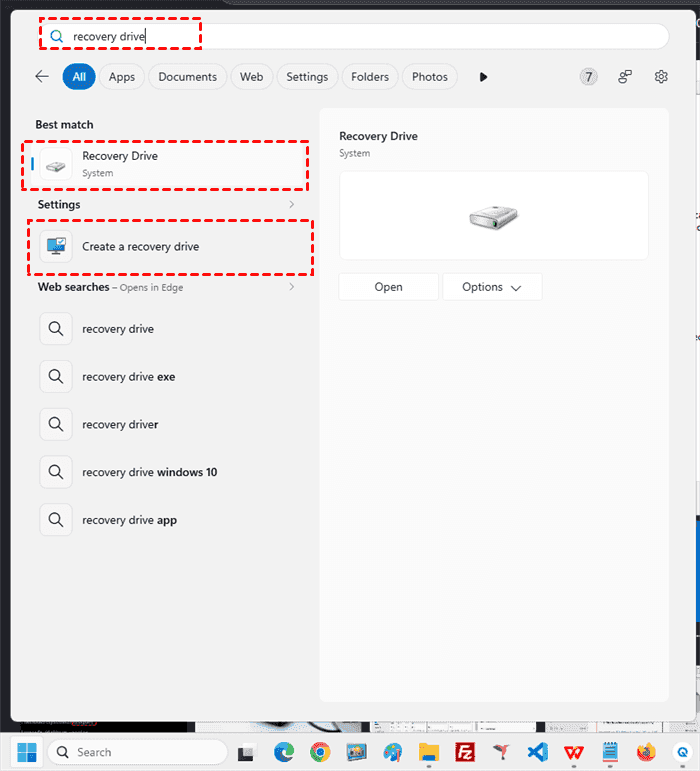
2. Open the Start menu, type Recovery Drive, and select Create a recovery drive or Recovery Drive. Approve the User Account Control prompt.
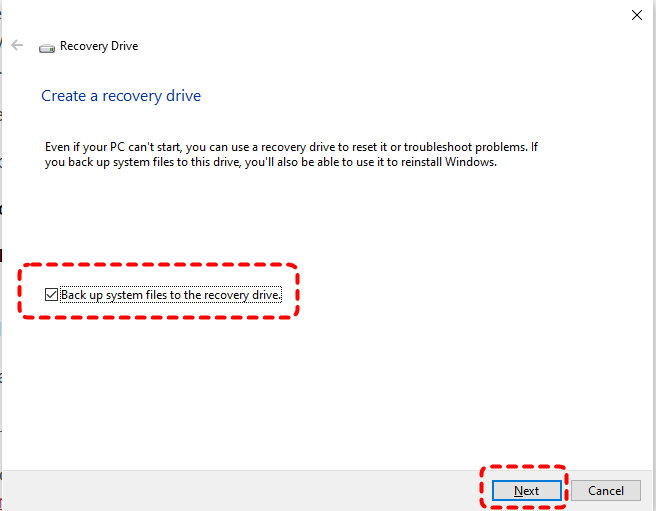
3. Keep the option to back up system files to the recovery drive selected, then select Next.
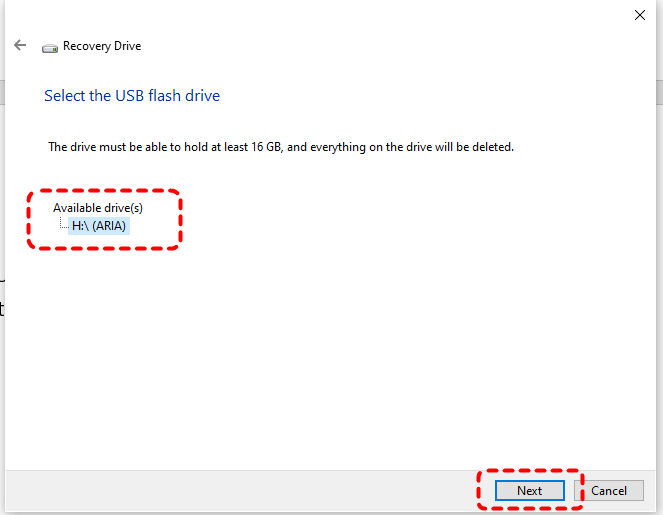
4. Select the correct USB drive from the list and select Next again.
5. Select Create and wait while Windows formats the drive and copies the recovery files.
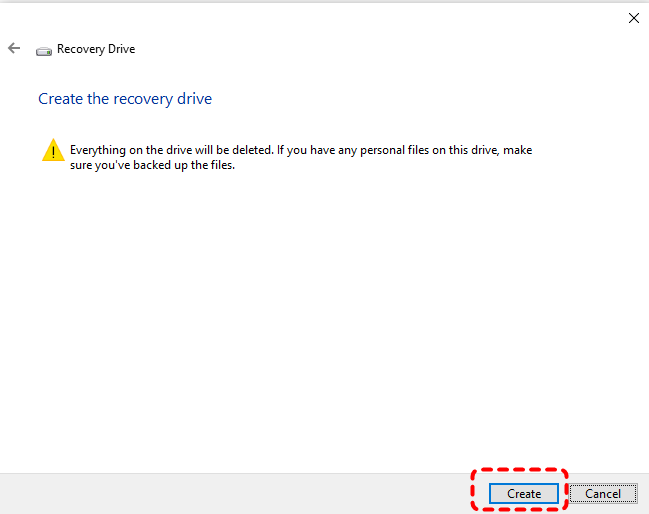
6. Select Finish, label the drive with the PC name and date, and store it away from the computer.
- Tips:✎...
- Restart the PC and open the boot menu once to confirm the recovery environment loads; you do not need to run a repair. Keep the BitLocker recovery key accessible, since most recovery options on an encrypted device require it. Recreate the drive after a major Windows upgrade or a storage replacement.
- Sometimes, you might encounter the error message: We can't create a recovery drive on this PC. Some required files are missing... You can find solutions at the link.
How to Create a System Image Backup in Windows 11 and Windows 10
Creating a full system backup in Windows 11/10 is pretty straightforward. You can use the built-in Backup and Restore (Windows 7) feature to create a system image on an external drive, or use dedicated backup software for more flexibility and scheduling options. A full system image captures your operating system, applications, settings, and files, making it much easier to recover after hardware failure or major system issues.
1. Connect an external drive with more free space than the used space on the drive you are capturing, and plug in the laptop.
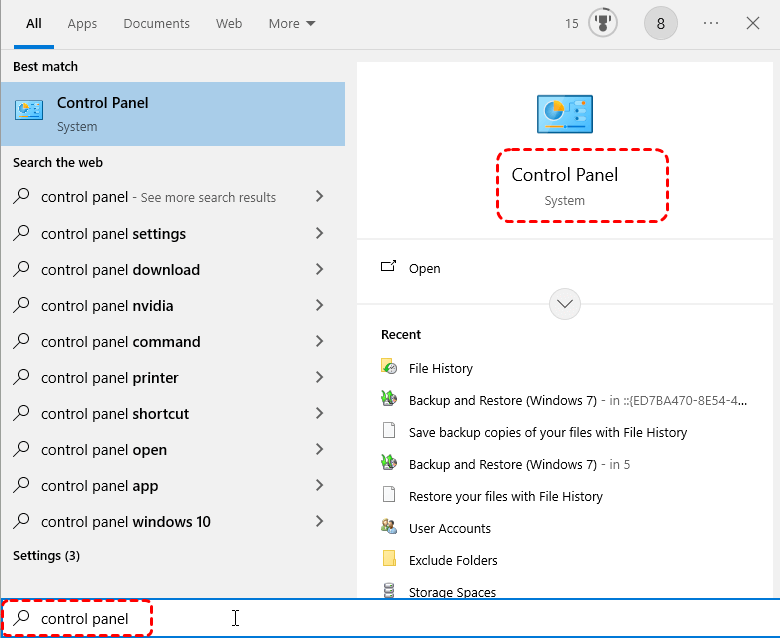
2. Search and open Control Panel.
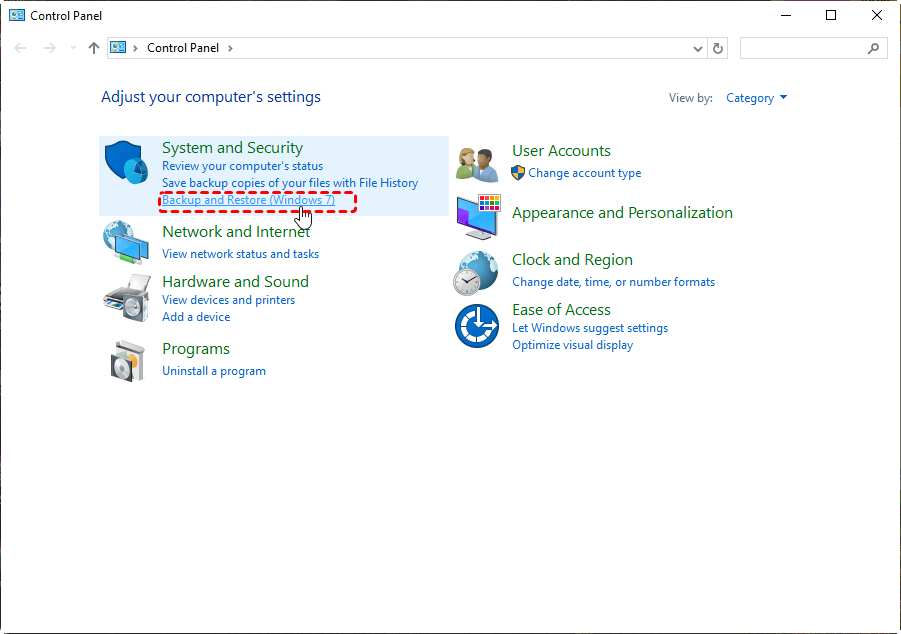
3. Then choose System and Security, then Backup and Restore (Windows 7).
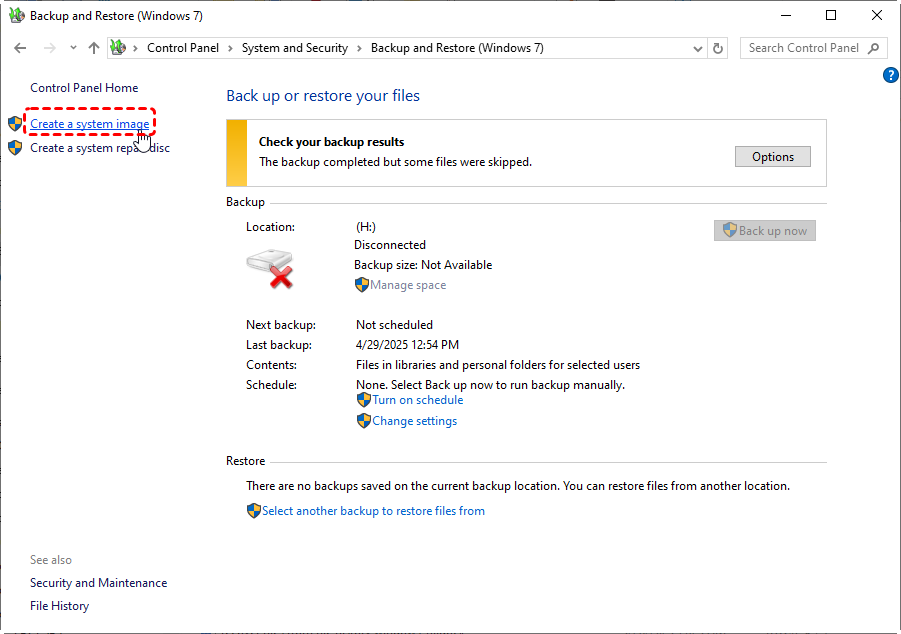
4. Select Create a system image in the left pane.
5. Choose the destination: an external hard disk, DVDs, or a network location.
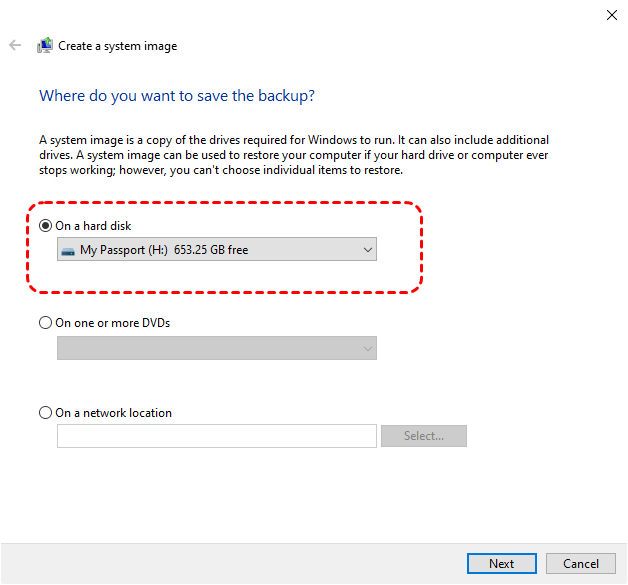
6. Confirm the drives Windows has selected, then select Start backup and wait for the process to finish.
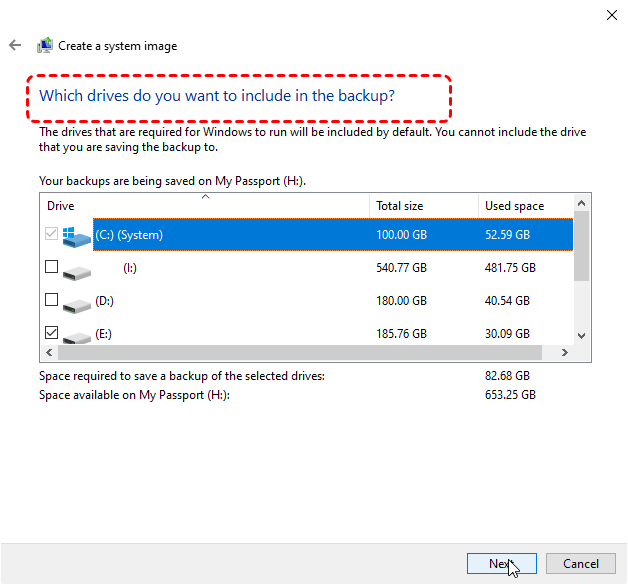
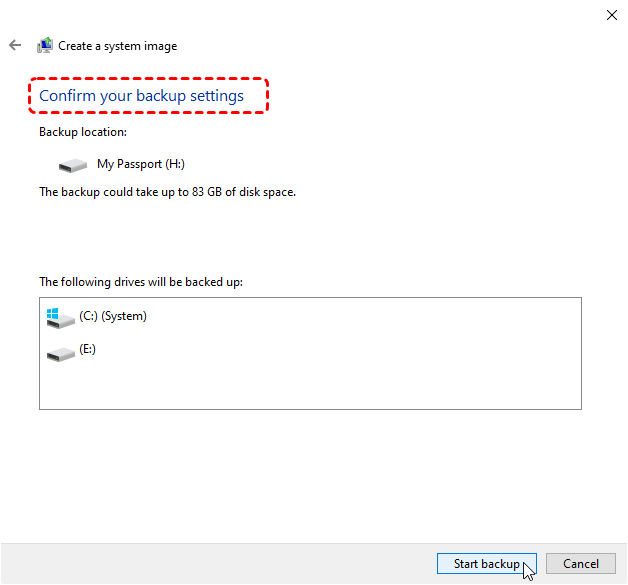
- Tips:✎...
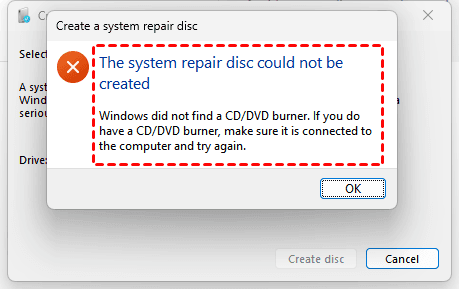
- Once created, it might ask you if you want to create a system repair disc, choose according to your demands. If you want to do so, please insert your CD/DVD to create it. Or it will fail and show you "The system repair disc could not be created. Windows did not find a CD/DVD burner, make sure it is connected to the computer and try again".
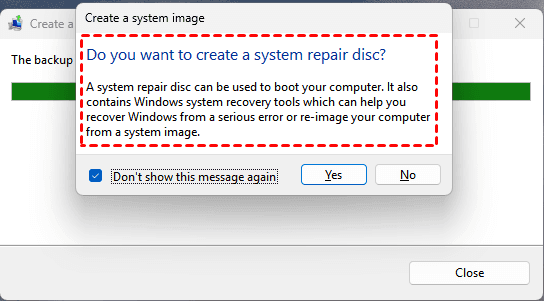
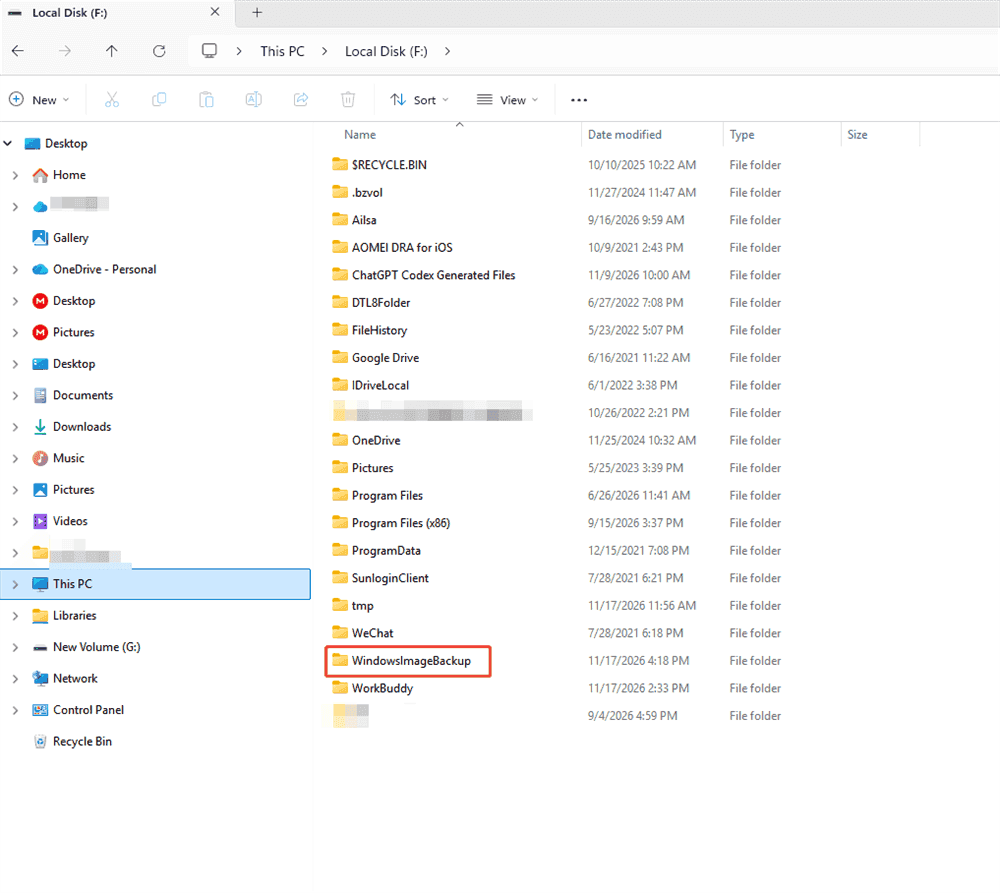
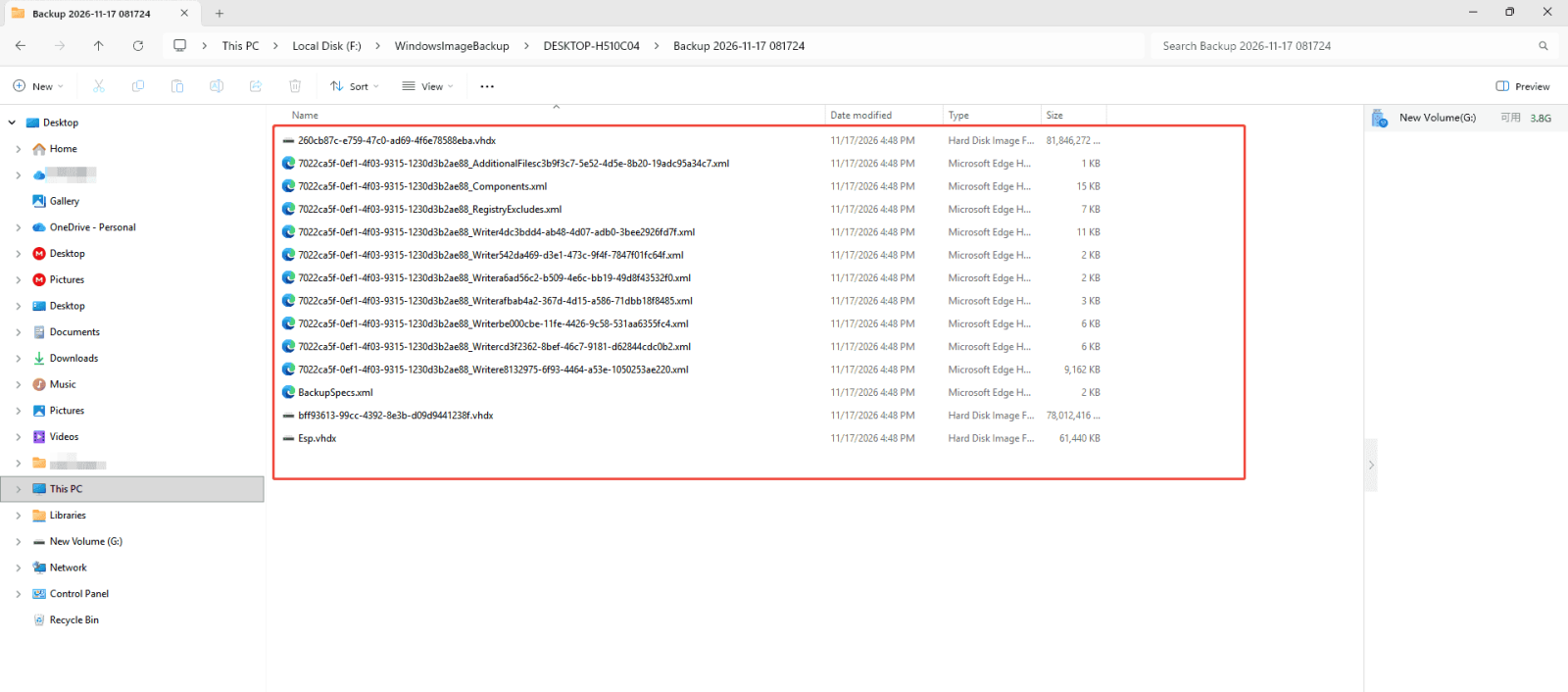
7. Leave the WindowsImageBackup folder name and structure unchanged, then store the drive separately from the recovery USB.
Our Test: What We Actually Measured
| Item | Detail |
| Device | Lenovo ThinkPad T14 |
| Windows version | Windows 11 25H2 (build 26200.9711) |
| Disk type | NVMe SSD (system drive) + SATA HDD (D:, E:, F:) |
| Partitions captured | EFI system partition + C: + D: |
| Total data captured | 169.48 GB |
| Destination | Local HDD (NTFS), F drive |
| Time to create image | 32 min 56 sec |
| Image folder size | 152 GB (~90% compression) |
Note: Creation time varies significantly with disk type, USB version, and compression settings. The table above is for order-of-magnitude reference only.
How Much Space Does a System Image Need?
A system image typically takes up 60–80% of used space (depending on compression and whether it includes multiple partitions). Estimator:
Space needed ≈ Used space × 0.7 (use 0.8 for a conservative estimate)
Example: C: has 200GB used and D: has 100GB used → prepare at least 250GB of free external drive space. The external drive's free space must exceed the used space of the drives you are capturing, or the image creation will fail midway.
How to Recover Missing Files in Windows 11/10?
A recovery drive contains no personal files, and a system image only returns what existed at the time. If a document was deleted before the image, or you can't restore the files you need using a system image backup, you need another route. Start with the Recycle Bin or File History for recent deletions. For files lost to deletion, formatting, or a reset with no usable backup, data recovery software can scan the drive for remaining file records.
MyRecover is a free Windows data recovery tool that restores deleted files from hard drives, SSDs, USB drives, and SD cards. It is a recovery tool, not a backup or disk repair utility, and it fills the gap left when a recovery drive or image cannot return a specific file. For related scenarios, see this guide to recovering data after formatting a hard drive without a backup.
Note: If your computer can't boot up, you have to create a bootable USB drive on another working computer, then boot up the unbootable computer to recover files.
1. Stop using the affected drive immediately; new saves and installs can overwrite the data you want back.
2. Install MyRecover on a different drive from the one holding the lost files, then launch it.
 100% Secure
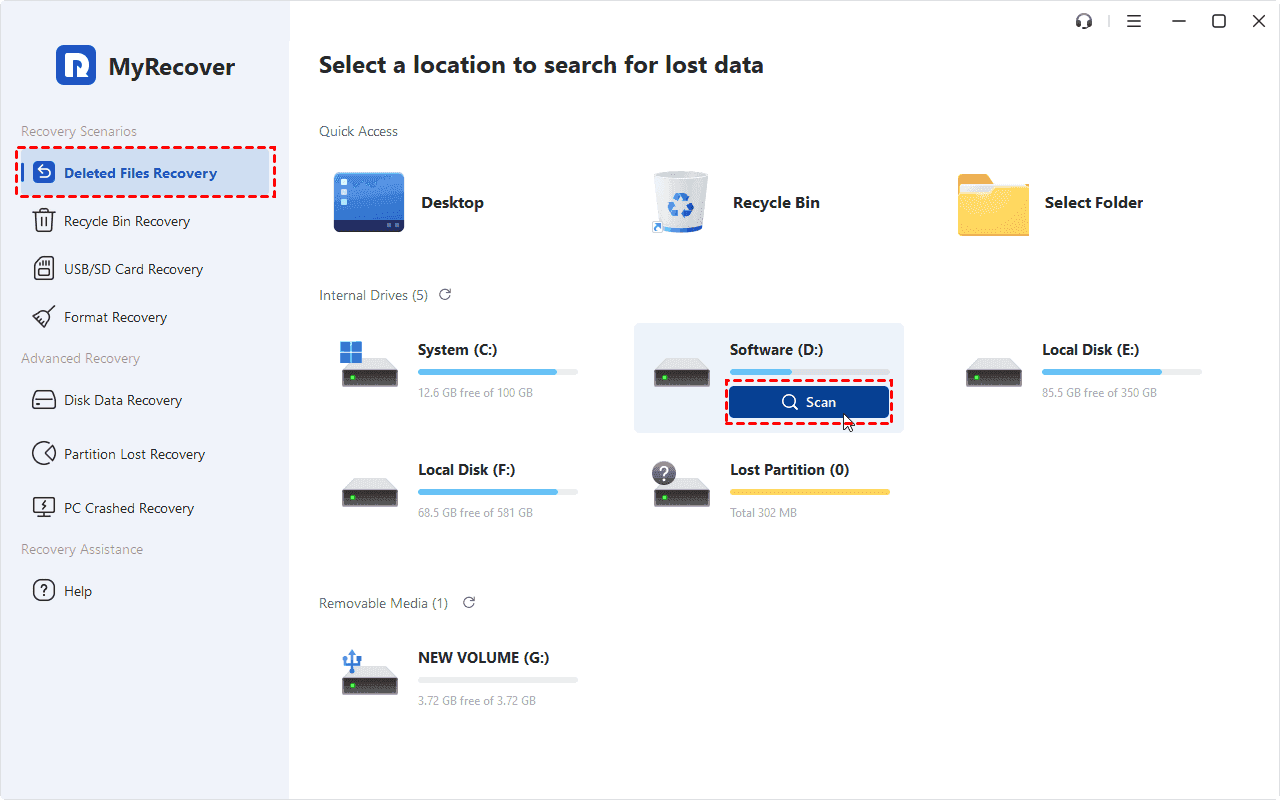
3. Tap Deleted Files Recovery, hover over the drive that contains the missing files, and hit Scan. The tool runs Quick Scan first and Deep Scan for harder cases.
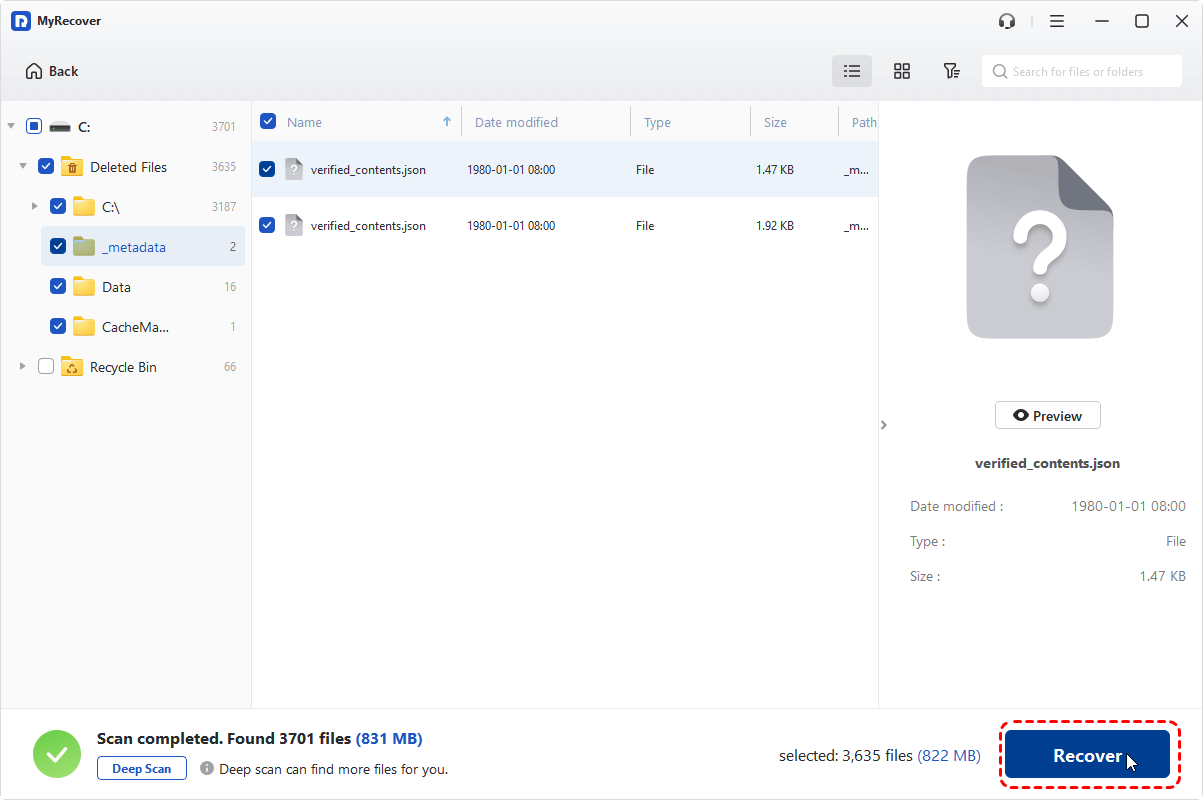
4. Once scanned, use Filter to narrow results by file type, path, or date, and preview items before recovery. Tick the files you need, and hit Recover.
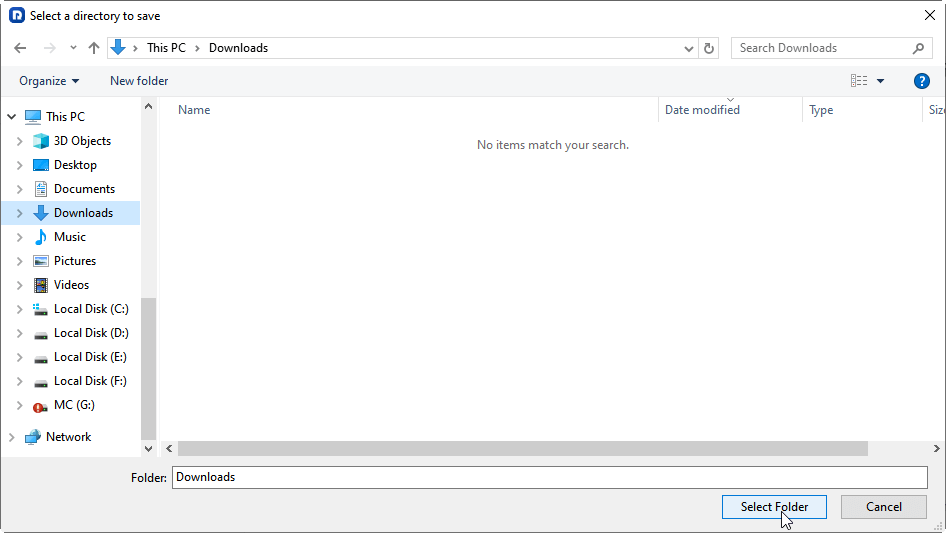
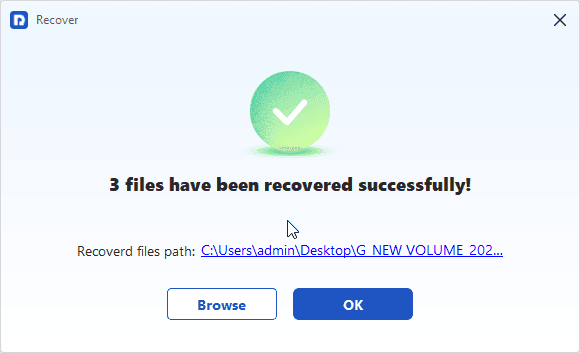
5. Save them to a different drive or partition from the original location.
- Tips:✎...
- Never write recovered files back to the drive you scanned.
- On SSDs with TRIM enabled, deleted blocks can be cleared automatically, so scan as soon as possible.
- Recovery is never guaranteed and depends on how much the drive has been used since the loss.
- For unlimited file recovery, or other features, please upgrade to MyRecover Professional or Technician to unlock.
 MyRecover
- Recover Deleted Files Easily with Simple Clicks
- 1000+ File Formats Supported
- Supports HDD, SSD, External Hard Drive, USB Drive, SD Card, etc./li>
- Quickly Find Files Using File Types, Name, Size, etc.
- Preview Files Before Recovering
- Recover Unlimited Data
 100% Secure
Conclusion
Choose a recovery drive to enter the Windows recovery environment and reinstall Windows. Choose a system image when you want the machine, its apps, and its files restored to an exact earlier state. Neither replaces a routine file backup, and a recovery drive will not recover deleted files.
A practical setup that covers the real failure modes:
- One recovery drive USB (16–32GB) — rebuild quarterly or after every major Windows upgrade.
- One system image (external drive, space ≥ used space × 0.8) — create monthly or before major changes.
- One ongoing file backup (File History / OneDrive / a third-party sync tool) — protects new files created after the image.
- The BitLocker recovery key on your phone or printed out — without it, steps 1 and 2 cannot be used on an encrypted device.
- Accidental-deletion fallback: Recycle Bin → File History → data recovery tool (see above), and stop writing to that drive immediately.
FAQs About Recovery Drive vs System Image Windows 11
Can a system image be restored to a different hard drive or a new PC?
Yes, with caveats. Windows' built-in System Image Recovery can restore to a different drive of equal or larger size, and it will attempt to fix the boot configuration. Restoring to a completely different PC often fails because of driver and hardware differences (especially storage controller and chipset); in that case, a clean Windows install plus manual file extraction from the image (WindowsImageBackup can be mounted or browsed with tools like 7-Zip or DiskInternals) is more reliable.
Can a recovery drive repair a PC locked by BitLocker?
It can boot into WinRE, but most recovery options (Reset this PC, System Restore, System Image Recovery) will prompt for the BitLocker recovery key before proceeding. Without that key, you cannot access the encrypted drive — this is why you should back up the key to your Microsoft account or print it. A recovery drive does not bypass BitLocker.
Does a system image include files added after the image was created?
No. The image is a point-in-time snapshot. Any file created, edited, or deleted after capture is not reflected. This is why a system image is not a substitute for ongoing file backup (File History, OneDrive, or a scheduled backup tool) — it protects the state at capture time, not changes since.
Is a Windows 10 recovery drive vs. a system image different in Windows 11?
The core tools are essentially the same in both versions. Windows 11 adds newer options such as Point-in-time restore and Cloud rebuild, while the classic recovery drive and system image paths remain available.

Stay Updated With Our
Latest Tips
Add us as a preferred source on Google to never miss helpful guides.
 Add as preferred source >>