 MyRecover



SanDisk USB Data Recovery: Restore Lost Files from Your Flash Drive Now
This guide provides a complete solution for SanDisk USB data recovery. We detail common failure causes and walk through a step-by-step recovery process using effective Sandisk pen drive recovery software, helping you retrieve your important documents, photos, and media files.

By Delores / Updated on December 25, 2025


SanDisk USB Data Recovery, Please Help!
SanDisk Drive corrupted, how to recover data?
Hello, I am using a 32GB SanDisk USB Drive. I plugged it into a Linux machine, and I am not able to see anything. I plugged it into a Windows machine, and it says to format it, but if I format it, then how do I recover my data? Please tell me how I can recover my data from the USB?
- Question from forums.sandisk.com
If you're stuck in the SanDisk USB data recovery, you are in the right place. No matter what the situation is, a chilling error message, an empty folder, or worse—a computer that doesn't even recognize the device, you can find solutions to recover files easily.
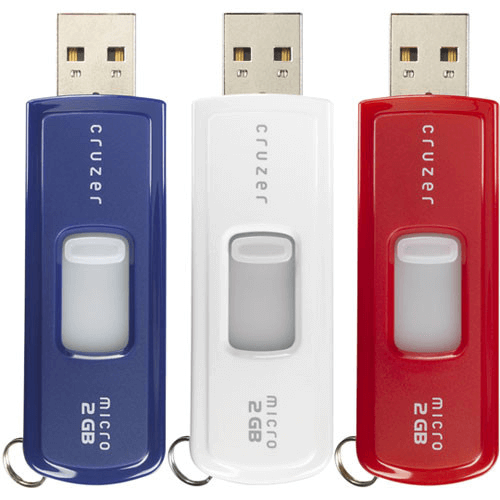
Why Data Loss on SanDisk USB Drives?
Before we jump into the rescue mission, learning why your data gets lost helps. There are some reasons for that problem:
- Logical Failure: This is when the drive's information or operating system becomes corrupted, even though the hardware is fine. It's typically caused by: accidental file deletion, improperly ejecting the drive, a virus or malware infection, an interrupted file transfer, or file system corruption (which can make the drive appear as "RAW").
- Physical Failure: This means the physical device is damaged. It can be visible—like a cracked case, broken USB plug, or water damage—or internal and invisible, such as worn-out memory chips, controller failure, or electrical damage from a power surge. Telltale signs include odd noises, excessive heat, or visible external damage.
Immediate Actions After Data Loss
The following sections will break down this process into clear, actionable phases, starting with the absolute must-dos from the moment you realize data is missing.
Immediate Actions
First, stop using the drive immediately. Do not save new files to it, do not run a virus scan on it, and definitely do not attempt to reformat it if Windows prompts you to. Any new data written to the drive can overwrite the clusters where your deleted files still reside, making them unrecoverable.
Second, if the drive is physically intact, make a mental note of what you’ve lost. This will help later when scanning for specific file types.
Third, check your computer’s recycle bin or any cloud backups to locate the missing files.
Checklist for Your Sandisk Pen Drive
Before firing up any Sandisk pen drive recovery software, run through this quick checklist.
- Inspect the Drive: Give it a once-over for any physical damage.
- Try a Different Port: Sometimes, a dusty or faulty USB port is the villain. Plug the drive into another port on your computer.
- Try a Different Computer: This is a golden rule. If the drive isn’t recognized on your PC, try it on another laptop or desktop. It helps determine if the issue is with the drive or your computer’s USB controller.
- Check Disk Management (Windows) or Disk Utility (Mac): These built-in tools can tell you if the computer detects the drive’s hardware, even if it can’t read the data. If the drive shows up here but has no letter or is marked as “unallocated”, that points to a logical issue, which is good news for recovery.
Does Sandisk Have A Data Recovery Software?
Yes, Sandisk officially recommends and supports Sandisk RescuePRO data recovery software (from LC Technology), which can recover deleted or lost files (photos, music, videos, docs) from their USB drives, SD cards, micro SD, CFexpress cards, and other flash media, often with a license key provided with the product, though you can download and try it first.
Recover Files from SanDisk USB drive via RescuePRO
To show you how to recover deleted or lost files using SanDisk RescuePRO, check the following steps:
1. Please download SanDisk RescuePRO from the SanDisk website and install it.
2. Connect your SanDisk USB drive to your computer. Then launch SanDisk RescuePRO.
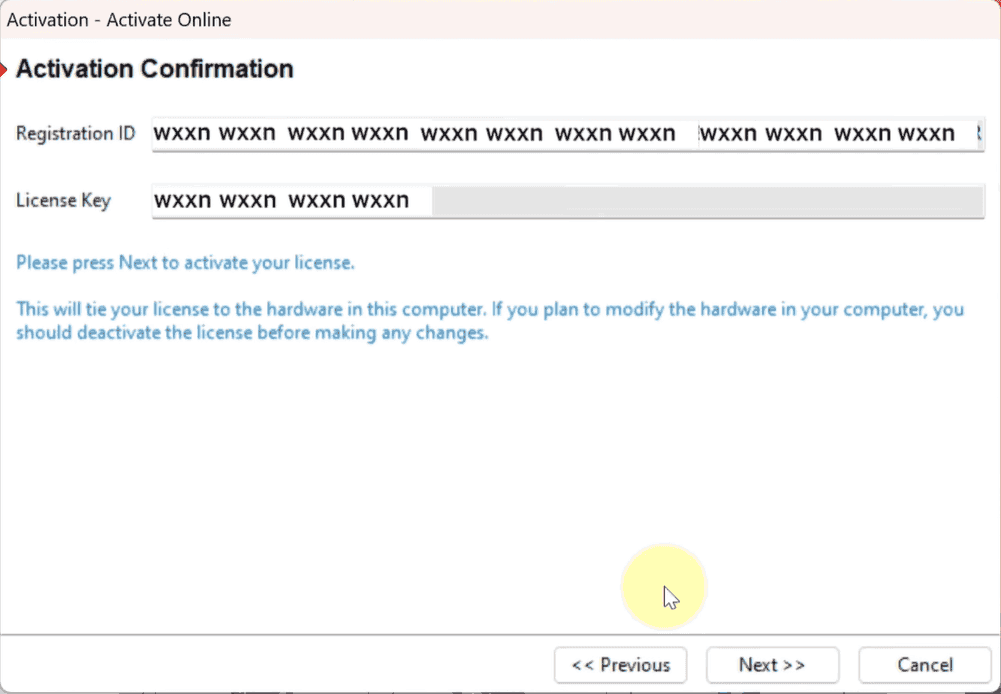
3. Input the license key to activate the software. You can find the license key with your SanDisk package.
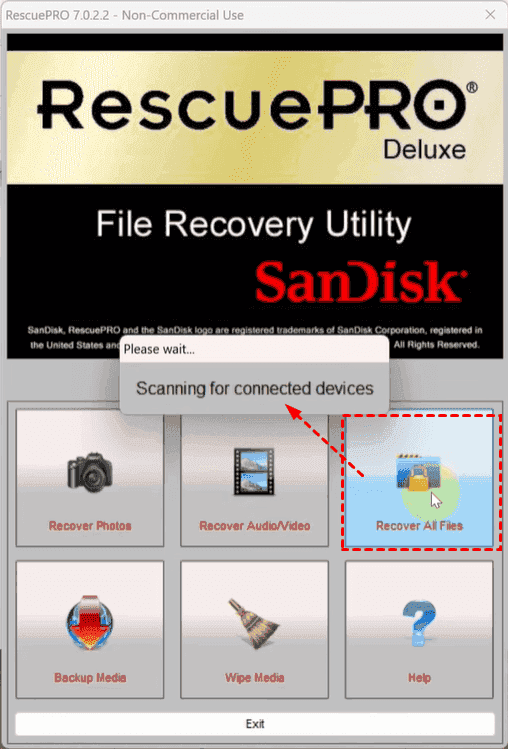
4. Choose Recover All Files, and it will start scanning your connected devices.
5. Tap to select your SanDisk USB drive where you need to recover files, and hit Start.
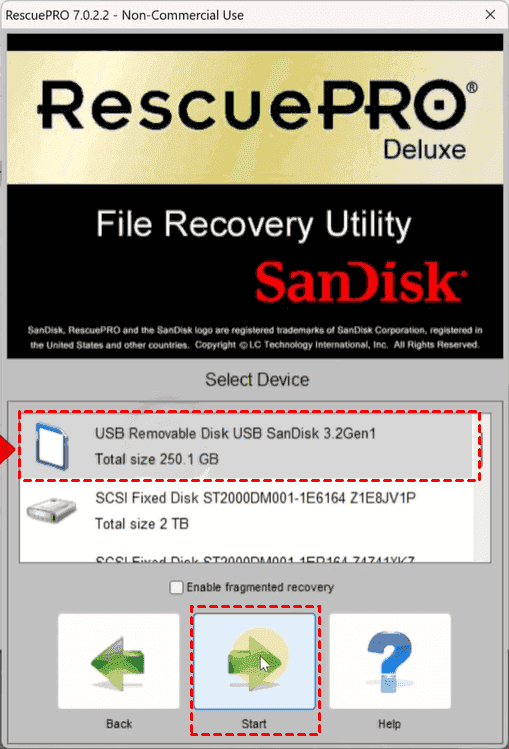
6. It will take a few hours to complete the scanning. Please wait patiently.
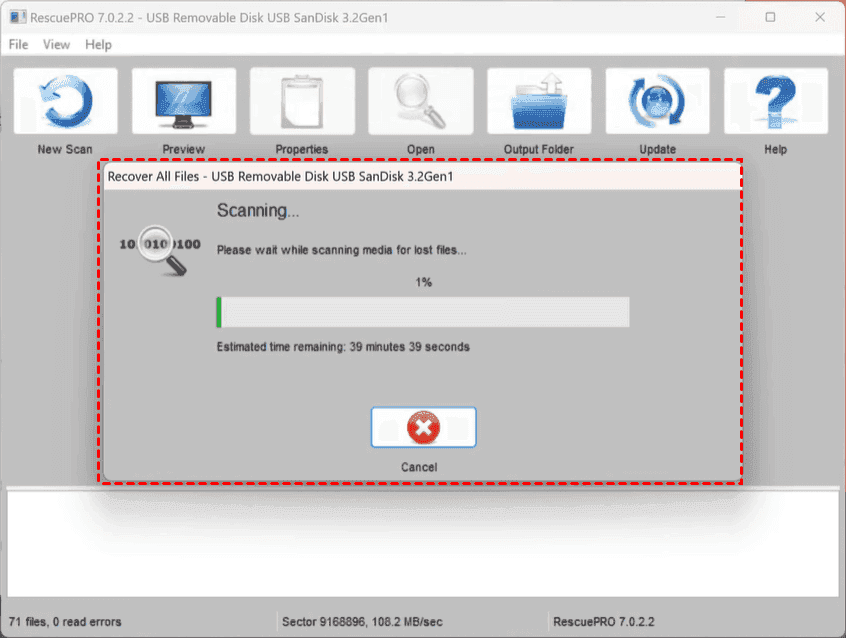
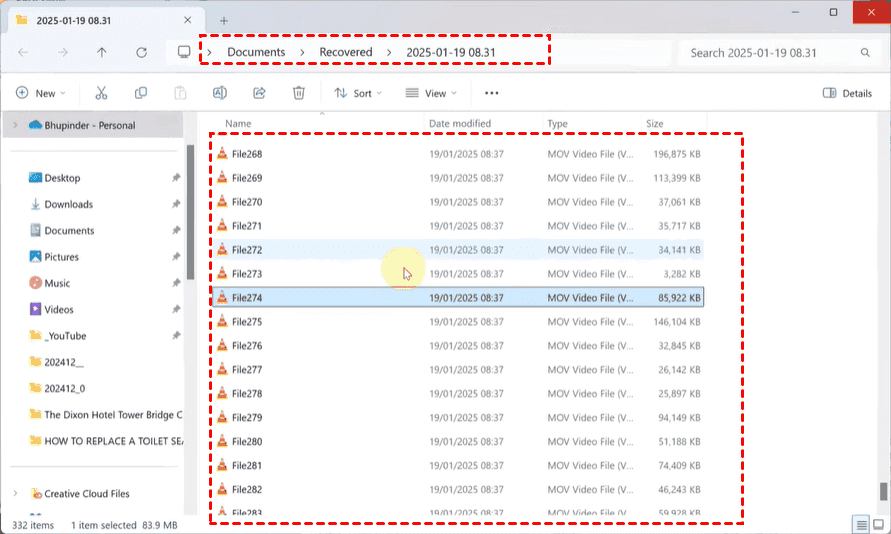
7. Once the recovery process is complete, it stores all the recovered files on your hard drive. Click "Output Folder" to check them.
- Tips:✎...
- SanDisk RescuePRO changes the name of all recovered files, starting with File, like File001, etc.
- By default, the recovered files are stored in your user's home directory (usually C:\Users\YourName\Documents\Recovered), but you can choose any location with enough space on your computer's hard drive.
SanDisk Pen Drive Recovery Software Alternative
If you don’t want to waste much more time on data recovery, or you can’t recover files using SanDisk RescuePRO, what should you do? You have to look for an alternative to SanDisk RescuePRO. For the best alternative, you should check the key characteristics.
- Deep Scan Capability: Beyond a quick scan for recently deleted items, it must have a deep or raw scan mode that meticulously combs through every sector for file signatures.
- File Preview: This is non-negotiable. You should be able to see a thumbnail or preview of photos, documents, and text files before recovery to verify they are intact and the ones you need.
- Wide File Format Support: It should recover everything from JPEGs and MP4s to complex ZIP archives and database files.
- User-Friendly Interface: The process should be wizard-driven—select drive, choose scan type, preview results, and recover. Clarity is king when you’re stressed about lost data.
- Abtain Original Name and Folder Structure. Recovering files with the original file name and folder structure is very convenient for you to recover the files you need.
According to the above key characteristics, it’s highly recommended to try MyRecover, which is a professional Windows data recovery software and meets all the requirements above.
So, it’s easy for MyRecover to perform SanDisk USB data recovery. Check the simple guide:
1. Download and install MyRecover on your computer. Connect your SanDisk USB drive to your computer.
 100% Secure
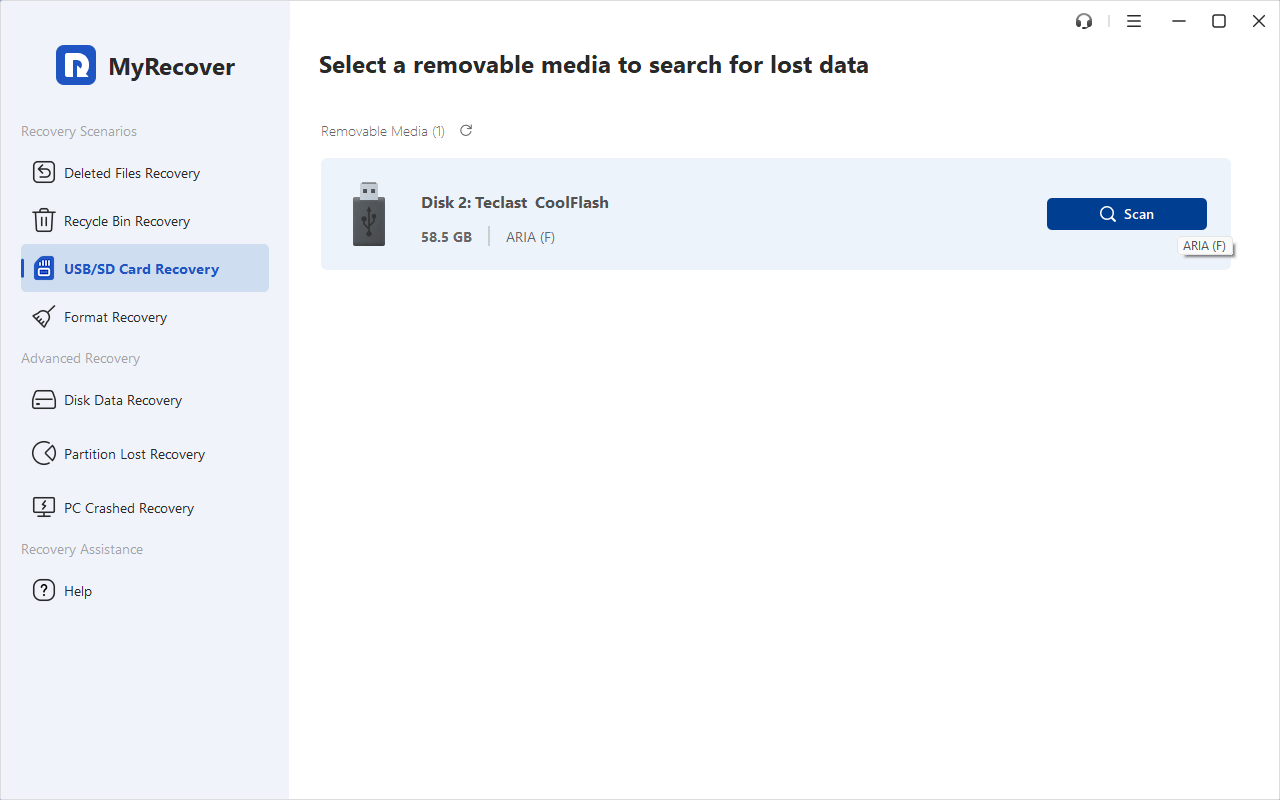
2. Run MyRecover, tap USB/SD Card Recovery, choose your SanDisk USB drive, and hit Scan.
3. Wait for the scanning to complete and hit OK. All the recovered files will be listed by type.
4. Preview and select the lost files and hit Recover.
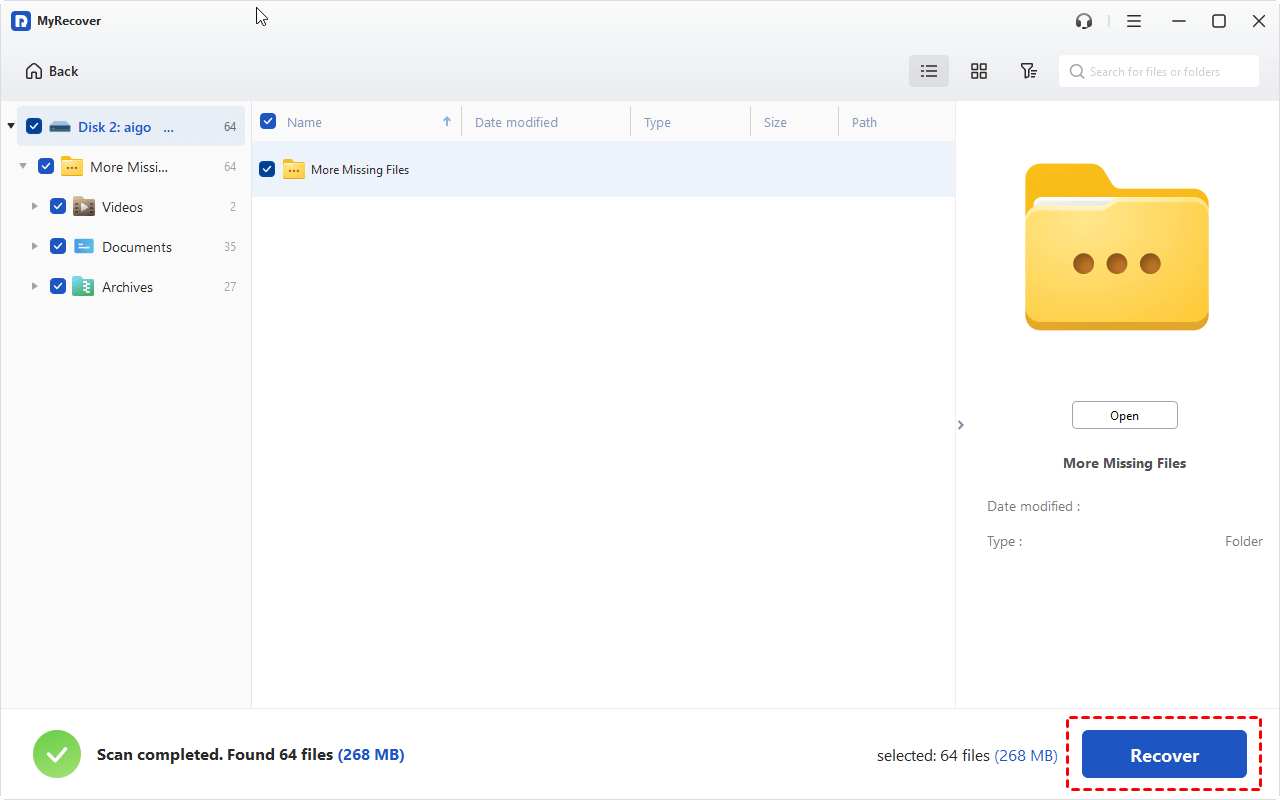
5. Opt for a destination to save these recovered files safely.
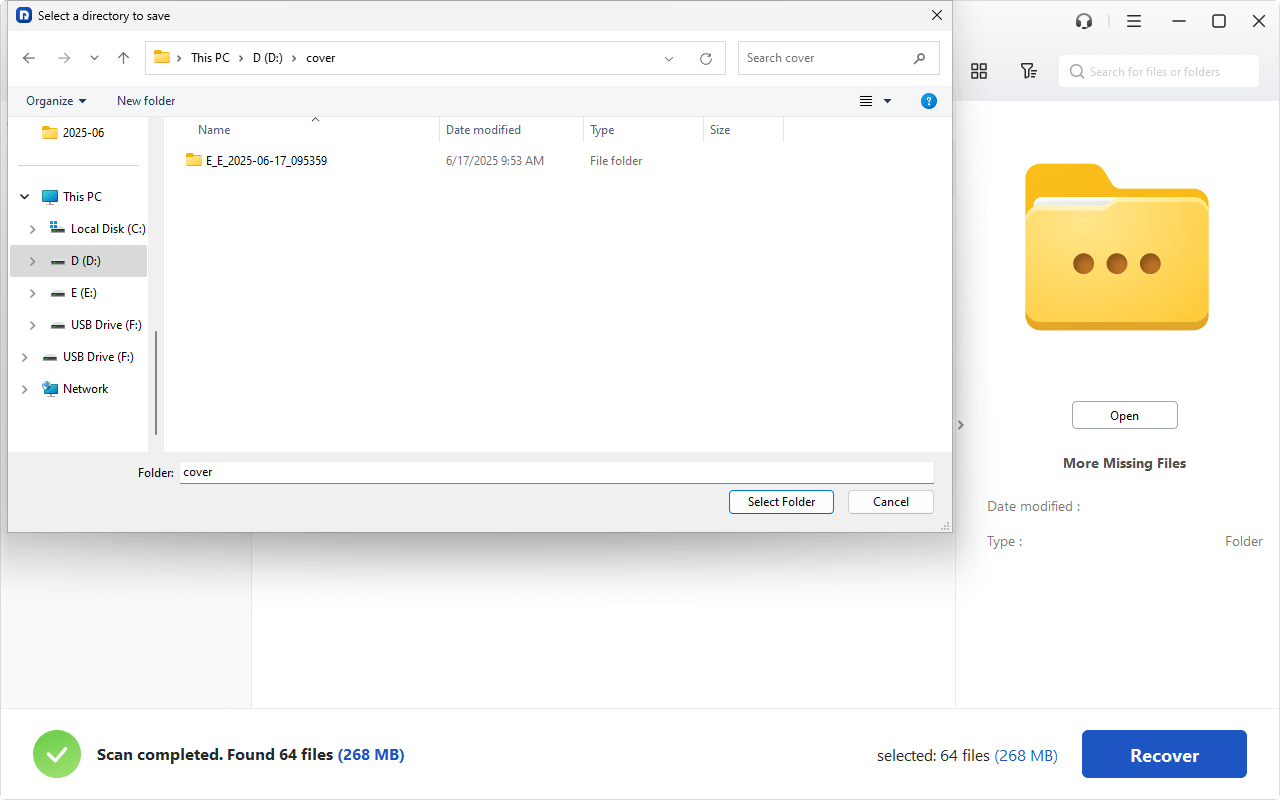
- Notes:✎...
- Once scanned, you can use a filter to narrow down the results, like searching files by name, size, path, etc.
- Before recovery, you can double-click the files to preview, allowing you to verify it’s the correct, uncorrupted file.
- Besides, you can also try MyRecover Technician to enjoy more powerful features, like recovering files from unlimited computers within your company, etc.
Once finished, navigate to the destination folder you chose—your recovered files from your SanDisk drive should now be there, safe and sound.

 MyRecover
- Recover Deleted Files Easily with Simple Clicks
- 1000+ File Formats Supported
- Support HDD, SSD, External Hard Drive, USB Drive, SD Card, etc.
- Quickly Find Files Using File Types, Name, Size, etc.
- Preview Files Before Recovering
- Recover Unlimited Data
 100% Secure
What If Your SanDisk USB Drive is Corrupted or Undetected?
What if your SanDisk USB drive isn’t just missing files, but your computer acts like it’s not even there? Or what if it’s physically damaged? If your SanDisk Drive is not showing up, try the following guide to troubleshoot:
Part 1:
If your SanDisk drive is not appearing in File Explorer or on the desktop, try this:
1. Open Disk Management in Windows. If the drive appears here but is listed as “Unallocated” or “RAW”.
2. The file system is severely damaged, but the data is likely still physically present.
3. Do not initialize or format it here.
You can first try the SanDisk data recovery software, which can bypass the corrupted file system entirely.
Part 2:
If the drive doesn’t appear in Disk Management at all, try a different port and computer test again. If it’s still invisible, the issue may be a failed USB controller on the drive itself, edging into physical failure territory.
When you suspect physical damage—a bent connector, water exposure, or the drive is dead silent and cold. Your best and often only hope is a professional data recovery service. These specialists work in dust-free cleanrooms, using specialized tools to repair or replace components and directly read data from the memory chips. While expensive, for truly irreplaceable data, it can be worth the cost.
Prevent Future Data Loss on SanDisk Devices
Once you’ve rescued your data, it’s the perfect time to build better habits to shield yourself from future panic.
- Always Eject Safely: Use the “Safely Remove Hardware” icon in Windows or the eject function on Mac. This ensures all write processes are complete.
- Avoid Physical Stress: Don’t leave it in a hot car, don’t bend it, and keep it in a protective case when not in use.
- Keep it Clean: Periodically scan it for viruses, especially if you use it on multiple computers.
- Don’t Fill it to the Brim: Leaving 10-15% free space can help with performance and longevity.
- Follow the 3-2-1 Backup Rule: Keep 3 total copies of your data, on 2 different types of media (e.g., external hard drive + cloud storage), with 1 copy stored off-site (like in the cloud or a safe deposit box). Automatically backs up files to a cloud service like Google Drive, OneDrive, or Backblaze, where possible.
FAQs on SanDisk USB Recovery
Can I recover permanently deleted files from a SanDisk USB drive?
Yes, usually. "Permanently deleted" files often remain until overwritten. Stop using the drive immediately and use recovery software to scan and restore files. Success is likely if no new data has been written.
What is the best free software for SanDisk USB data recovery?
Try free tools like MyRecover, Recuva, or Disk Drill. They let you scan and preview recoverable files, but often limit how much you can restore (e.g., 500MB–2GB). Test a few to see which works best before considering paid options.
Why is my SanDisk USB drive not detected by my computer?
Try a different USB port or computer first. If it works elsewhere, the issue may be your PC’s drivers. If it’s not detected anywhere, check Disk Management in Windows. If it appears as "Unallocated" or "RAW", data recovery software may help. If it doesn’t appear at all, the drive may have hardware damage requiring professional recovery.
How can I recover data from a formatted SanDisk pen drive?
If you performed a Quick Format, recovery is usually successful with deep-scan software. Do not add new files to the drive. A Full Format(overwriting data) makes recovery nearly impossible with standard software.
Is it possible to recover data from a broken SanDisk USB connector?
Yes, but this requires professional service. If the internal memory chips are undamaged, a data recovery lab can often retrieve data using specialized tools. Do not attempt DIY repairs, as this may cause further damage.
How do I choose between free and paid recovery software?
Free software is useful for scanning and previewing lost files. If you only need a few small files within the software’s free limit, it may suffice. Paid software removes recovery limits, offers better scanning, technical support, and extra features. Choose based on the value and volume of your data.

Stay Updated With Our
Latest Tips
Add us as a preferred source on Google to never miss helpful guides.
 Add as preferred source >>